Since kara isn’t maintained 2 years ago last time, I have found nokara
Video subtitles to flashcards
Offline video cutter creates flashcards with audio from subtitles, otherwise known as “subs2srs”.
# signature: vesta(mp4,srt) #=> anki(apkg)
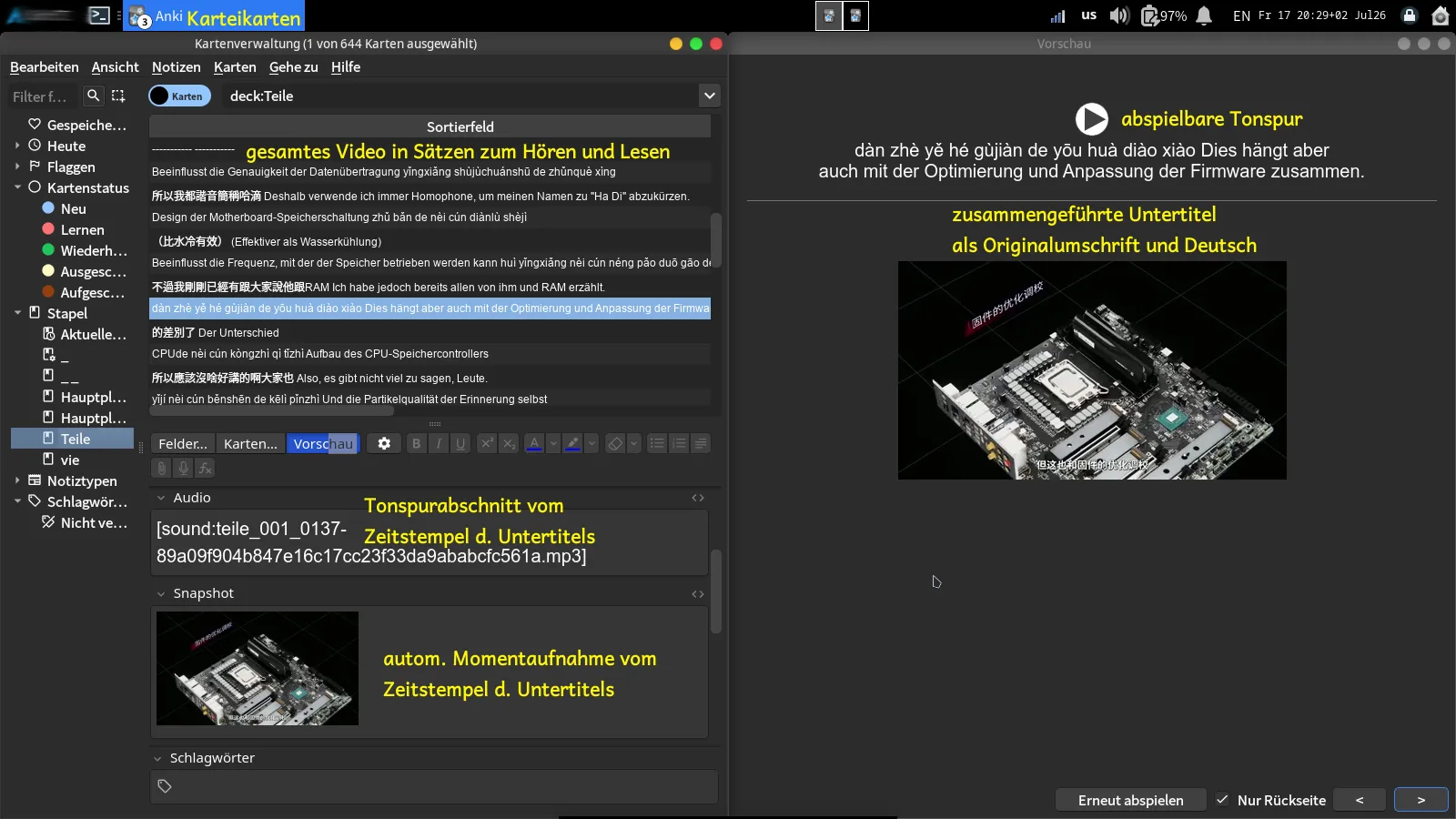
First used in the early 2010s by anime fans and (foreign language) learners to imitate speech and exercise listening skills with anime or any favorite movies (Harry Potter, Amélie etc.)
This is a faster, more powerful re-implementation by an Italian computer-science student, hence “Vesta”. It’s bleeding edge, the developer responds to bug reports almost instantly and automatically pushes new builds to the AUR.
Target app is Anki, but *.tsv is available.
Usage 

-
YouTube: Download
-
Vesta (Windows, Arch Linux, Debian, Fedora, Flatpak):
-
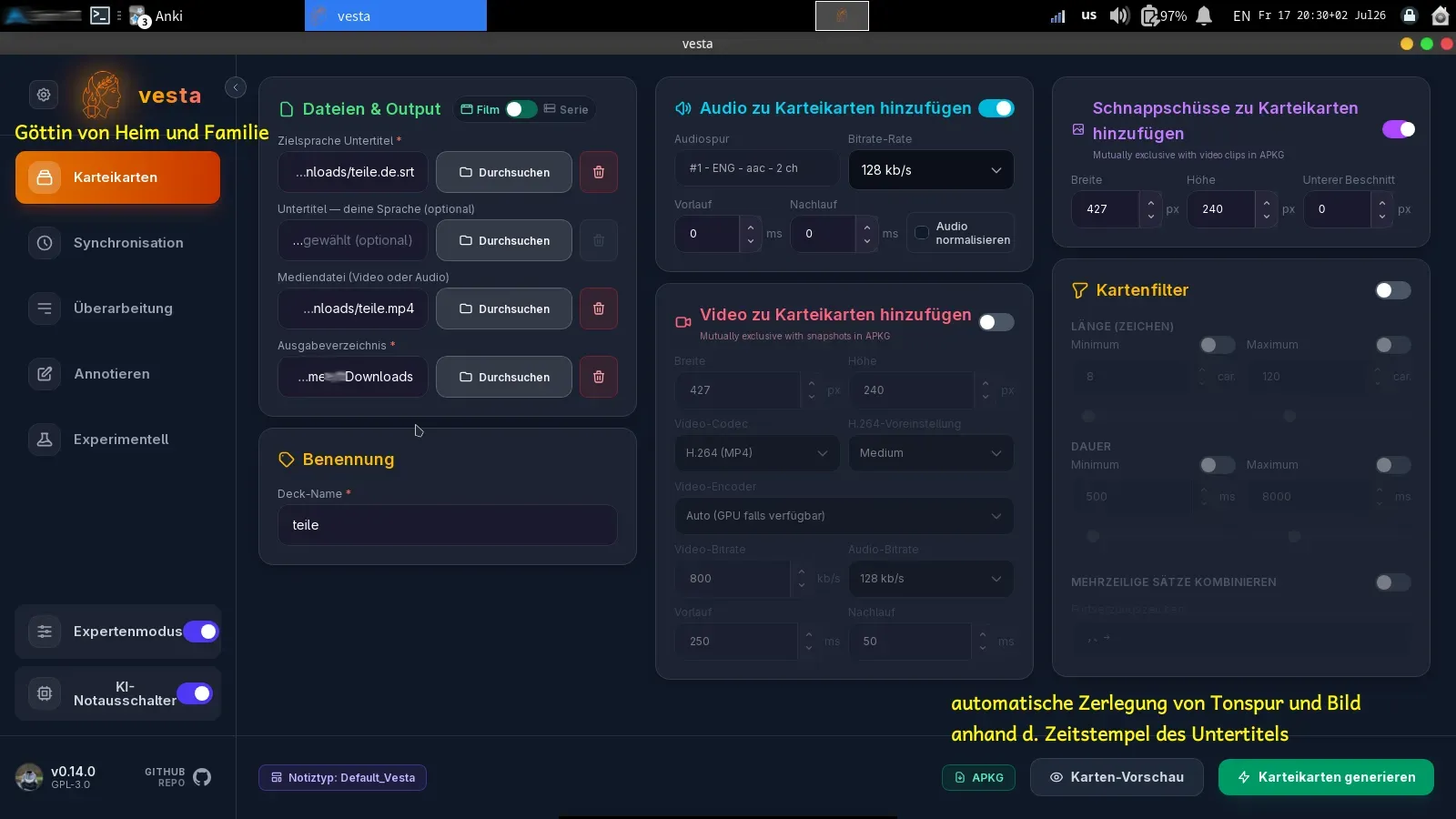
Select
srt-file for the “original subtitle track”, -
select
mp4-file for the “media file (video or audio)”, -
click “generate flashcards”.
-
-
Anki (Windows, Arch Linux, macOS, iOS, Android):
-
Anki menu: File > Import: select
apkgfile. -
Anki menu: Tools > Study Deck > Study Now.
-
Anki card:
-
press
space, shows answer, shows next card, -
press
Rfor replay, -
press
1, shows card in one minute, -
press
2, shows card in ten minutes, -
press
3, shows card in a day, -
press
CTRL+DEL, to delete a card.
-
-
Anwendungshinweis 


-
YouTube: Lade herunter
-
Vesta (Windows, Arch, Debian, Fedora, Flatpak):
-
wähle
SRT-Datei für »Zielsprache Untertitel«, -
wähle
MP4-Datei für »Mediendatei (Video oder Audio)«, -
klicke »Karteikarten generieren«.
-
-
Anki (Windows, macOS, Linux, iOS, Android):
-
Ankimenü: Datei > Importieren: wähle
APKG-Datei. -
Ankimenü: Extras > Stapel lernen > Jetzt lernen.
-
Ankikarte:
-
drücke
Leerzeichen, zeigt Antwortseite, zeigt nächste Karte, -
drücke
Rfür Zurückspulen und Abspielen, -
drücke
1, zeigt Karte in einer Minute, -
drücke
2, zeigt Karte in zehn Minuten, -
drücke
3, zeigt Karte am nächsten Tag, -
drücke
Strg+Entf, um die Karte zu löschen.
-
-
Sprechen Sie mit Ihrem Arzt oder Apotheker: Englischsprechtraining für Deutsche und den typisch-deutschen Akzent loswerden; Deutschsprechtraining für Syrer und Ukrainer; Hochdeutschsprechtraining für Hessen, Sachsen und Kiezsprecher; etc.
I’ve been experimenting with the Chromium Tab++ extension in the Helium browser, and I’ve been very favorably impressed with the functionality. Tab++ turns Helium, a simple browser by design, into a browser for power users:
- Users who want an easy way to manage (create, swap, merge, delete) multiple workspaces
- Users who want to protect tabs and tab groups from accidental deletion
- Users who want control over how individual tabs (and tab groups) consume memory
- Users who are not intimidated by a command-line interface (although Tab++ provides a simple GUI for workspace management)
- Users who value a plethora of features, all accessed easily via the CLI, including:
- Time before memory hibernation of individual tabs
- Full-page screenshot (including parts of the page not currently visible)
- Scan, filter, and batch download of images and videos from any page
- Tab-specific volume controls
- Calculator for simple arithmetic operations
- Tool for converting between units (for example, in to cm; rem to px; hash color to RGB and HSL)
- Color eyedropper
- Case converter for text (slug, camel, snake, title, uppercase, lowercase)
- Lorem ipsum generator with the ability to specify text length
Every feature of Tab++ is optional, toggled on or off in the extension’s settings.
I could go on, and there is so much more to say, but the developer has provided clearly written, comprehensive, up-to-date documentation here:
https://cubeseven.github.io/tabplusplus/docs.html
During my testing, Tab++ has worked extraordinarily well, especially for a young project. However, I found that Tab++ does not work well with Chromium’s built-in ability to save tab groups (either automatically or manually) to (and restore them from) the Bookmarks Bar. I resolved this problem simply by toggling off these features in Helium (Chromium) settings:
- Bookmarks Bar: Always show
- Automatically pin new tab groups to the Bookmarks Bar
everyone needs the flexibility of a Chrome knockoff and when it came time to choose, I chose Trivalent over Helium because like you said “simple.” [Brave and Viv way too busy for me.]
But I’m re-thinking my decision. Tab++ intriguing since Triv primarily a work/work project browser. Your ‘plethora of features’ part more to my use case.
What about Brave-origin?
heard of origin but know nothing about it. Is is mean and lean like the two already mentioned?
I haven’t tried Helium or Trivalent so I can’t compare. I am going to try them both now.
I do like these a lot. I wouldn’t say there’s much in it regarding non-bloat but I was only using Brave-origin for lack of options. Going to give Helium a good run. I think Trivalent is probably not aimed at me. I admit I am running it in Fedora due to reasons!
I’ve not used Trivalent or Helium, but I do use Brave Origin.
I’d written off Brave because of the embedded AI. They responded to concerns like mine by stripping-out the AI, and a whole mess of other stuff and fluff, then naming the leaner version Origin. (Still free for Linux, but now a paid application for Windows and Mac.)
I’ve been using it lately because they have kept and enabled ad blockers, script blockers and other Manifest V2 privacy-oriented extensions that no longer work under V3. (They’re buried deep in the Extensions tab, under Manfiest V2. I expected to find them under Privacy and Security.)
Personally, I don’t care about the ad blockers because my VPN strips them out at the DNS level. But the other things help me get around paywalls and the “Please enable javascript because our surveillance doesn’t work without it” messages, where the Chrome-based browsers that have dropped V2 let all the surveillance and ads through.
There are convenience and bookmark features I miss from other browsers, but the core function of fewer distractions and less surveillance are more important to me. YMMV.
I know you’ve recently acquired a low-spec older laptop. I don’t have specific RAM use figures, but it runs just fine in my old low-spec laptop, although I have more installed RAM. I imagine that since it’s still chromium at heart, that it’s still a pig.
Helium gets more lip service but I’ve run them both and can’t tell the difference except Helium eliminates the whole password thing. Thanks for getting back on this.
that answers my question, thank you. I cannot say that ^ about other versions of Brave. The laptop is emergency-only-I have a healthy desktop as main computer. All the same, Shields was my favorite feature of Brave proper. Glad they preserved this in Origins. thank you for your reply.
I have had 2 crashes (total lockups, no input have to hard reset) due to GLIB errors in brave-origin. (I’m not sure what that means). Internet searching said it was probably due to Wayland and recommended disabling acceleration and it didn’t happen again. Ymmv.
I really like Helium and will likely stay with it as long as it supports UBO.
I just came across this useful tool today, as it makes managing my dotfiles easier than how I was doing it before.
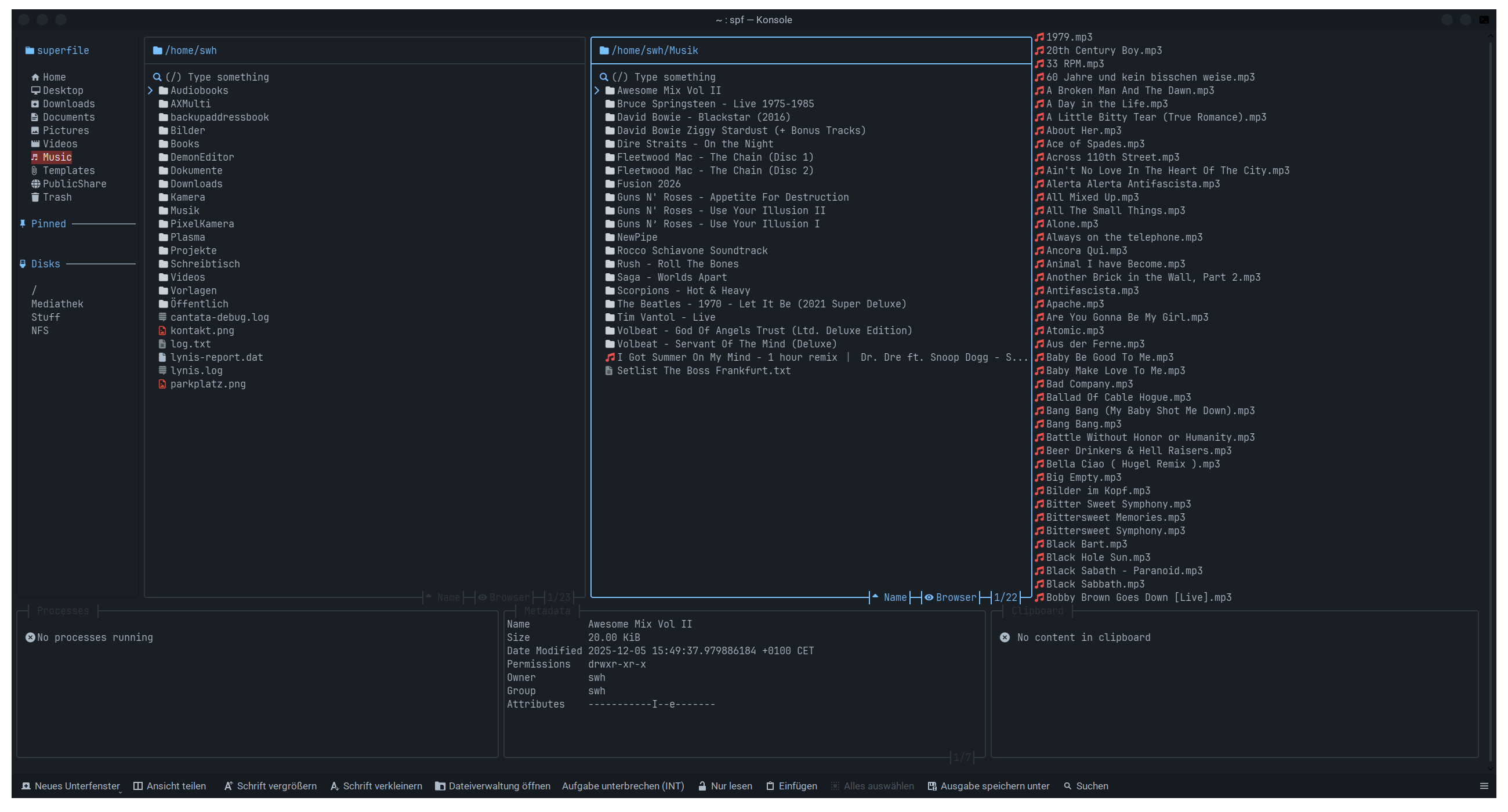
If you follow the breadcrumbs you can get their resume. https://resume.yorukot.me/en.html
Saw that too, but as I spend some time to overhaul my yazi configuration and added yafile to achieve essentially the same graphical pattern as my tide prompt, I guess I’ll pass on superfile as I would be yet another configuration effort to tackle.
But I do like the aspect of that sidebar. But would miss the previewers that are already available within yazi, as seen in that screenshot below, in yazi the previewer rich does format '.md files instead of rendering them as plain text. But also other file formats such as xls or even databases such as duckdb, yazi got plenty of plugin options to preview specific file formats within the terminal.
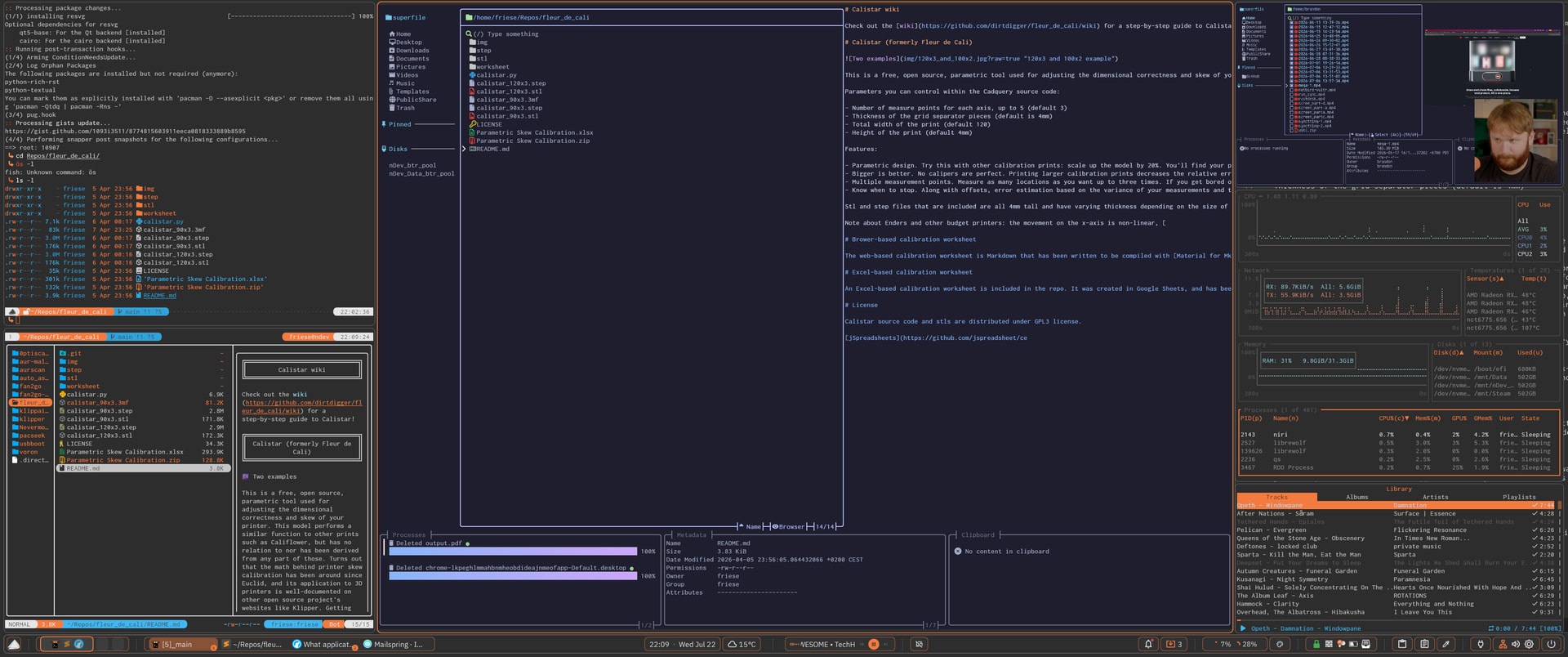
But color gradients within the terminal ? Thats almost as bad as rgb lighting in general. 
I wished I was able to get Yazi preview LibreOffice docs on ArchLinux and KDE Plasma. It did not work.
Well, it’s still an TUI application and it’s previewer plugins can’t invoke a fully fledged UI environment. Nevertheless, the Open Document specifications does include Thumbnails within the file format.
And I guess you could at least preview these thumbnails by the use of :
ya pkg add macydnah/office
According to the repo https://github.com/macydnah/office.yazi, it requires libreoffice and pdftoppm within your Path. Poppler should include pdftoppm, if I’m not mistaken.
Will check this afternoon if I can get it to work.