I transferred some files on to an external drive, but when I click on disks and devices to safely remove I get a message saying One or more files on this device are open within the application. I don’t have any files open and I closed out all the file manager windows, so I’m very confused can someone help?
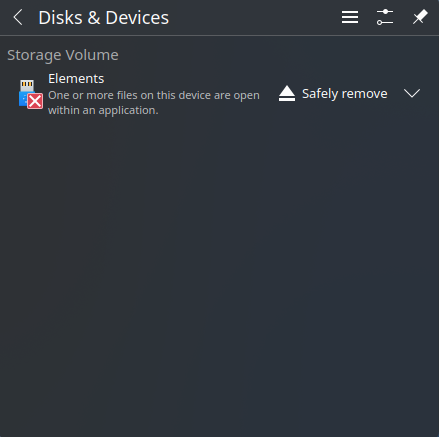
You can try command
ps -ef | grep ^$USER | less
to see a list of commands you have started.
Hopefully you’ll find the related app.
The easiest might be to type sync in a terminal. This forces all yet unwritten data from RAM to the disk. There’s a good chance you can safely remove your device afterwards (wait until the prompt reappears).
Alternatively, you can just wait a while—when requesting an unmount, the system knows it should write unwritten data to a device first, but that can sometimes take a while (assume a 50 GB video file, for example, onto a slow USB stuck).
Also ensure that no application has its current working directory on or within the device’s mount path (i.e., a terminal and you cd’ed into the device folders, or a file manager and you’re looking at some sub-folder within the device)!
Note: File managers can be most notorious with their “thumbnail indexing”—they tend to build a cache of small thumbnails for all images/videos found on a device, in order to display those faster. These processes typically run in the background and can take a real long time if you have many images and/or videos. This sometimes also accounts for “unexplained” high CPU usage on systems that should be just idling. See How to stop localsearch (Cinnamon, GNOME, …) wasting CPU & WiFi bandwidth.
The next is to diagnose if someone or something is actively keeping a file open, or sits in a terminal with the current working directory within the drive.
Let’s do a quick example: I insert my “Ventoy” USB stick, open the file ventoy/ventoy.json using less in another terminal, then try to unmount the stick. I get a notification:

Since I know that “SP DS72” is my Ventoy USB stick, lets quickly list block devices:
$ lsblk
NAME        MAJ:MIN RM   SIZE RO TYPE MOUNTPOINTS
sda           8:0    0 232,9G  0 disk
├─sda1        8:1    0 232,9G  0 part /run/media/matthias/Ventoy
└─sda2        8:2    0    32M  0 part
nvme0n1     259:0    0 476,9G  0 disk
├─nvme0n1p1 259:1    0     2G  0 part /efi
├─nvme0n1p2 259:2    0 457,9G  0 part /
└─nvme0n1p3 259:3    0  17,1G  0 part [SWAP]
Ah, /dev/sda1 is mounted on /run/media/matthias/Ventoy! This is our guy. We can address it using either the /dev/sda1 (shorter) or the mountpoint /run/media/matthias/Ventoy (more explicit). I’m using the shorter /dev/sda1 in the examples below.
We can find the process(es) using that device/mount point using fuser:
$ fuser -mv /dev/sda1
                     BEN.        PID ZUGR.  BEFEHL
/dev/sda1:           root     kernel mount /run/media/matthias/Ventoy
                     matthias   4459 f.... less
This shows us the kernel has mounted /dev/sda1 to /run/media/matthias/Ventoy as root, and the user matthias is accessing a file using less.
To be sure, we can also list open files using lsof:
$ lsof /dev/sda1
COMMAND  PID     USER FD   TYPE DEVICE SIZE/OFF NODE NAME
less    4459 matthias 4r   REG    8,1     2035  193 /run/media/matthias/Ventoy/ventoy/ventoy.json
We see that process 4459 (less) is used by matthias to watch the file /run/media/matthias/Ventoy/ventoy/ventoy.json.
Now we can go to the other terminal, close less, and the system will happily continue unmounting/safely removing the device! It even pops up a notification that the drive can now safely be removed—I was just not fast enough for a screenshot.
Note: If really, really needed, we could even kill the process. But be careful with such drastic measures, as you coud lose data!
What about simply trying poweroff within a terminal? Wouldn’t that wrap up any active processes and gracefully unmount the drive before shutting down?
It depends on a system setting for the shutdown process. The process is unmounting the device even if the sync isn’t complete. Linux Mint sets this time to 10 seconds in LM22, just for user convenience.
Didn’t know this. Thanks.
For a bit background information I’ll post the
/etc/systemd/systemd.conf.d/50.linuxmint.conf.
# To override these values, create your own file in /etc/systemd/systemd.conf.d/60_custom.conf.
# Reload configuration with "sudo systemctl daemon-reload"
# Test with "systemctl show"

[Manager]

# Reduce shutdown timeout from 90s to 10s.
# If you rely on important tasks to successfully finish during the shutdown sequence, set the timeout to something greater than 90s.
DefaultTimeoutStopSec=10s

# Rationale:
# This is done for the following reasons:
# - 90s is too long for users to wait (they think it's hanging indefinitely, and they eventually just use their power button)
# - Cups, minidlna have made this a buggy mess for years now and there's no sign of improvement for the near future
# - This is a workaround many people have used in Mint, Ubuntu, Arch, Fedora and many other distributions, although reducing the start
# timeout is known to possibly affect the journal, no adverse effects were reported after reducing the stop timeout.
# - For our audience (desktop users), this makes a lot of sense. It would be different for a server, or a machine which relies on shutdown
# scripts to perform important tasks, but for most people this fixes a very important issue and is unlikely to create new ones.
The row with DefaultTimeoutStopSec=10s is the only configuration, the rest is comment why they decide to do that.
Thanks for showing. I still feel this being kinda dangerous game… have seen stuff that takes more than 90s (and then still succeeds if not aborted early), especially on machines with lots of RAM.
Me too, that’s why I have another configuration file with a way higher value for the timeout. If the shutdown really hangs, I’ll see it. I realy like to see the text at start and shutdown. If I can’t read it because it’s too fast, I know everything is fine 
That information was mentioned in of of the monthly newsletters before LinuxMint22 was launched, and I stumbled upon it randomly.
Yup, I also never hide the startup/shutdown text. I mean it shows the timers counting down, and what’s holding it up.
My experience is that such delays are mostly caused by database transactions that need to be finished, RAM disk buffer syncing to drives, and also syncing remote file systems (NAS etc.). Well, or bugs…
Always better educating users to make their own good decisions than to assume or doing stuff just “because it looks faster”.