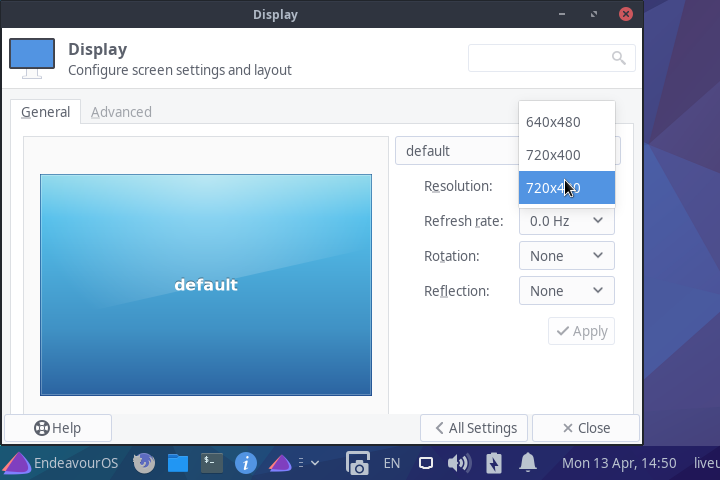
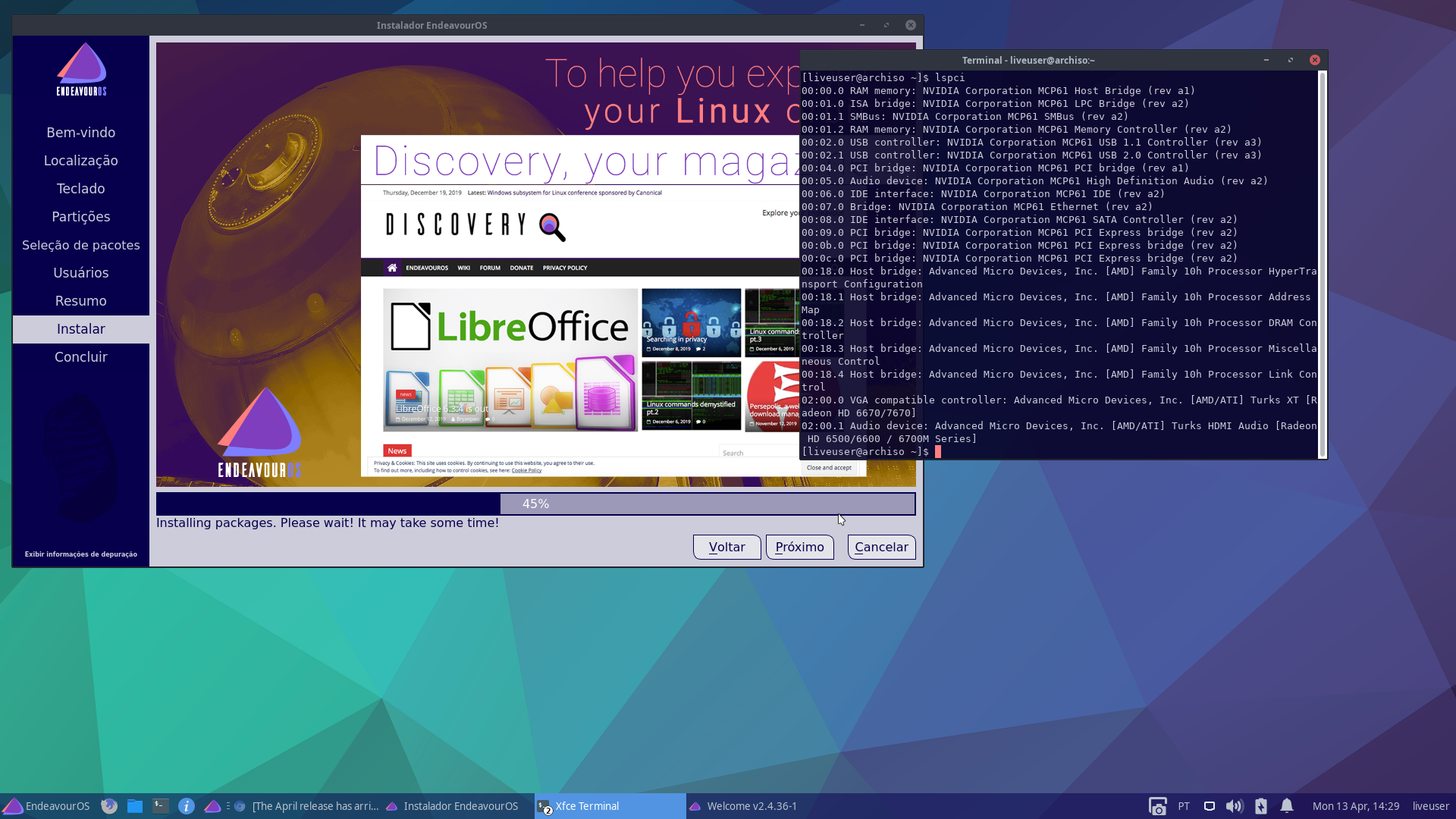
About DPI it’s GTK which pass up Calamares font settings, that’s why is necessary to reload the right DPI settings on XFCE based on GTK before to open Calamares…even if you see 96DPI by default, it seems to not be activated…
I knew this problem would appear, in futur, would be necessary to deal with CSS on GTK to resolve it…
@Fernandomaroto,
Here’s the output of pacman -Q |grep xf86 with the 2019-12.22 ISO, which works fine.
I have not tried to install the new ISO, because the screen is so huge and out of proportion, so I didn’t continue.
I see a video-intel is it necessary to have it here ?
Could you show me a screenshoot of your huge screen after followed these steps :
1/ after start the ISO open Appearance like @ricklinux explained you
2/ change DPI to 101 and close the Appareance
3/ reopen Appearance then change to 96 DPI to get it activated and close it
4/ open Calamares and send me a screenshot
I noticed that your motherboard Bios is from 2014 the latest one is about F7 2015/08/21 could be not worth to use the latest…
If you want us to resolve it give us the result of :
I’ll follow-up your suggestions and give you the results later on tonight, but why the previous ISO worked fine, or any other distros? Also I really don’t need to install this. After all, I was just trying to test the new ISO. Perhaps you should consider to make a revision in your future ISOs, so it’s more compatible!
I also had a problem when booting the ISO image with a Radeon 6670, the solution was to edit the initial boot line and activate radeon.modeset to 1, only the i915 and nouveau options were active.
As soon as I finish the installation on the HD I send a screenshot of the problem.
With radeon.modeset=0
dmesg | grep radeon
[    0.000000] Command line: BOOT_IMAGE=boot/x86_64/vmlinuz archisobasedir=arch cow_spacesize=10G archisolabel=ENDEAVOUROS nouveau.modeset=1 nouveau i915.modeset=1 radeon.modeset=0 modprobe.blacklist=nvidia initrd=boot/intel_ucode.img,boot/amd_ucode.img,boot/x86_64/archiso.img
[    0.061747] Kernel command line: BOOT_IMAGE=boot/x86_64/vmlinuz archisobasedir=arch cow_spacesize=10G archisolabel=ENDEAVOUROS nouveau.modeset=1 nouveau i915.modeset=1 radeon.modeset=0 modprobe.blacklist=nvidia initrd=boot/intel_ucode.img,boot/amd_ucode.img,boot/x86_64/archiso.img
[    3.912023] [drm:radeon_init [radeon]] *ERROR* No UMS support in radeon module!
[   10.483269] [drm:radeon_init [radeon]] *ERROR* No UMS support in radeon module!
@ricklinux,
The bios is set on Legacy only, but I also changed the bios to Legacy and UEFI, and it didn’t make any difference. I’m very curious as to how did the older ISO worked so perfectly, or what was is based on?
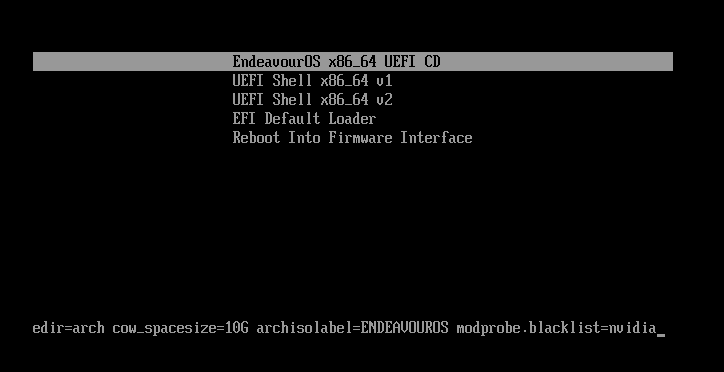
When you are booting on the ISo is it using Bios or UEFI oon the screen when it starts? You obviously have a UEFI System. The Uefi screen entries are just black single line entries. The Bios is colored and larger.
Okay so now i just need to know if you are booting on Bios because i think you are and it is a kernel parameter that i causing this. Do you know the difference when you see it on the boot screen? Bios boot gives you a menu and it is colored and larger print and UEFI is just smaller black entries.
The display on top of the screen says GIGABYTE - UEFT BIOS. when in insert the usb stick and hit F12 I get into boot Eos default (x86_64) and so on. That how I install any Linux distro, and I already have eOS installed (2019.12.22) version.
I know it say’s UEFI but is it booting the ISO on UEFI? That’s all i’m trying to determine because it makes a difference. So i have provided examples so you can see the difference. I know you already have it installed but the ISO can’t be fixed if we don’t have the information to understand what the issues are. If it is booting on Bios then i will guarantee it’s probably the radeon modesetting that is causing the issue. If not then it’s something else. That’s all i’m trying to determine because i have already tested it and confirmed.
You are a genius! It worked as soon as I changed it to UEFI only. Now the screen is normal. I thought linux didn’t care about UEFI. That’s Windows crap!
I’ll explain it to you. If the iso is booting in Bios mode the screen will look different for one thing and it has a kernel parameter in the boot sequence that say’s radeon.modeset=0 This is the problem because when it boots and the kernel starts to load it is making a change in boot parameters. You have a Radeon HD 7450 and so do i among other Radeon cards. What is happening is that is is setting the wrong resolution and therefore the DPI is off so the graphics is messed up.
Edit: I may not be explaining it exactly correctly but in a round about way that i understand and hopefully you will.