These are just my notes on NFS setup using KDE
I think I have them down like I wanted, but feel free to chime in on something that may be addressed.
I just got uppity and thought I’d post something.
start new machine refine instructions
NFS setup with KDE Plasma using console & menu
on server/machine to share file/folder
$ timedatectl
$ sudo timedatectl set-ntp true
$ sudo hwclock --systohc
NFS Utils install to server=where you need to pass files
install to client=your everyday machine
$ sudo pacman -S nfs-utils
do on client and server
$ sudo systemctl start rpcbind
$ sudo systemctl enable rpcbind
$ rpcinfo -p
Create dir to share
/home/user/Gate-2/
Update exports file
NFS is configured by /etc/exports
You can use any text editor you like.
text edit with console - nano, vim, other
text edit with KDE - Kate
I use desktop tools as a helper to navigate linux structure.
In order to speed up things I do on my system, I have
kde-servicemenus-rootactions installed. If your carefull and mind your actions
when right clicking you can do some actions and tasks faster at the same time while learning.
This is just a preferance I have so, just saying bc I don’t recall if kate will save a root file
without rootactions installed or not.
$ sudo nano /etc/exports
To share a file, the syntax is (). Here is an example that will share somefolder to the entire network. Relace * to a specific IP address if you want:
usage
/home/user/somefolder *(rw,sync)
add to file
#/home/user/Gate-1 *(rw,sync) #all network
#/home/user/Gate-1 jumper5(rw,sync) #to target machine by hostname
/home/user/Gate-2 192.168.1.150(rw,sync) #to target machine by ip
save file
next in console
Apply the changes by doing a exportfs command.
$ sudo exportfs -rav
start the nfs server
$ sudo systemctl start nfsv4-server.service
enable server to start at boot
$ sudo systemctl enable nfsv4-server.service
other notes in case you ef something up
sudo systemctl start nfsv4-server.service
sudo systemctl restart nfsv4-server.service
sudo systemctl stop nfsv4-server.service
sudo systemctl enable nfsv4-server.service
sudo systemctl disable nfsv4-server.service
systemctl status nfsv4-server.service
check output of
on server
$ showmount -e 192.168.1.100
Export list for 192.168.1.100:
/home/user/Gate-2 192.168.1.150
on client
sudo systemctl start nfs-client.target
systemctl status nfs-client.target
sudo systemctl enable nfs-client.target
sudo mount -t nfs 192.168.1.100:/home/user/Gate-2 Gate-2
reboot if you like to check output is running at boot
$ showmount -e 192.168.1.100
Export list for 192.168.1.100
/home/user/Gate-2 192.168.1.150
Firewall - for nfsv4 should only need port 2049
GUFW - open port tcp 2049 for nfsv4
sudo ufw allow in from 192.168.1.150/24 to any port 2049
Firewalld - for nfsv4 should only need port 2049
firewall-cmd --permanent --add-port=2049/tcp --zone=home
Notes
on client your everyday machine
make your dir either right click with KDE or use cli
$ mkdir /home/user/Gate-2
now mount it
$ sudo mount -t nfs 192.168.1.100:/home/user/Gate-2 Gate-2
edit etc/fstab to mount at boot on your everyday machine
#servername:/video /mountpoint/on/client nfs defaults,timeo=900,retrans=5,_netdev 0 0
#192.168.1.100:/home/user/Gate-2 /home/user/Gate-2 nfs defaults,timeo=900,retrans=5,_netdev 0 0
#another option to help with lockups
192.168.1.150:/home/user/Gate-1 /home/user/Gate-1 nfs _netdev,noauto,x-systemd.automount,x-systemd.mount-timeout=10,timeo=14,x-systemd.idle-timeout=1min 0 0
192.168.1.100:/home/user/Gate-2 /home/user/Gate-2 nfs _netdev,noauto,x-systemd.automount,x-systemd.mount-timeout=10,timeo=14,x-systemd.idle-timeout=1min 0 0
reboot all for test auto mount
YAY…no sparks 
Now as far as KDE is concerned. In your dolphine menu, under remote, you should see
your mounted directories.
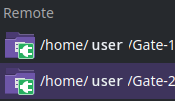
…now in dolphin, right click in Places, add entry & choose icon if you like.

edit:
1 - When a mount closes dolphin seems to crash until mount returns.
2 - etc/fstab has different mount options reducing it to slight lag