https://www.raspberrypi.com/products/raspberry-pi-500-plus/
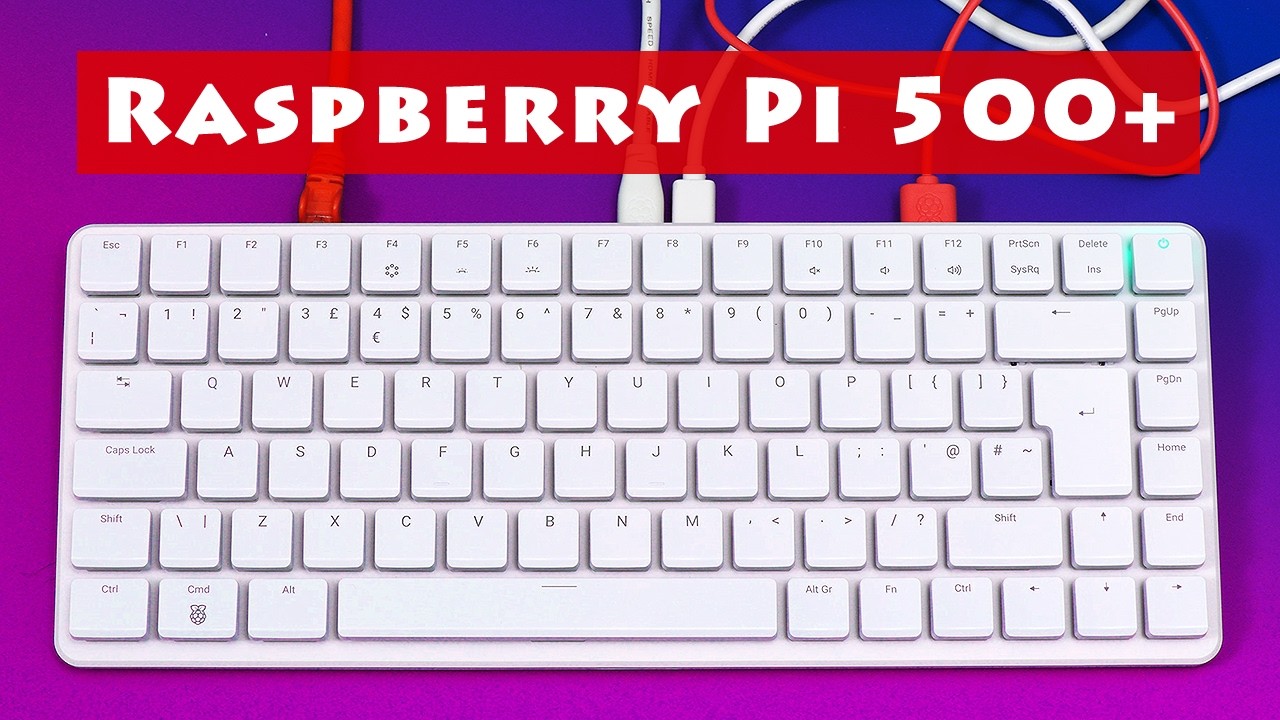
The first raspberry pi I would consider! Normally I buy el cheapo x64 based computers that beat the pants off a Pi.
256gb SSD
16gb memory.
https://www.raspberrypi.com/products/raspberry-pi-500-plus/
The first raspberry pi I would consider! Normally I buy el cheapo x64 based computers that beat the pants off a Pi.
256gb SSD
16gb memory.
I like the EC man.
@xircon
I’m impressed. I have the Pi400 and this is so much better! I might just get one. I find the Pi400 works great with Xfce4 on it but is a little sluggish with Kde. I think this will solve that issue.
Edit: I also like the keyboard way better. I don’t see it here available as a kit yet. So would have to buy the pwr supply and a mouse i guess.
Edit: Revised … I did find they do have the kit with pwr supply, mouse and Pi beginners book also included. I didn’t see it at first … maybe it got added quickly. 
These are pre-orders!
I ordered a RPi 500+ from canakit.com and it took the order and said shipping to the US would be 4 to 5 days.
The only problem I see is installing EnOS on the NVME to replace the installed Raspberry Pi OS. I don’t want to take apart the keyboard to put the NVME on a USB adapter and burn the image. I don’t want to possibly void the warranty.
Oh well, I will just have to wait and see.
Pudge
Is it not possible to boot it up from an external medium?
Yes. My plan is to install EnOS on a micro SD card and hopefully burn the EnOS image to the NVME. But, the boot order of my Raspberry Pi 5 is USB SSD first, micro SD card second. Hopefully, since the RPi 500+ has micro SD, USB SSD, and internal NVME the boot order will be different.
In my humble opinion, the micro SD card should always be checked first to facilitate things like doing an arch-chroot on the internal NVME.
There is a way to write to the SLI and change the boot order, but I haven’t figured out how to specify the different devices.
Pudge
I checked https://raspberrypi.dk (biggest Raspberry Pi -dealer in Nordics), and unsurprisingly it’s version with Nordic keyboard-layout is already sold out. 
Although this would be damn neat, I think I will, when our old Chromecast dies, end up getting regular Pi to replace it. 
I have the somewhat older now, RPi 4 and RPi 400. It’s been a long while since I used them.
I may be wrong, so please correct me, but isn’t it possible to set the order for boot devices from within RaspberryOS itself?
sudo -E rpi-eeprom-config --edit
https://www.raspberrypi.com/documentation/computers/raspberry-pi.html#boot_order-fields
The RPi 5 with 16 GB RAM runs KDE Plasma more than good enough for my use case. If I need something more powerful I have my Ryzen7 5700G set up. But here is the power usage difference as measured with my Kill-A-Watt meter. Only measuring the power usage for the computer only, monitor etc. not included.
RPi 5 16 GB RAM installed on a 250 GB USB SSD.
5 watts idle
8 watts running stress -c 13
7 watts running stress -m 4 since it has 4 cores
AMD Ryzen 7 5700G installed on internal 250 GB NVME
24 watts idle
118 watts running stress -c 13
74 watts running stress -m 8 since it has eight Cores
Pudge
Thank you @cactux
Your link is what I was missing as far as what the “values” are for the different devices and the order they are read in, from right to left.
I am going to experiment with one of my RP 5 and see if I can change it to uSD card first, USB MSD (Mass Storage Device) second. That’s the way I think it should be.
Gotta go. We are trying a new place to eat lunch. I am going to try an Elk hamburger with cheese and bacon. Although a Buffalo burger would be nice.
Pudge
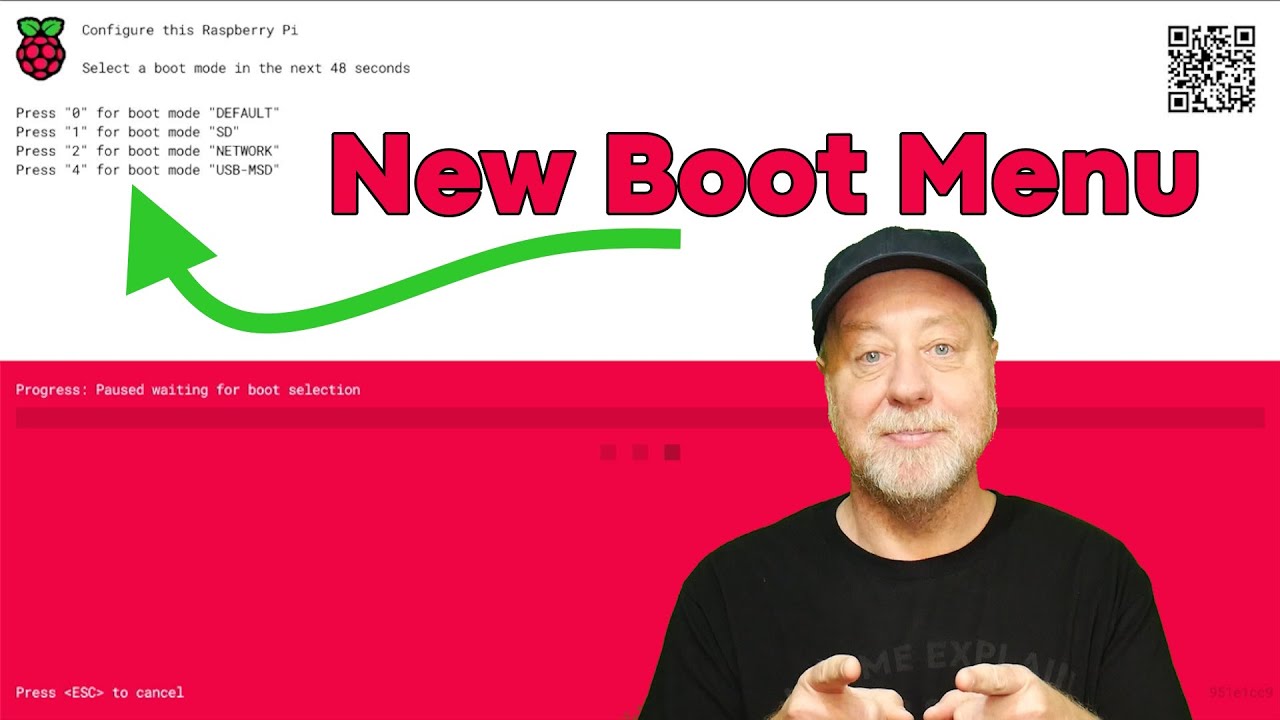
There seems to be an even easier way of doing this. Just bringing up a “one shot boot menu” similar to PCs right after the boot up. Have a look at this video:
I don’t see an issue burning it to the nvme drive. What i did was run the install from a usb and install it to SSD so shouldn’t be much different. I did this for the Pi400 btw. But i did it from my desktop computer.
Edit: I would think you can do the same from the Pi500+. Boot on usb and install directly to the nvme disc.
I installed Raspberry Pi OS on a uSD card then in a RPi 5 with 8 GB I booted up and followed the video’s instructions to install the latest boot loader.
Long story short. The new boot loader did not work properly at all. I finally realized that I was connecting the keyboard & mouse through a Powered USB hub. Maybe that was it. I connected the keyboard and mouse directly to the two USB 2 ports on the RPi 5.
All worked as expected. TIP: You best already have the space bar pushed down BEFORE you even turn on the power.
If the space bar is held down you get the screen to choose which device to boot up.
If the space bar is not held down, the RPi follows the regular boot order.
Thank you @cactux for the video. I am now going to install the new boot loader on my other 2 RPi 5 devices and bring them up to snuff.
EDIT:
With the latest Bootloader, if you press & hold the Shift key, it will go into the install mode.
Pudge
What are you installing on it? Kde?
Of course. Plasma is my benchmark for how a device handles Desktop Environments.
If it will run Plasma at an acceptable nimbleness, it will run any DE Okay.
My two subjective benchmarks are:
Pudge
So does this mean you have it installed on the nvme now. Did you wipe out Rasberry Pi os?
You’re jumping the gun my friend. I don’t have the RPi 500 Plus yet. Hopefully it will arrive at the end of next week. But that is what I intend to do.
Pudge
Have you tried running lxqt on it?
No …
Sorry … i got so excited to know because I’m thinking of getting one too. They have the base unit in stock but the Pi500+ kit is pre order only.