Disabling ipv6 did not impact connection speed.
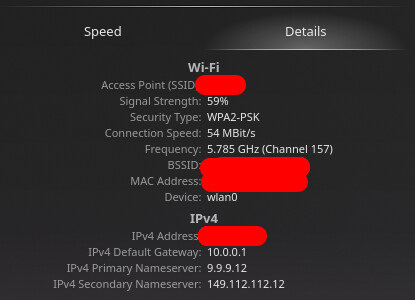
@PRGSPY
Have you tired using the rtw89_8851be kernel module? Uninstall the AUR package rtw89-dkms-git and reboot.
I had been using rtw89_8851be for months until I installed rtw89-dkms-git earlier in this topic, nothing changed.
Is WPA2-PSK the only security type available. Are you able to try WPA2-WPA personal in NetworkManager under WiFi or WPA3?
WPA3-Personal is supposedly the intended security type according to what I remember of the XB8’s settings, as well as my phone which uses that security type when connecting to it, but when I attempt to connect to the gateway using that type on my EndeavourOS install I get disconnected instantly.
Earlier today I found a link to a kernel patch in the replies of a reddit post talking about an issue appearing very similar to mine. https://github.com/WoodyWoodster/mac80211-mcs-patch
At first I questioned if this was the best solution but after noting the security type mismatch (I wasn’t sure how that could be a rtw89 thing) I decided to take a look.
[nomiddleclass@nomiddleclass-b650mcv3y1 ~]$ sudo dmesg | grep HT
[sudo] password for nomiddleclass:
[    9.519349] wlan0: required MCSes not supported, disabling HT
[nomiddleclass@nomiddleclass-b650mcv3y1 ~]$
I’m still unsure what to make of my situation, particularly with how HT being disabled could connect to the security type mismatch, but it’s nice to know this could still be a driver issue.
The automated installer included seems to only be designed with the standard kernel in mind, while I use multiple other ones such as linux-zen and aur/linux-bsb. If I do install this I’ll need to do so manually.
I would highly appreciate any further input before I go through with that, as I don’t feel comfortable with this being anything less than a last resort option.
Don’t think that patch is for you according to the output.
running dmesg | grep "required MCSes not supported", as stated in the readme, with sudo results in
[nomiddleclass@nomiddleclass-b650mcv3y1 ~]$ sudo dmesg | grep "required MCSes not supported"
[sudo] password for nomiddleclass:
[    8.373276] wlan0: required MCSes not supported, disabling HT
[nomiddleclass@nomiddleclass-b650mcv3y1 ~]$
its the same output as sudo dmesg | grep HT, stating that HT is disabled. I know it isn’t a hardware issue because I can connect to the XB8 at full speed on windows, so if this patch isn’t for me then what is there that I could do?
i wonder what browser did you use in windows? have you tried chrome based browser or can you test without firewall enabled in linux iirc EOS enable this by default correct me if im wrong.
I used firefox to test on both windows and eos
disabling the firewall did not have a significant impact on speed, speedtest.net results are near identical (if not worse) and kde connection speed is still 54mbit/s.

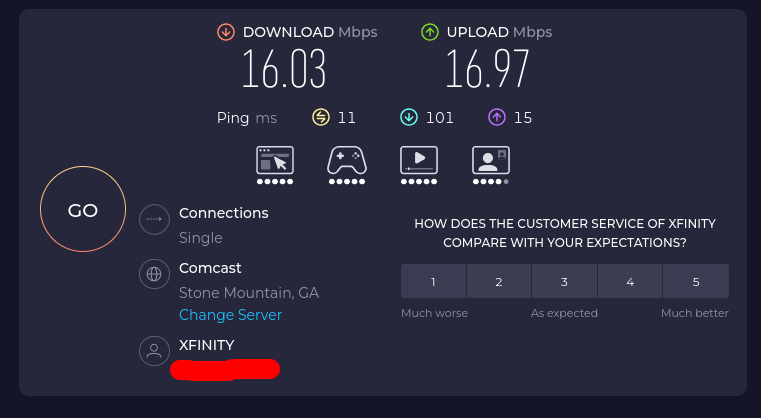
this issue affects the entire os and not just the browser, this is not relevant and firefox was only used across both systems’ tests for consistency
it does sometimes. like how browser user-agent works. if it is windows do that if it is linux do this.. same goes chrome and firefox. since we dont know how your ISP filter something.
When faced with an unknown situation (and quite possibly out of your control), it does often profit to exhaustively try different things.
In fact, I would use the command line speedtest-cli if you haven’t to eliminate browsers entirely. You should also measure internal speed between your internal network points.
[nomiddleclass@nomiddleclass-b650mcv3y1 ~]$ speedtest-cli --secure
Retrieving speedtest.net configuration...
Testing from Comcast Cable ( )...
Retrieving speedtest.net server list...
Selecting best server based on ping...
Hosted by Point Broadband (Atlanta, GA) [27.68 km]: 25.566 ms
Testing download speed................................................................................
Download: 18.58 Mbit/s
Testing upload speed......................................................................................................
Upload: 22.67 Mbit/s
[nomiddleclass@nomiddleclass-b650mcv3y1 ~]$
[nomiddleclass@nomiddleclass-b650mcv3y1 ~]$ speedtest-cli --secure --single
Retrieving speedtest.net configuration...
Testing from Comcast Cable ( )...
Retrieving speedtest.net server list...
Selecting best server based on ping...
Hosted by Point Broadband (Atlanta, GA) [27.68 km]: 24.177 ms
Testing download speed................................................................................
Download: 12.89 Mbit/s
Testing upload speed......................................................................................................
Upload: 17.70 Mbit/s
[nomiddleclass@nomiddleclass-b650mcv3y1 ~]$
I will test windows in a moment
How would I do that with a gateway that locks all of its settings behind a mobile app which doesn’t give me connection speed stats in its connection troubleshooting walkthrough?
Well if you have any other host on your internal network, meter the speed between them.
There are a couple of programs to do so, but you can basically also just tranfer a very large file and watch it (ftp or sftp). I used ‘iperf’.
Of course if you don’t have any other host…then no, you can’t.
checking out what i can do, and immediately upon visiting the website I’m greeted with this
    The default IP protocol is IPv6
    Your public IPv4 address is : You do not have IPv4 connectivity (Reverse DNS: n/a)
    Your public IPv6 address is :   (Reverse DNS:  )
Does this mean anything?
It means something, I don’t know what the ramifications are for your speed (if there are even any).
somewhat annoyingly I could not find a matching commandline client for windows, and it seems the one i used on eos had its repo archived yesterday, there was however a different cross-platform one I could use.
Here are the results:
[nomiddleclass@nomiddleclass-b650mcv3y1 ookla-speedtest-1.2.0-linux-x86_64]$ ./speedtest

   Speedtest by Ookla

      Server: Comcast - Atlanta, GA (id: 37808)
         ISP: Comcast Cable
Idle Latency:    10.08 ms   (jitter: 0.44ms, low: 9.80ms, high: 10.57ms)
    Download:    21.72 Mbps (data used: 28.7 MB)
                775.97 ms   (jitter: 92.30ms, low: 15.05ms, high: 1562.19ms)
      Upload:    21.72 Mbps (data used: 18.1 MB)
                 51.88 ms   (jitter: 8.79ms, low: 13.78ms, high: 125.44ms)
 Packet Loss: Not available.
  Result URL:
[nomiddleclass@nomiddleclass-b650mcv3y1 ookla-speedtest-1.2.0-linux-x86_64]$
C:\Users\poverty user\Downloads\ookla-speedtest-1.2.0-win64>speedtest.exe

   Speedtest by Ookla

      Server: Hotwire Fision - Atlanta, GA (id: 6212)
         ISP: Comcast Cable
Idle Latency:     9.72 ms   (jitter: 0.41ms, low: 9.47ms, high: 10.78ms)
    Download:   359.54 Mbps (data used: 363.4 MB)
                 57.05 ms   (jitter: 21.48ms, low: 11.48ms, high: 206.41ms)
      Upload:    40.59 Mbps (data used: 32.4 MB)
                 33.25 ms   (jitter: 10.95ms, low: 13.73ms, high: 221.25ms)
 Packet Loss:     0.0%
  Result URL:

C:\Users\poverty user\Downloads\ookla-speedtest-1.2.0-win64>
installing the patch with install.sh had no effect on linux and linux-zen, and using the command to “Load it now” gave this output:
[nomiddleclass@nomiddleclass-b650mcv3y1 ~]$ sudo bash -c 'rmmod mt7921e mt7921_common mt792x_lib mt76_connac_lib mt76 mac80211 && modprobe mac80211 && modprobe mt7921e'
[sudo] password for nomiddleclass:
rmmod: ERROR: Module mt7921e is not currently loaded
rmmod: ERROR: Module mt7921_common is not currently loaded
rmmod: ERROR: Module mt792x_lib is not currently loaded
rmmod: ERROR: Module mt76_connac_lib is not currently loaded
rmmod: ERROR: Module mt76 is not currently loaded
rmmod: ERROR: Module mac80211 is in use by:rmmod: ERROR:  rtw89_pci_gitrmmod: ERROR:  rtw89_core_gitrmmod: ERROR:
[nomiddleclass@nomiddleclass-b650mcv3y1 ~]$
this means one of two things
- I’ll need to apply the patch manually
- the patch was in fact really not for me
I’ll keep you all posted on this, among other things.
This turned out to be true!
Manually applying the patch by following https://wiki.vronlinux.org/docs/hardware/#kernel-arch-manual (or https://wiki.archlinux.org/title/Kernel/Arch_build_system) finally returned my internet to its normal speed!
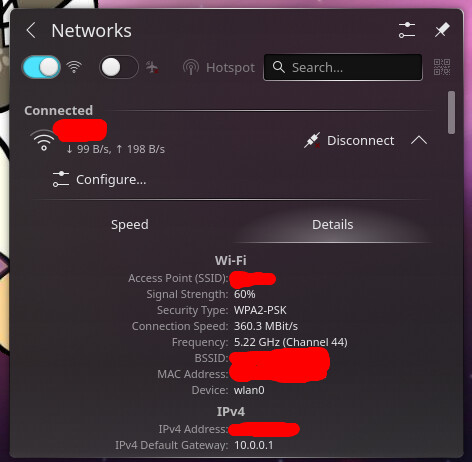
   Speedtest by Ookla

      Server: Hotwire Fision - Atlanta, GA (id: )
         ISP: Comcast Cable
Idle Latency:     9.91 ms   (jitter: 1.30ms, low: 9.40ms, high: 11.57ms)
    Download:   351.68 Mbps (data used: 623.2 MB)
                 72.19 ms   (jitter: 26.48ms, low: 12.49ms, high: 392.66ms)
      Upload:    41.05 Mbps (data used: 30.9 MB)
                 24.91 ms   (jitter: 15.01ms, low: 13.70ms, high: 345.24ms)
 Packet Loss:     0.7%
  Result URL:
If it doesn’t fix the problem for anyone else, I’m very sorry