How to Use Nvidia Hardware Encoding in Kdenlive

I’m trying to use my Nvidia card to encode my video on Kdenlive, the program work but it use only the cpu. I’ve tried the pacman and the flatpak version but the result is the same.

My nvidia card is currently working well (thanks to :crown:Dalto :crown: help) i’m currently using an older version of the drivers which fully support the card.

nvidia-580xx-settings libxnvctrl-580xx opencl-nvidia-580xx nvidia-580xx-utils nvidia-580xx-dkms

I can clearly see from my gpu monitor applet (and from the way better temps) that many programs use it correctly during the rendering: GIMP, UPSCAYL, REAL VIDEO ENANCHER, ecc.

I’ve found this guide online: https://200ok.ch/posts/2020-09-07_use_nvidia_hardware_encoding_with_kdenlive_obs_and_ffmpeg_in_debian.html

but i’m a bit too green to use it. Can anyone explain it, or give me a better solution?

What’s the output of the following:

pacman -Q | grep -A 0 -E "nvidia|cuda|vulk|kden"
1 Like

kdenetwork-filesharing 25.12.2-1
kdenlive 25.12.2-1
--
lib32-nvidia-580xx-utils 580.126.09-1
--
linux-firmware-nvidia20260110-1
--
nvidia-580xx-dkms 580.126.09-2
nvidia-580xx-settings 580.126.09-1
nvidia-580xx-utils 580.126.09-2
nvidia-inst 26.1.1-1
--
opencl-nvidia-580xx 580.126.09-2
--
vulkan-icd-loader 1.4.341.0-1
vulkan-mesa-implicit-layers 1:25.3.5-1
vulkan-nouveau 1:25.3.5-1
vulkan-tools 1.4.341.0-1

Install the following:

yay -S cuda lib32-opencl-nvidia-580xx 
1 Like

The installation complete without issue, i’ve also uninstalled kdenlive and erase any folder i can find before rebbot and installing it again. Still, no changes, heavy use of CPU and zero GPU.

here the updated terminal log

cuda13.1.1-1
--
kdenetwork-filesharing 25.12.2-1
kdenlive 25.12.2-1
--
lib32-nvidia-580xx-utils 580.126.09-1
lib32-opencl-nvidia-580xx 580.126.09-1
--
linux-firmware-nvidia20260110-1
--
nvidia-580xx-dkms 580.126.09-2
nvidia-580xx-settings 580.126.09-1
nvidia-580xx-utils 580.126.09-2
nvidia-inst 26.1.1-1
--
opencl-nvidia-580xx 580.126.09-2
--
vulkan-icd-loader 1.4.341.0-1
vulkan-mesa-implicit-layers 1:25.3.5-1
vulkan-nouveau 1:25.3.5-1
vulkan-tools 1.4.341.0-1

1 Like

One moment. Checking something out in Kdenlive to ensure it works before suggesting it.

I forgot to mention but on the Mint partition Kdenlive work with the GPU. I’ve run the comand there and i have this stuff installed.

libcudart12/noble,now 12.0.146~12.0.1-4build4 amd64 [installed, automatic]
libnvidia-cfg1-535/noble-updates,noble-security,now 535.288.01-0ubuntu0.24.04.1 amd64 [installato, automatico]
libnvidia-common-535/noble-updates,noble-updates,noble-security,noble-security,now 535.288.01-0ubuntu0.24.04.1 all [installed, automatic]
libnvidia-compute-535/noble-updates,noble-security,now 535.288.01-0ubuntu0.24.04.1 amd64 [installed, automatic]
libnvidia-compute-535/noble-updates,noble-security,now 535.288.01-0ubuntu0.24.04.1 i386 [[installed, automatic]
libnvidia-decode-535/noble-updates,noble-security,now 535.288.01-0ubuntu0.24.04.1 amd64 [installed, automatic]
libnvidia-decode-535/noble-updates,noble-security,now 535.288.01-0ubuntu0.24.04.1 i386 [installed, automatic]
libnvidia-egl-wayland1/noble-updates,now 1:1.1.13-1ubuntu0.1 amd64 [installato, automatico]
libnvidia-egl-wayland1/noble-updates,now 1:1.1.13-1ubuntu0.1 i386 [installato, automatico]
libnvidia-encode-535/noble-updates,noble-security,now 535.288.01-0ubuntu0.24.04.1 amd64 [installed, automatic]
libnvidia-encode-535/noble-updates,noble-security,now 535.288.01-0ubuntu0.24.04.1 i386 [installed, automatic]
libnvidia-extra-535/noble-updates,noble-security,now 535.288.01-0ubuntu0.24.04.1 amd64 [installed, automatic]
libnvidia-fbc1-535/noble-updates,noble-security,now 535.288.01-0ubuntu0.24.04.1 amd64 [installed, automatic]
libnvidia-fbc1-535/noble-updates,noble-security,now 535.288.01-0ubuntu0.24.04.1 i386 [installed, automatic]
libnvidia-gl-535/noble-updates,noble-security,now 535.288.01-0ubuntu0.24.04.1 amd64 [installed, automatic]
libnvidia-gl-535/noble-updates,noble-security,now 535.288.01-0ubuntu0.24.04.1 i386 [installed, automatic]
libnvidia-ml-dev/noble,now 12.0.140~12.0.1-4build4 amd64 [installed, automatic]
libvulkan1/noble,now 1.3.275.0-1build1 amd64 [installed]
libvulkan1/noble,now 1.3.275.0-1build1 i386 [[installed, automatic]
mesa-vulkan-drivers/noble-updates,now 25.2.8-0ubuntu0.24.04.1 amd64 [installed, automatic]
mesa-vulkan-drivers/noble-updates,now 25.2.8-0ubuntu0.24.04.1 i386 [installed, automatic]
nvidia-compute-utils-535/noble-updates,noble-security,now 535.288.01-0ubuntu0.24.04.1 amd64 [installed, automatic]
nvidia-cuda-dev/noble,now 12.0.146~12.0.1-4build4 amd64 [installed, automatic]
nvidia-cuda-gdb/noble,now 12.0.140~12.0.1-4build4 amd64 [installed, automatic]
nvidia-cuda-toolkit-doc/noble,noble,now 12.0.1-4build4 all [installed, automatic]
nvidia-cuda-toolkit/noble,now 12.0.140~12.0.1-4build4 amd64 [installed]
nvidia-dkms-535/noble-updates,noble-security,now 535.288.01-0ubuntu0.24.04.1 amd64 [installed, automatic]
nvidia-driver-535/noble-updates,noble-security,now 535.288.01-0ubuntu0.24.04.1 amd64 [installed]
nvidia-firmware-535-535.288.01/noble-updates,noble-security,now 535.288.01-0ubuntu0.24.04.1 amd64 [installed, automatic]

btw… there’s no way to steal something from the kdenlive mint folder and make it work on endeavour? :3

Debian distros use a different naming convention for packages, so it’s not always easy to figure out things in terms of packages. For settings files, sometimes during install, they detect your distro base and install for a specific type of distro, so it’s also tricky here.

It may work, but ymmv.


All that said, I got it to use my Nvidia GPU, so there should be no need.

Updated Steps:

Install Cuda dependencies

yay -S cuda lib32-opencl-nvidia-580xx opencl-nvidia-580xx

or

yay -S cuda lib32-opencl-nvidia opencl-nvidia

When rendering, select the “Hardware accelerated” presets folder and select an option from the list.

  • I chose “NVENC H265 ABR”

Hit “Render to File” and check BTOP or some other live process viewer to check if it’s working. If it’s not, the render will fail.

With CPU render it took about 20 seconds for a 30-second video.
With GPU, it was less than 5 seconds. :star_struck:


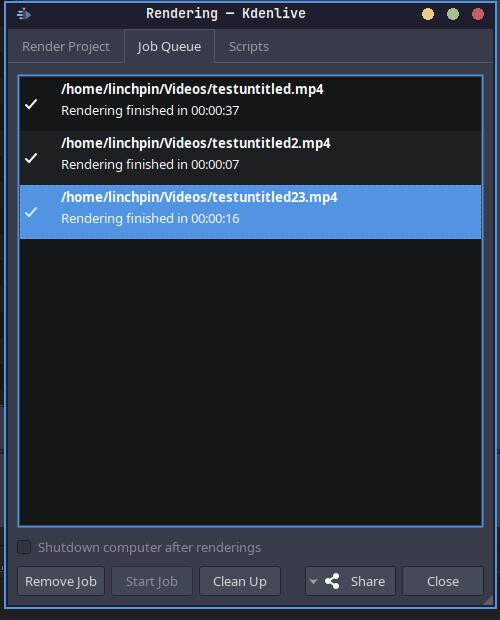
The total render time in each includes the processing time before a render actually starts. The first one was with the CPU, and it took a while to start. The other two are GPU-based renders. I’m not sure why the processing time took longer on the second GPU render because it is the same project, video, frames, and video length. In any case, the actual render time was still under 5 seconds.


Advanced Features

If you would like to enable advanced features like background removal, you will need some additional packages to do so.

The Easy Method (Recommended)

Install everything through Kdenlive’s settings.

Go to Settings > Configure Kdenline > Plugins > Object Detection tab
Click the “Install” button. This takes a while.
Click “Apply” then “OK”, and restart Kdenlive.

The “Expert” Method

For this method, quite frankly, it may not work if you don’t know what you’re doing. But if you want more control, and you’d prefer to install distro-specific packages, this may work.

Install the pytorch and sam-2 dependencies.

yay -S python-pytorch-cuda python-torchvision python-sam2-git

In Kdnelive, go to Settings > Configure Kdenline > Plugins > Object Detection tab
Click “Use system packages only”
Click “Apply” then “OK”, and restart Kdenlive.

Note: This may not work for some drivers, so you may need to try the following:
Click the “GPU Support” button and download the latest Cuda version available.
When it’s done, click “Apply” then “OK”, and restart Kdenlive.

For more info, check the official wiki: Kdenlive Wiki


Follow similar steps to enable speech to text.

1 Like

take your time. I’m installing the yay package, despite clicking [N] this is taking a while :sweat_smile: :+1:

Just did a test, and it seems the only thing you needed for GPU-accelerated rendering were the two packages I asked you to install earlier. You don’t need to do the “Configure Kdenlive” steps. Those seem to be for other, more advanced workflows, including text-to-speech, background removal, etc.

I’m now going to install the required packages for these advanced workflows from the Arch repos, just as a test.

PS: I needed to do a full system update, and so should you to ensure everything works correctly. Will update the steps soon.

1 Like

I didn’t think the cuda package was needed for end users and encoding, but for developer purposes only, but I have no idea…

So you say cuda is needed? I’m working on my own Nvidia build with the 580 drivers and when running vainfo, I don’t currently get any VAEntrypointEncSlice rows so you may be correct

Try using one of the NVENC render presets to see if it renders. It should fail.

I’ll have to try soon and report back the results! So much to learn here…

1 Like

sadly the first method didn’t work

with NVENC H265 ABR

Rendering of /home/—/Video/uled.mp4 crashed

Qt: Session management error: Could not open network socket
[hevc_nvenc @ 0x7f7bec201a00] OpenEncodeSessionEx failed: unsupported device (2): (no details)
[hevc_nvenc @ 0x7f7bec201a00] No capable devices found

right now i’m using the flatpak version, should i try again the pacman package?

That’s what I’m using, so yes.

Generally, unless the developer says the Flatpak works better than the distro-packaged version, I stay away from Flatpaks for graphics-intensive apps.

In fact, the only Flatpak I really use is Lutris. But that is just so that I could install my Affinity purchases and Clip Studio Paint.

Installed the pacman when i try to install the missing plugin i had an issue with python:

ERROR: Could not install packages due to an OSError: [Errno 122] Disk quota exceeded [end of output] note: This error originates from a subprocess, and is likely not a problem with pip

  • i do remember having a similar issue trying to install a python library for another project some times ago

Wait. When you say, “Installed the pacman”, which package are you referring to?

I’m not sure where you are in the steps I tried.

sudo pacman -S kdenlive > open program > Settings > Configure Kdenline > Plugins > install missing dep

– anyway he said opencv-python is required so i found the aur package python-opencv-git and i’m installing it

Those steps are only if you want the advanced features. They are not required for rendering using your GPU. Is it that you would also like to use the advanced features now that you know they work?

not sure i’ll try later.

1 Like