Hi, everytime I restart my laptop my ssd’s need my password to be unlocked. as well, in steam they are not considered drives. Any help would be much appreciated. @Bink
Well I am not Bink but maybe a link to this Wiki could help.
@keescase’s link is the ticket 

Previously @spencer, the issue you’d encountered was due to broadly changing ownership at the root ( / ) level. That guide shows you what you specifically need to change.
I will note too, another simple way around avoiding these permissions issues with mounts, is to mount to a folder within your home folder instead.
For example: /home/[user]/someFolder
That doesn’t work so well on a multi-user system, but if it’s just you, it’s a reasonable approach and it’s how I’ve approached it on my loungeroom gaming (Steam) system.
I personally just install gnome’s disks utility and use it to auto-mount drives using their label. Easiest option I’ve found to get it done.
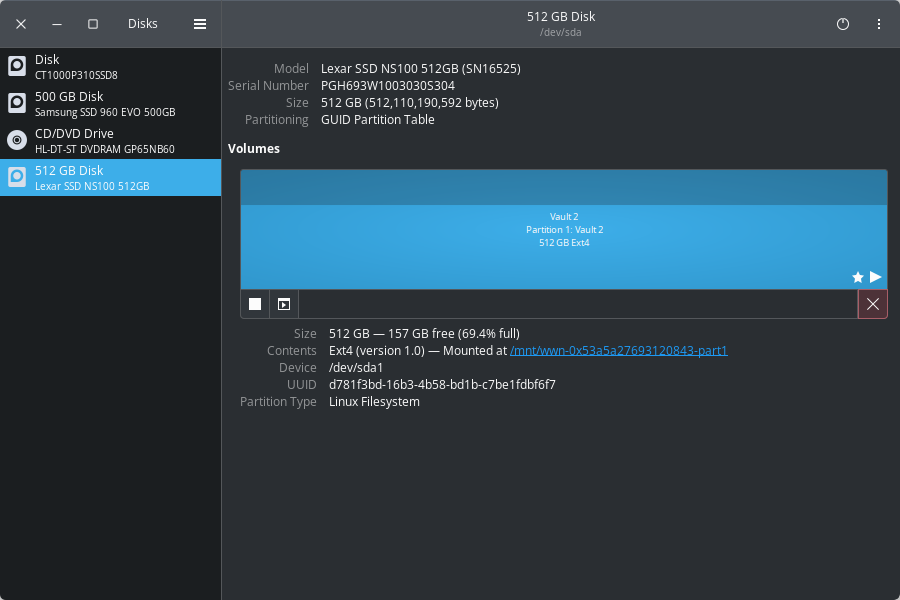
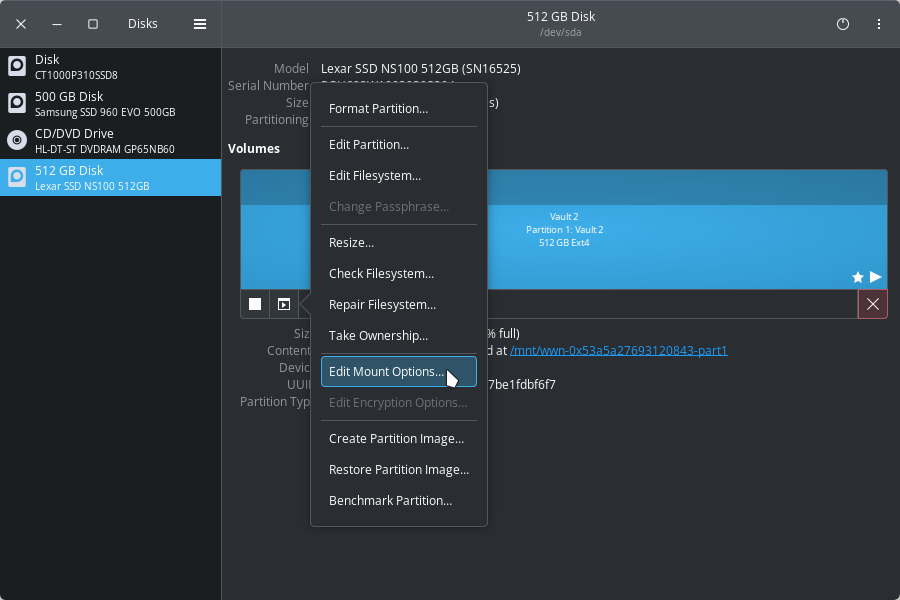
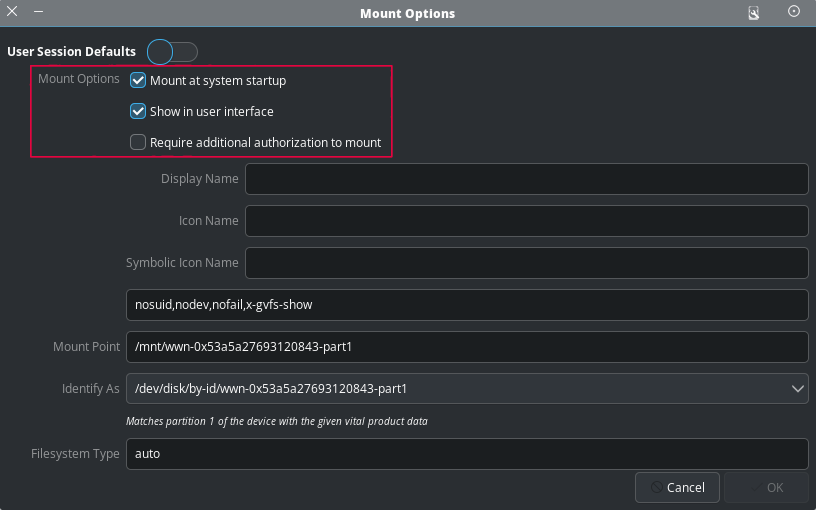
I’m using kde, and a little embarrisingly I don’t know how to mount a drive to a specific location.
I’m the only user on the system, so I’d be totally willing to do that. Could you tell me how please? Thank you
I use KDE as well. Gnome Disk Utility can still be used just fine.
If for whatever reason you don’t want to download the Gnome Disk Utility, KDE has its own called “KDE Partition Manager.” Can’t remember if it came with Plasma on EOS or not, but otherwise “pacman -S partitionmanager”
Otherwise just follow UncleSpellbinder’s instructions and use Gnome Disk Utility. Both work perfectly fine.
Should be in your not start menu now, so start it up and click on whatever secondary drive on the left side of the main window. After that, on the right side you’ll see whatever partition(s) you made on that drive.
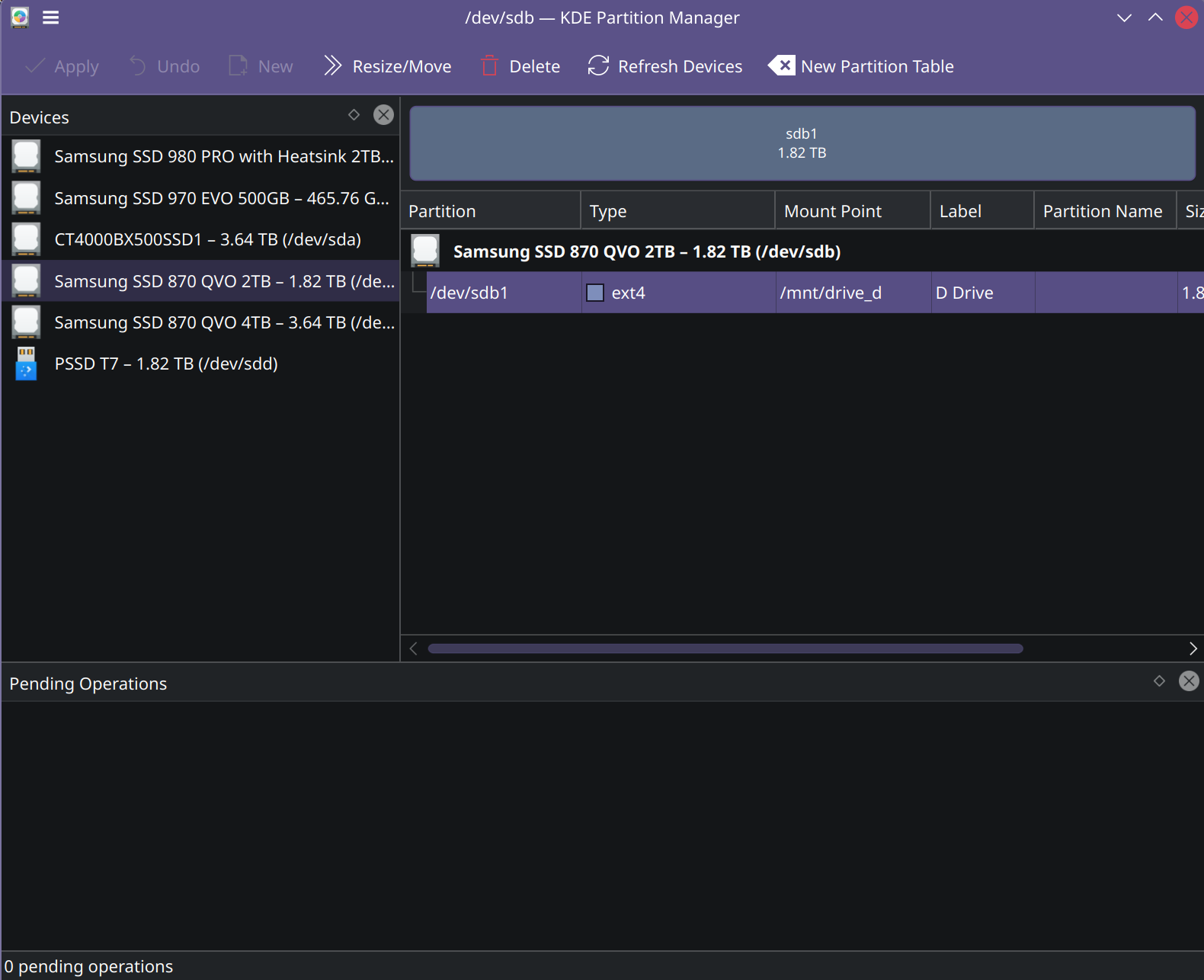
Right click on the partition you want to auto-mount and “edit mount point.” Another window comes up, I have mine set to:
Identify by UUID
Mounts to /mnt/[drive name here]
”nosuid,nodev,nofail” as “More…” options. I don’t check any of the boxes
If anyone’s wondering, I did those 3 options because that’s what Linux Mint defaults to when you automount something and it always worked perfectly fine- so I just do the same thing.
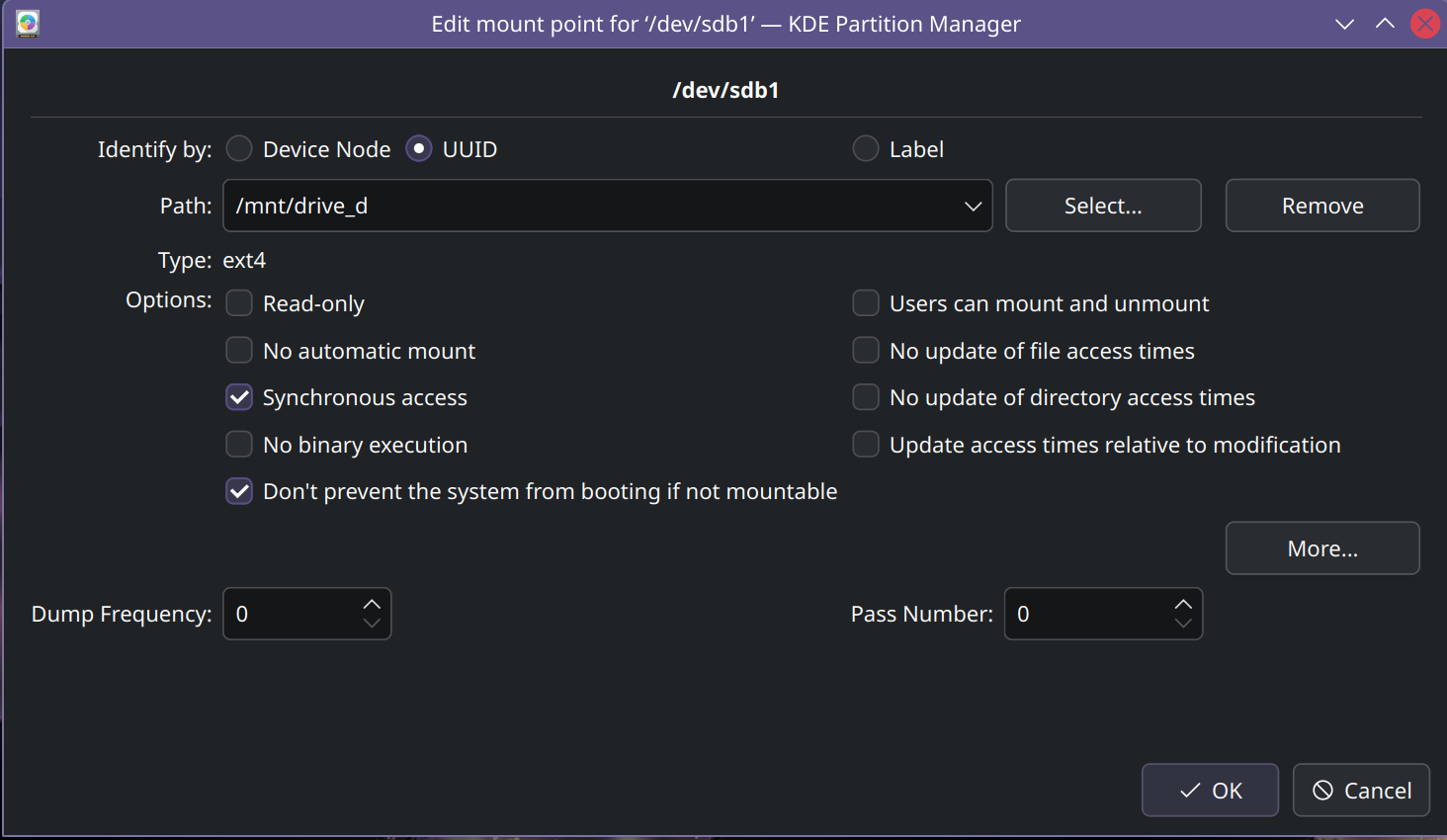
You can make the mountpoint whatever you want btw, and you can call it whatever you want. I give mine letters because I can’t get that windows-ism out of my mind yet. Just make sure “No Automatic mount” is unchecked otherwise you’ll need to mount the drive anytime you want to use it.
As for Steam:
You need to manually add the drive to your Steam Library. If you haven’t installed anything on it yet then it’s pretty simple. Steam should auto-detect the new directory and just use it as a location to install games.
If you’ve already installed a game there with it mounted, and now you just setup automounting, first- mount the drive or reboot your PC whichever you prefer. Go to your Settings for Steam go to Storage, and click the dropdown which should say “/home” and then click “+ add drive.” Make sure you click “Let me choose the location” when the next window pops up, and then browse for your “SteamLibrary” or “Steam Library” folder on the new drive (should just be in the “root” of the secondary drive, so in my example case it would be /mnt/drive_d/Steam Library). After that, so long as the drive automounts on startup now, it should just autodetect all your games there and you’ll be able to choose it as an install location like normal. If you don’t manually choose the location of the “SteamLibrary” or “Steam Library” folder it might make a new one and won’t detect your already installed games, although it may work just fine if you don’t have your steam games specifically organized on the other drive.
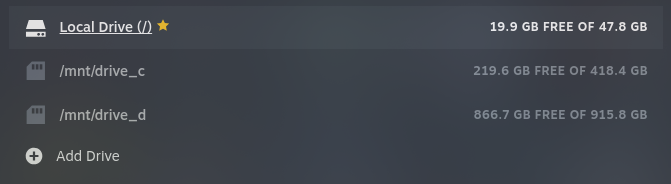
“Drives” don’t exist. They’re a Windowism.
You could try giving it a label and maybe it will show that instead. Btw, that’s called the mount point.
You don’t. Like dbarronoss said the drive letters are a Windows-ism. Pretty much a leftover of the old DOS days, no other OS these days manages drives that way. Whatever label you gave it will show up in Dolphin though under “devices,” so you’ll only really deal with the mount point for specific file management cases (like setting up the steam library).