Last Saturday I upgraded from a 3060 to a 7900 xtx. It kind of worked for two days but I had to reboot a few times, two days ago it stopped working no matter how many times I rebooted.
Desktop is fine but videos stutter, games run at 20 FPS and nvtop is reporting 500 Mhz and 20 W max. During my tests I noticed that playing a video from Mercury-Neo live ISO works perfectly fine while doing the same from Ganymede live ISO there’s stuttering. The awkward thing is that when actually installing Mercury the stuttering is back.
Can this be a clue about where to look for the problem or how to fix it?
Card works on Windows, in fact it started working on EOS only after booting in Windows.
I strongly doubt that an older kernel would fix the issue.
From the shared info I can at least tell that you’re on the most recent mesa driver.
What is totally uncertain to me is if you’ve got still nvidia related drivers / tools on your system or if you’ve used tools like nvidia-settings to overclock your former 3060 GPU. Or any nvidia related kernel parameters that you’ve forgotten to remove eventually ? Total guesswork on my side here.
Other than that, check the Arch Wiki entry on the amdgpu drivers.
Especially if you intend to overclock / undervolt the 7900 xtx, I would recommend to add the correct kernel parameter, not the generic amdgpu.ppfeaturemask=0xffffffff, but the one determined with the terminal command.
But this is optional essentially. Anyhow, for the power profiles switching, I can totally recommend lact which could automatically switch between power profiles in case specific processes are running (e.g. game mode) and won’t require to enable overclocking features. It’s daemon works quite well and would remember the settings in between boots.
So, you could try to install lact and check if you could change the power profile with the help of this tool.
I did unistall any nvidia related tool (might have missed something) and I never set any special config myself, never overclocked my card and I don’t plan on doing that on the 7900 either. I mainly play [very] old or indie games, I need the 7900 only for VR sim racing were the 3060 was barely enough.
I tried corectrl to set the power profile and it didn’t work, I’ll now try lact too.
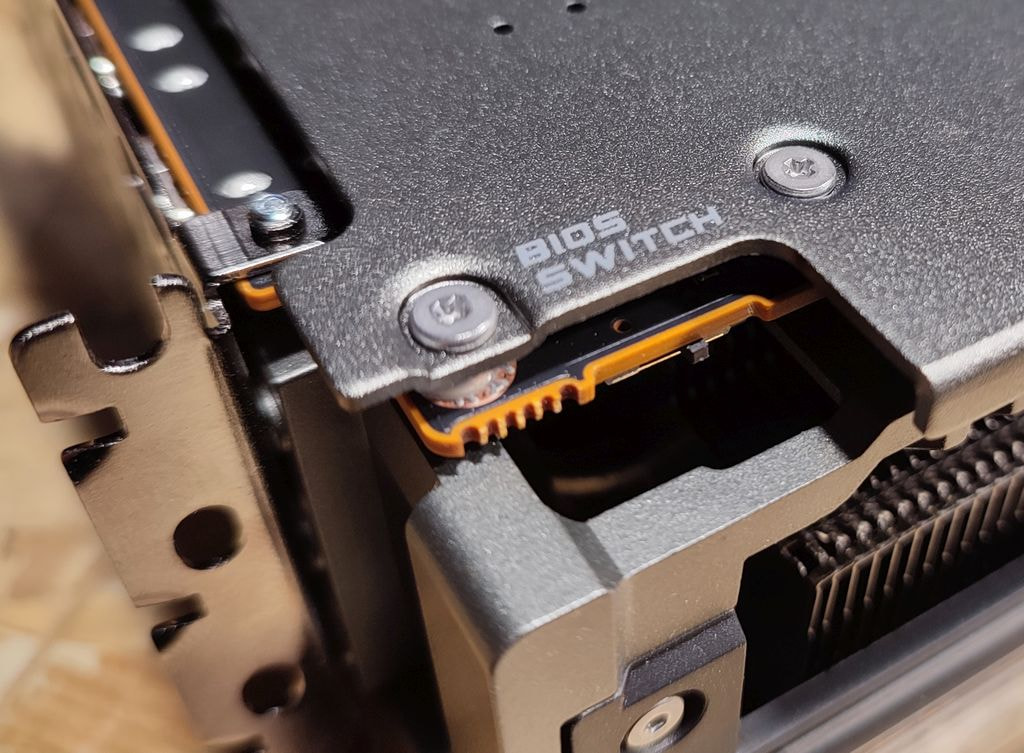
I know all of my AMD cards (6700xt, 6950xt and now 9070xt) all had switches on them for fan curve settings - maybe you have yours in quiet mode or whatever they call it?
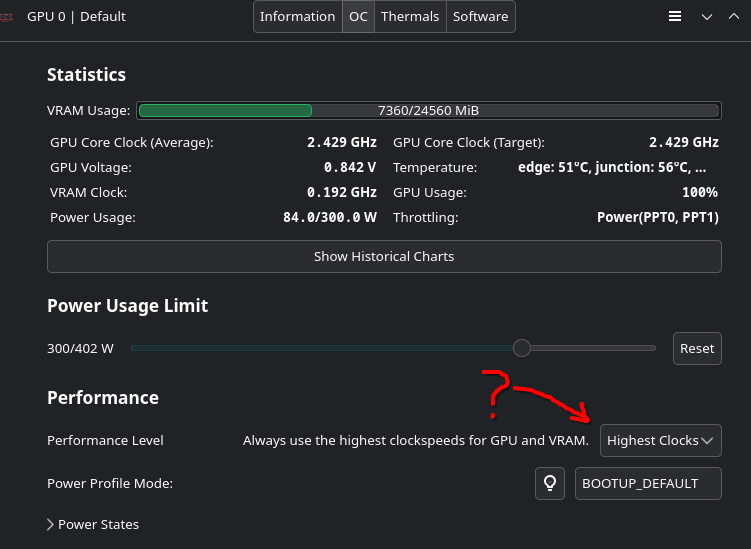
Setting “Power usage limit”, “Power profile mode” and “Power States” in lact doesn’t have any effect.
Setting the minimun clock works for the GPU but not for VRAM still stuck at 96MHz, judging by what’s reported by nvtop, and I get 60/80 fps, still far from the 200+ I was getting two days ago. I’m starting to suspect a hardware problem but AMD software on Windows is reporting 2400 MHz for memory under load.
Videos are still stuttering, like 4/5 fps. I’m talking about high bit-rate 8k videos run locally on Haruna, YT 4k actually looks fine.
What about the Performance level settings ? There are options for lowest clocks and highest clocks besides automatic and manual. Only the latter one would require the overclocking settings to be unlocked via the ppfeaturemask if I’m mistaken and would also be required to enable the power state configuration.
Lact isn’t that intuitive in that regard, unfortunately.
I use it primarily only to achieve lower power consumption for usual desktop use-cases by limiting it to the lowest power states. And by undervolting my RX 6600 slightly and that way it usually only consumes 4-7 watt. You didn’t need to use nvtop to check the individual clock speed as lact also displays these information and you could activate the historical chart to check the behavior.
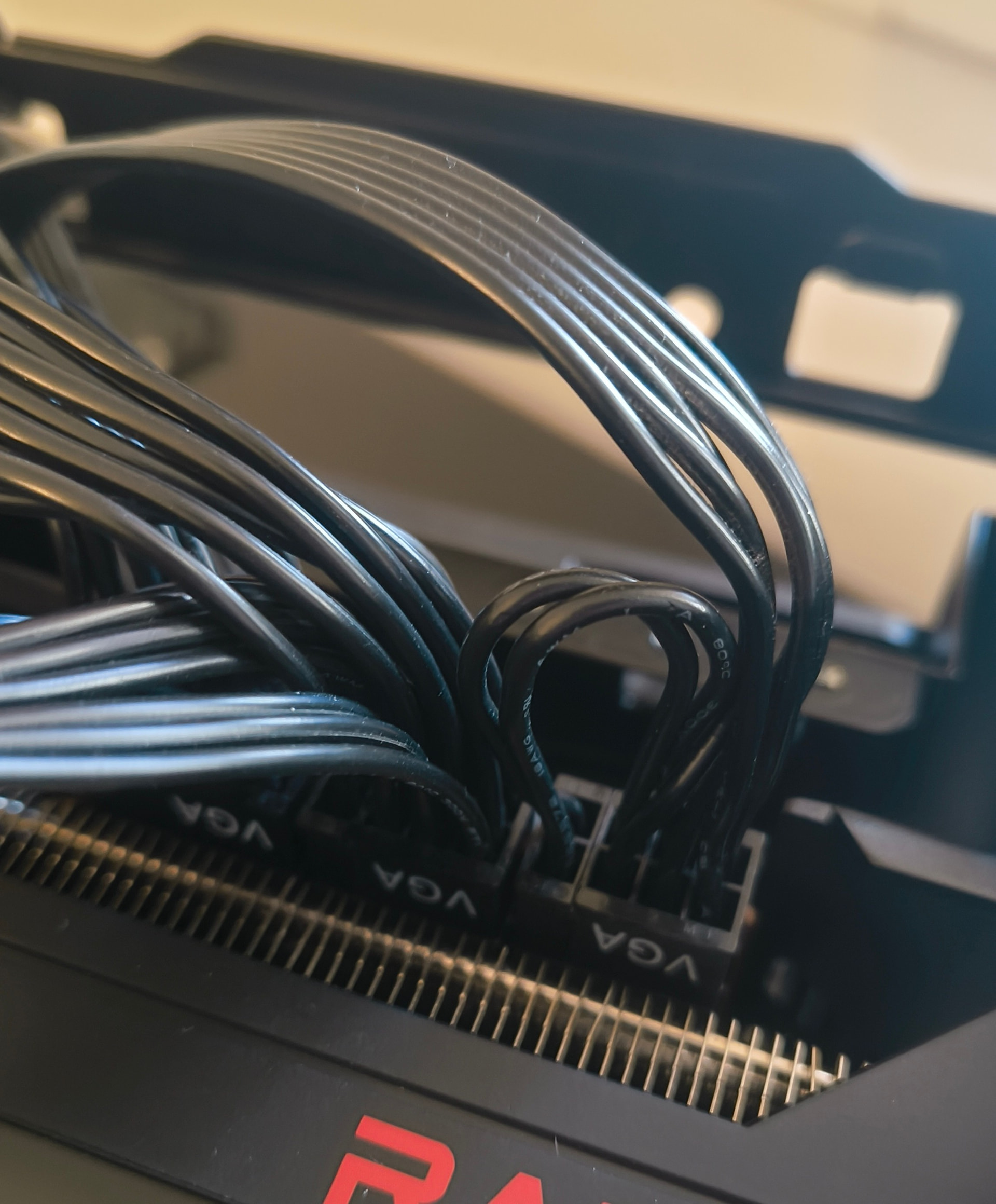
This might be a long shot but did you connect all power pcie cables to the card?
And does your motherboard has a separate pcie power connector to the motherboard to feed the pcie slots? Some motherboards do have this connector to provide enough power to the pcie bus
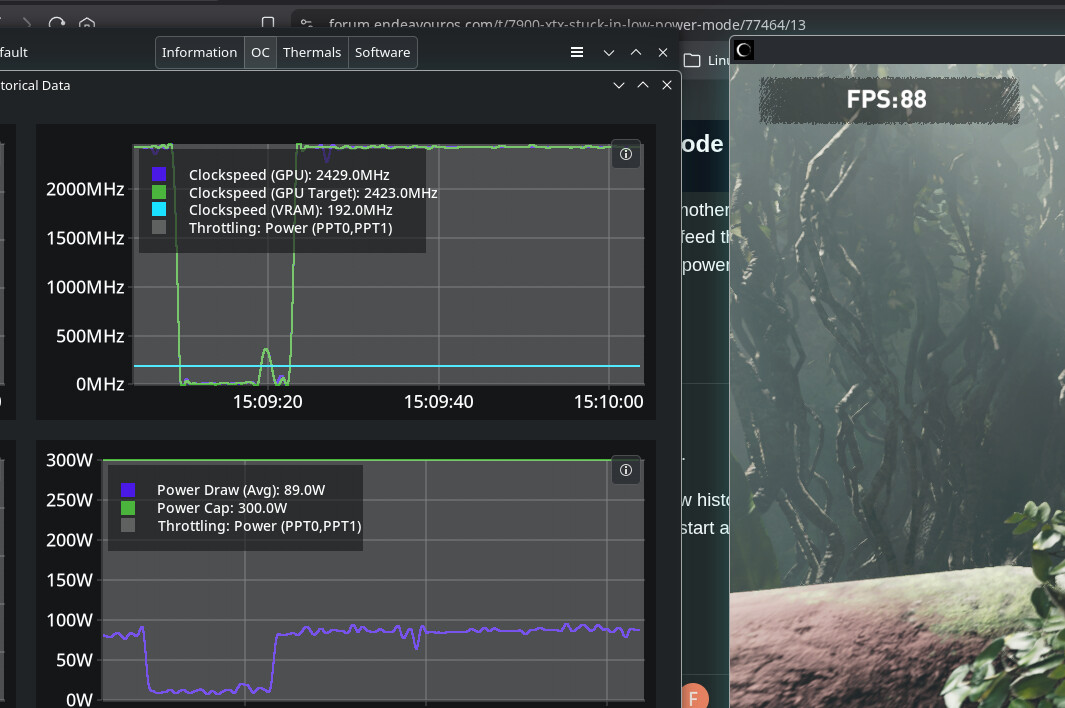
Enable the “show historical charts” in the options next to the window controls in the upper right and start an GPU load / game, just to check if the targets are met under load.
EDIT: And you should also change the Power Profile Mode from BOOTUP_DEFAULT to 3D_FULL_SCREEN
If I’m not mistaken changes to the performance level as well as power profile within the “GPU 0 | default” user profile would be applied as the new default by the daemon during boot.
My guess is that you haven’t enabled the daemon yet. Which is done with sudo systemctl enable --now lactd
When the daemon is not active you get a warning when launching lact so I enabled it after the first try.
Just wondering, I downloaded furmark, would testing with that reveal a faulty hardware? I read it’s quite heavy on the GPU I’m worried about actually damaging it with furmark XD