Don’t know if the hardware decides to behave weird within one update… As explained in the edited comment of me above
Also it gets stuck on sleep mode now… THAT definitely did not happen before
Don’t know if the hardware decides to behave weird within one update… As explained in the edited comment of me above
Also it gets stuck on sleep mode now… THAT definitely did not happen before
Yeah It would seem that maybe this is more a software issue can you test the monitor with a live usb? This should help narrow down software/hardware
Sry for late reply, I was lunar eclipse hunting, and the next day I was very tired.
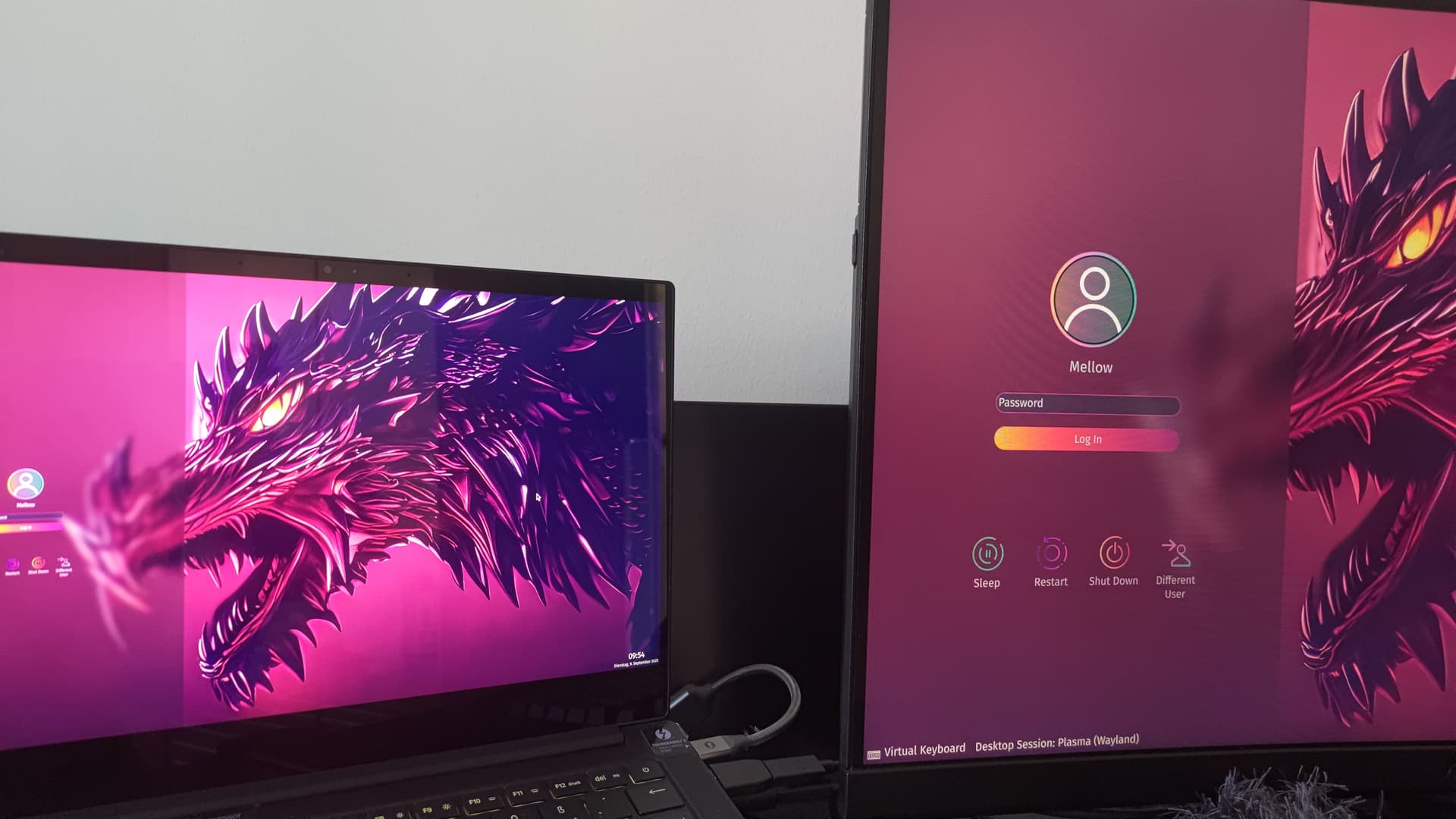
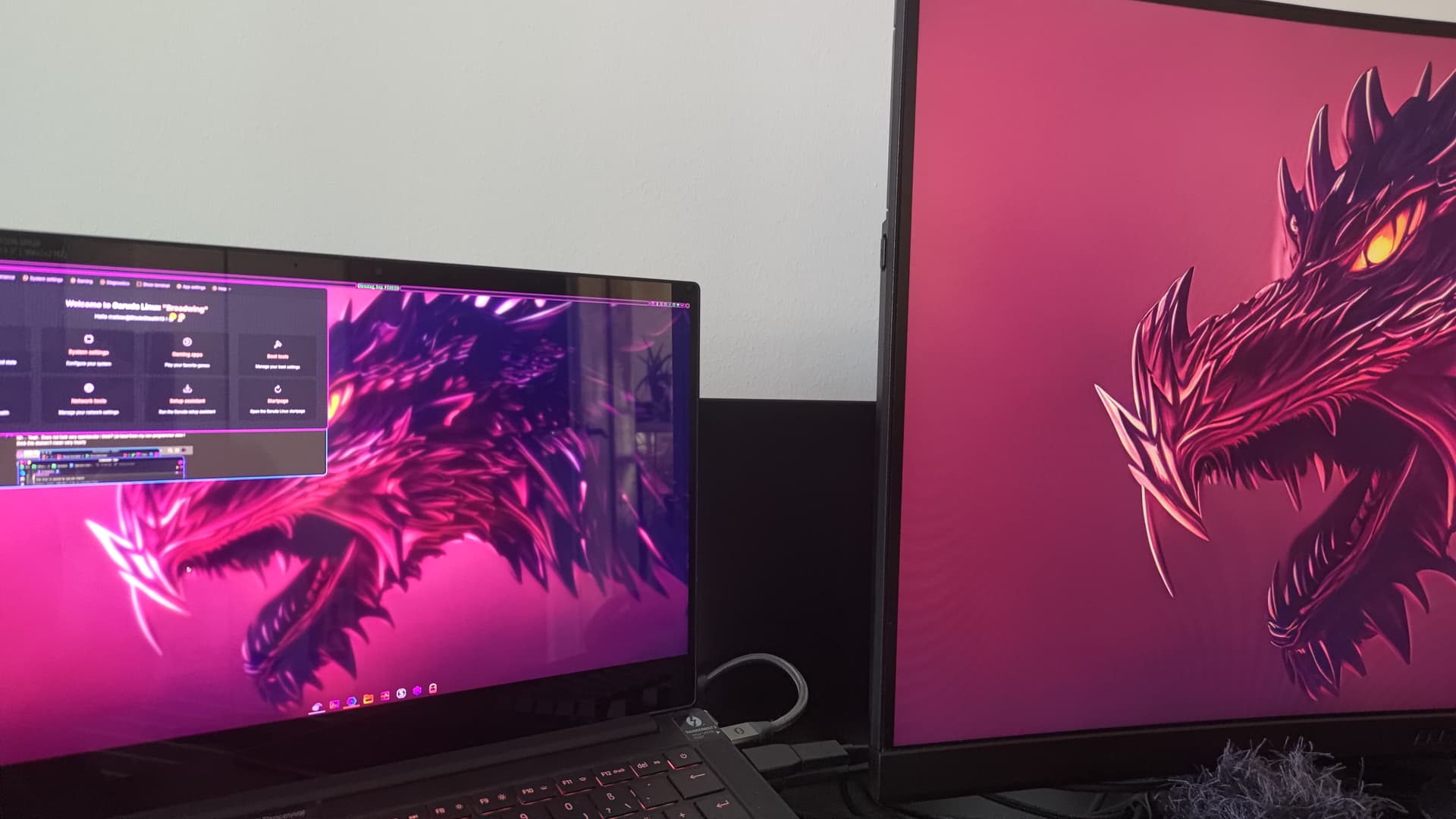
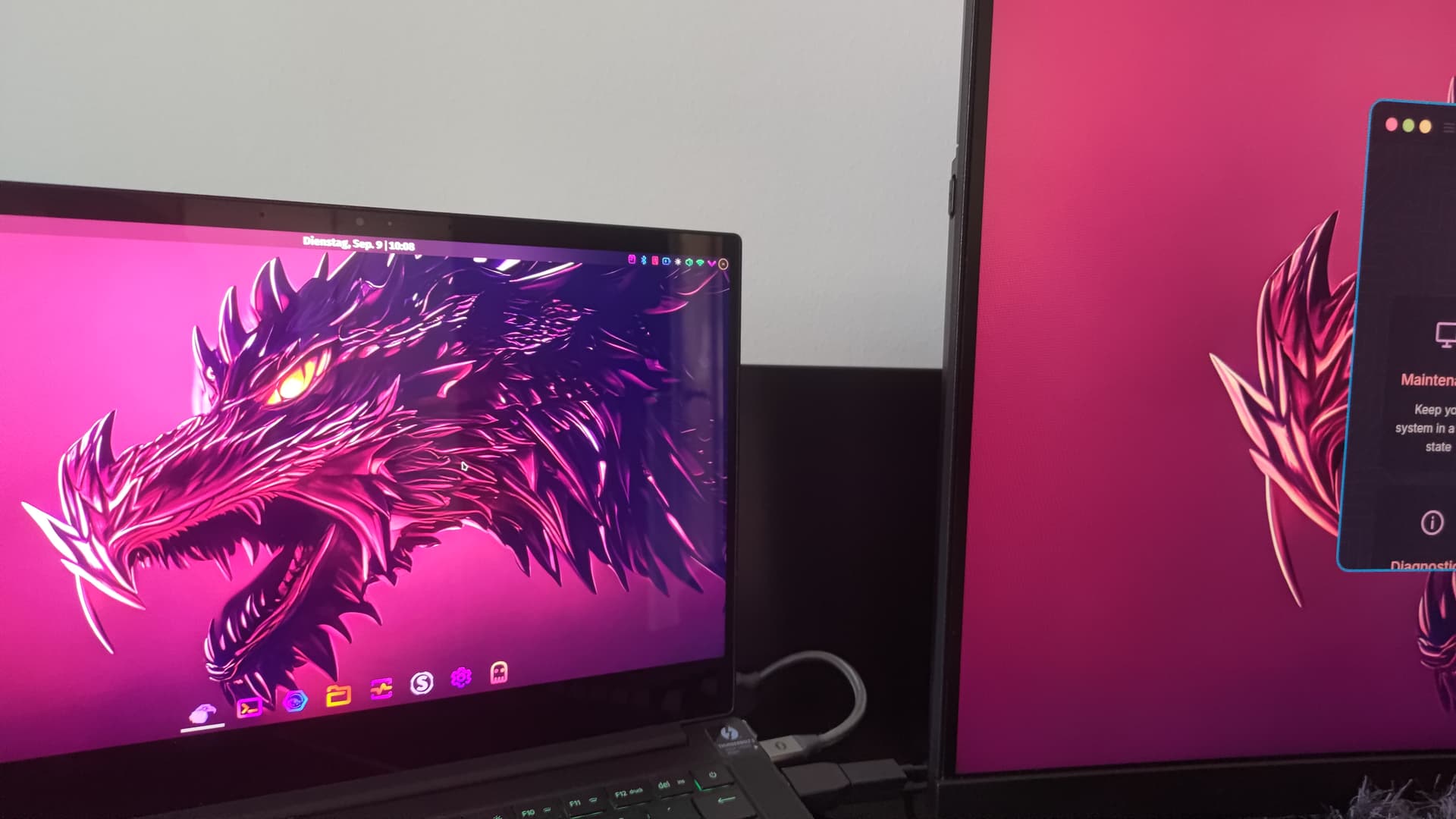
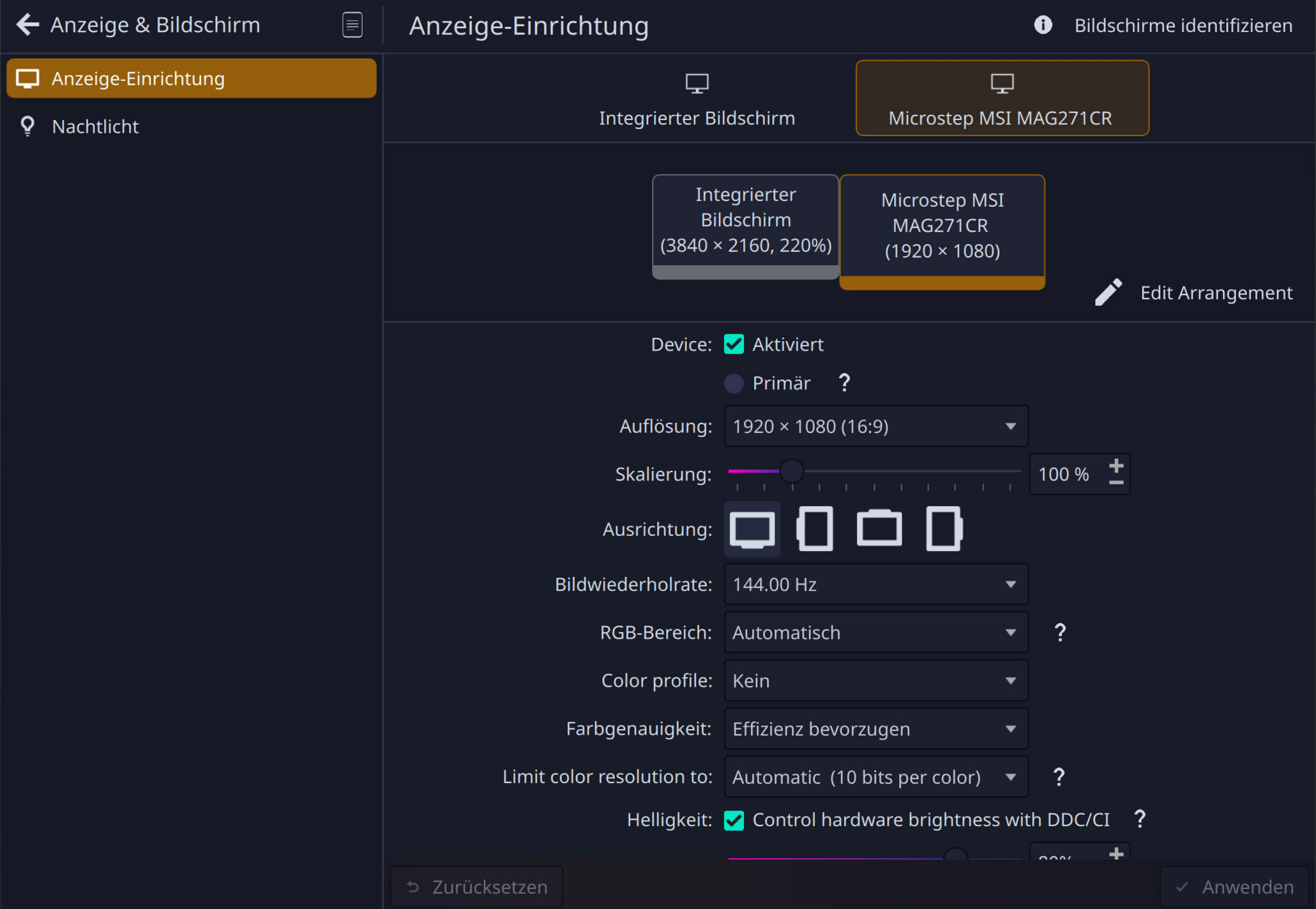
So yeah, right now I found an external drive with a old garuda install (it’s not updated) and both screens are working. At login, Wayland and x11. And he’s quiet, cold (like a grave) snappy and stable as it should be. So in that regard it doesn’t seem to be a hardware issue. More that something gets destroyed with updating..
Pics for reference with both screens working under garuda:
That helps to definitely narrow it to a software issue. Thankfully that is something that should be fixable. Right now I’m out of Idea’s.
A few things you could try is downgrading the linux firmware packages, maybe nvidia/mesa?
or just wait and try to do another update and see if the update fixes the issue.
yeah i think i will have to wait.
thing is when i was trying to still install that update (over and over) i noticed that out of the ~340 updates it was only downloading like around 20 but installed those 340ish. meaning the rest of those updates was probably in the cache from trying previously.
(as my auto snapshots make pre- and -post update snapshots, i assume the -pre is a snapshot between downloading and installing and i always loaded that one)
and since i was reading the post about the kernel and its internet instability i thought “maybe the instable kernel caused some faulty packages here and because they are in the cache i now have the same error over and over because i am not downloading anything”
so yes i decided to wipe the cache with pacman -Scc wich cleaned up 19GB then ran the update and included the x11 thing. and yes it downloaded the 340 something packages… but it didnt change anything except i now have x11 back wich is the only thing that somewhat works…yay
i have never done a downgrade but if i understand correctly that requires me still having packages in the cache? i dont know how much is still there after the update, if it saved the old stuff or not? or how to do it without breaking everything. i guess i would also have to play around with the pacman config to blacklist these packages so it doesnt install again while they are broken for this laptop. the thing is, still dont understand why wayland doesnt want to start at all, and x11 is so “unstable” or whatever i should call it.
so, i think i might have to wait. i dont know if the lts-kernel could help? i dont have it installed, but since this laptop is a bit older, maybe?
No. The downgrade program will fetch from the cache or online repository as you choose. Just run sudo downgrade <package_name>.
I think you mean seppuku?
i cant find the video anymore where i stole the joke from. but whatever, its irrelevant anyway.
i will just edit this out now, because its not helping anyway
thanks for the info, nice to know
Update:
Tried installing nvidia nouveau drivers (with nvidia-inst -n) then rebooted launched x11 to see if all is ok, then wayland… wayland was blackscreen again. then reinstalled the open-dkms (nvidia-inst -o), same thing. seems its not a driver issue with nvidia..
then installed the LTS kernel.
sudo pacman -Syu linux-lts linux-lts-headers
then
sudo grub-mkconfig -o /boot/grub/grub.cfg
and after a reboot, wayland suddenly works again…
I dont know why, but it seems this “normal” linux kernel just hates my laptop.
I hope whatever is messed up there does never transfer down to the lts kernel, else my laptop probably wont be usable with linux anymore, and that would be very, very horrible.
I still need to test if the 2nd monitor works with it, but so far everything seems to be normal and stable (and readable), what is a big improvement..
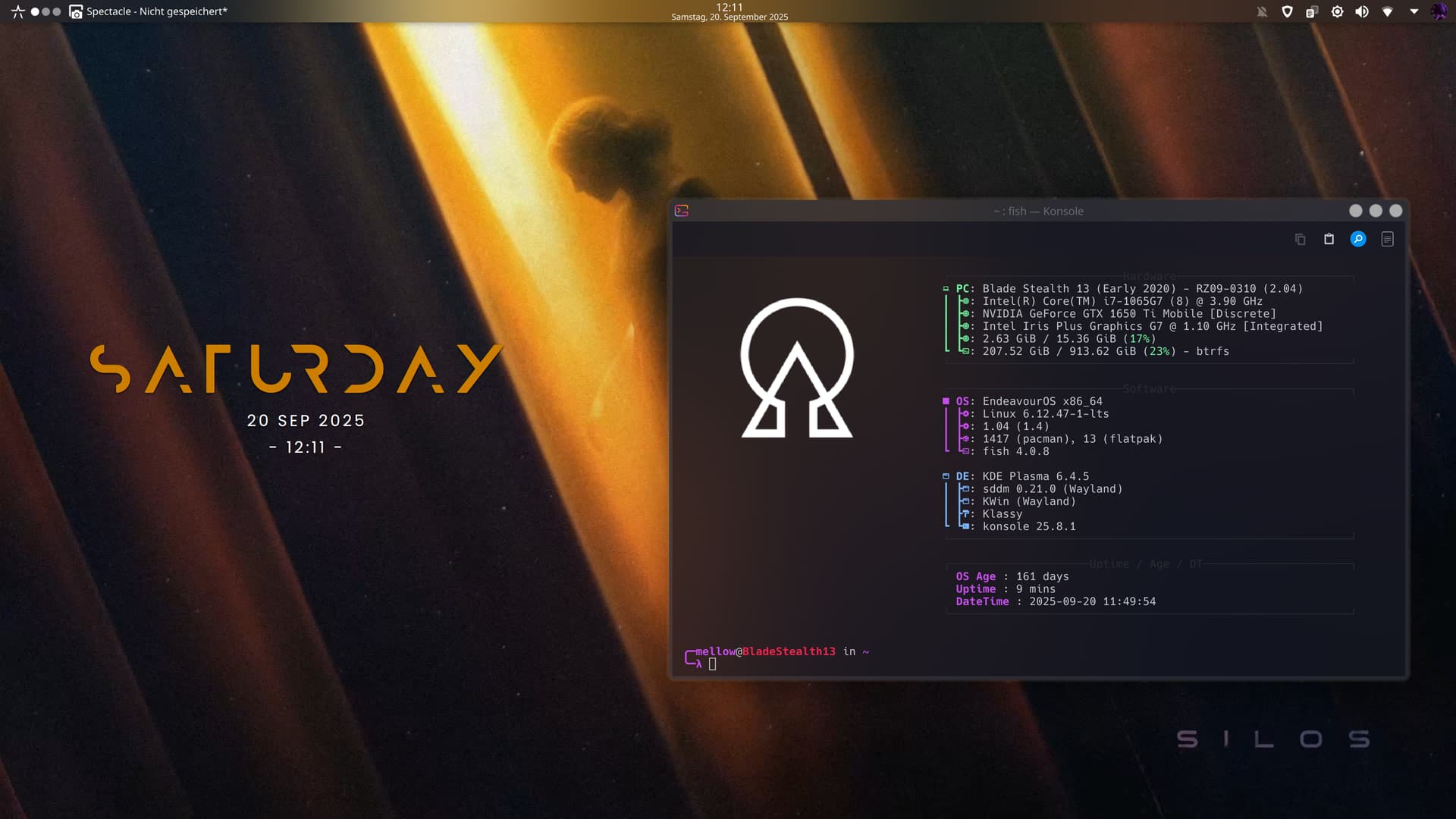
System:
Kernel: 6.12.47-1-lts arch: x86_64 bits: 64
Desktop: KDE Plasma v: 6.4.5 Distro: EndeavourOS
Machine:
Type: Laptop System: Razer product: Blade Stealth 13 (Early 2020) -
RZ09-0310 v: 2.04 serial:
Mobo: Razer model: LY325 serial: UEFI: Razer v: 1.04
date: 11/19/2020
Battery:
ID-1: BAT0 charge: 44.3 Wh (100%) condition: 44.3/53.2 Wh (83.4%)
CPU:
Info: quad core model: Intel Core i7-1065G7 bits: 64 type: MT MCP cache:
L2: 2 MiB
Speed (MHz): avg: 1058 min/max: 400/3900 cores: 1: 1058 2: 1058 3: 1058
4: 1058 5: 1058 6: 1058 7: 1058 8: 1058
Graphics:
Device-1: Intel Iris Plus Graphics G7 driver: i915 v: kernel
Device-2: NVIDIA TU117M [GeForce GTX 1650 Ti Mobile] driver: nvidia
v: 580.82.09
Device-3: IMC Networks Integrated Camera driver: uvcvideo type: USB
Display: wayland server: X.org v: 1.21.1.18 with: Xwayland v: 24.1.8
compositor: kwin_wayland driver: X: loaded: modesetting,nvidia dri: iris
gpu: i915 resolution: 1: 1920x1080~144Hz 2: 3840x2160~60Hz
API: EGL v: 1.5 drivers: iris,nvidia,swrast
platforms: gbm,wayland,x11,surfaceless,device
API: OpenGL v: 4.6.0 compat-v: 4.5 vendor: intel mesa v: 25.2.3-arch1.2
renderer: Mesa Intel Iris Plus Graphics (ICL GT2)
API: Vulkan v: 1.4.321 drivers: intel,nvidia surfaces: N/A
Info: Tools: api: clinfo, eglinfo, glxinfo, vulkaninfo
de: kscreen-console,kscreen-doctor gpu: nvidia-settings,nvidia-smi
wl: wayland-info x11: xdpyinfo, xprop, xrandr
Audio:
Device-1: Intel Ice Lake-LP Smart Sound Audio
driver: sof-audio-pci-intel-icl
API: ALSA v: k6.12.47-1-lts status: kernel-api
Server-1: PipeWire v: 1.4.8 status: active
Network:
Device-1: Intel Ice Lake-LP PCH CNVi WiFi driver: iwlwifi
IF: wlan0 state: up mac: 54:8d:5a:cf:59:4a
Bluetooth:
Device-1: Intel AX201 Bluetooth driver: btusb type: USB
Report: btmgmt ID: hci0 rfk-id: 0 state: down bt-service: disabled
rfk-block: hardware: no software: no address: N/A
Drives:
Local Storage: total: 931.51 GiB used: 206.35 GiB (22.2%)
ID-1: /dev/nvme0n1 vendor: Kingston model: SNV2S1000G size: 931.51 GiB
Partition:
ID-1: / size: 913.62 GiB used: 206.35 GiB (22.6%) fs: btrfs
dev: /dev/nvme0n1p2
ID-2: /boot/efi size: 1022 MiB used: 612 KiB (0.1%) fs: vfat
dev: /dev/nvme0n1p1
ID-3: /home size: 913.62 GiB used: 206.35 GiB (22.6%) fs: btrfs
dev: /dev/nvme0n1p2
ID-4: /var/log size: 913.62 GiB used: 206.35 GiB (22.6%) fs: btrfs
dev: /dev/nvme0n1p2
Swap:
ID-1: swap-1 type: partition size: 16.89 GiB used: 0 KiB (0.0%)
dev: /dev/nvme0n1p3
Sensors:
System Temperatures: cpu: 41.0 C mobo: N/A
Fan Speeds (rpm): N/A
Info:
Memory: total: 16 GiB available: 15.36 GiB used: 4.67 GiB (30.4%)
Processes: 302 Uptime: 33m Shell: fish inxi: 3.3.39
Edit: 2nd Monitor still only works on the login screen, but after Login it doesnt detect a signal anymore. Even though, the Laptop detects it and acts as if it would work and likes putting some windows there every now and then that i then have to move to the laptop screen blindly which is fun (sometimes)…
Also i found this command, no idea how useful is in that case but it also shows that the monitor is there i guess
 ╭─mellow@BladeStealth13 in ~
 ╰─λ kscreen-doctor -o
Output: 1 eDP-1 038bb486-d184-42d6-8f42-d45a57268f6a
        enabled
        connected
        priority 1
        Panel
        replication source:0
        Modes:  1:3840x2160@60*!  2:3840x2160@40  3:1600x1200@60  4:1600x1200@60  5:1280x1024@60  6:1280x1024@60  7:1024x768@60  8:1024x768@60  9:2560x1600@60  10:2560x1600@60  11:1920x1200@60  12:1920x1200@60  13:1280x800@60  14:1280x800@60  15:3200x1800@60  16:3200x1800@60  17:2880x1620@60  18:2880x1620@60  19:2560x1440@60  20:2560x1440@60  21:1920x1080@60  22:1920x1080@60  23:1600x900@60  24:1600x900@60  25:1368x768@60  26:1368x768@60  27:1280x720@60  28:1280x720@60
        Geometry: 0,0 1746x982
        Scale: 2.2
        Rotation: 1
        Overscan: 0
        Vrr: incapable
        RgbRange: Automatic
        HDR: incapable
        Wide Color Gamut: incapable
        ICC profile: none
        Color profile source: sRGB
        Color power preference: prefer efficiency and performance
        Brightness control: supported, set to 100% and dimming to 100%
        Color resolution: automatic (10), range: [6; 12] bits per color
        Allow EDR: always
Output: 2 DP-3 2e500b52-37f3-4ab1-b34c-f22a924b180c
        enabled
        connected
        priority 2
        DisplayPort
        replication source:0
        Modes:  29:1920x1080@60!  30:1920x1080@144*  31:1920x1080@120  32:1920x1080@120  33:1920x1080@100  34:1920x1080@60  35:1920x1080@60  36:1920x1080@60  37:1920x1080@60  38:1920x1080@50  39:1920x1080@50  40:1680x1050@60  41:1280x1024@75  42:1280x1024@60  43:1440x900@60  44:1280x960@60  45:1152x864@75  46:1280x720@60  47:1280x720@60  48:1280x720@60  49:1280x720@50  50:1440x576@50  51:1440x576@50  52:1024x768@75  53:1024x768@70  54:1024x768@60  55:1440x480@60  56:1440x480@60  57:1440x480@60  58:1440x480@60  59:800x600@75  60:800x600@72  61:800x600@60  62:800x600@56  63:720x576@50  64:720x576@50  65:720x480@60  66:720x480@60  67:720x480@60  68:720x480@60  69:640x480@75  70:640x480@73  71:640x480@67  72:640x480@60  73:640x480@60  74:640x480@60  75:720x400@70
        Geometry: 1746,0 1920x1080
        Scale: 1
        Rotation: 1
        Overscan: 0
        Vrr: incapable
        RgbRange: Automatic
        HDR: incapable
        Wide Color Gamut: incapable
        ICC profile: none
        Color profile source: sRGB
        Color power preference: prefer efficiency and performance
        Brightness control: supported, set to 80% and dimming to 100%
        DDC/CI: allowed
        Color resolution: automatic (10), range: [6; 12] bits per color
        Allow EDR: unsupported