As some here have an RPI homelab or homeserver a heads up for those wanting to upgrade from bookworm to trixie.
The raspberry pi organisation does not support an upgrade; they only support fresh installs.
Nonetheless I did upgrade, and the process was almost painless.
I followed [1] to do the upgrade of my headless homeserver.
All updates ran well, the system was upgraded to trixie and was still working.
Until I rebooted: I could not connect to the machine through ssh anymore.
Logging in locally I found that the server had not gotten its proper IP-adress.
It now had 127.0.0.1.
So I did a full restore and looked for others with the same experience.
Then I found [2].
With that information I redid the upgrade and all went well, including the server getting its proper IP-adress.
Since then (1 week ago) the server is running without problems.
It looks like they do not recommend a direct upgrade every time they do a major version release. A few weak ago I did a clean install from bullseye (I know) to trixie and I noticed a very significant improvement.
They are now implementing cloud-init in their headless iso. That can significantly help you configure your fresh “server” - setup users/groups, ssh keys, etc configs, additional packages, networks,…
edit: on the other hand old guides will no longer work because there is no more rpi user.
I then implemented most of my services in docker-compose files which made migrating to a new system significantly less painful than in “the good old days”.
Have been wanting to look into Docker but have not found the time just yet - frankly, my first question is whether Docker is relevant for my use case. Not sure how to determine that…
What I think is that everything you can do in docker you can also do natively in the OS. There may be some edge cases that are not relevant for me (distributed computing over many machines, several instances of the same server on different ports, …). Some services require autorestart on error - docker can do it and so can the systemd.
There are some nice features that docker offers but there are also some traps for beginners (for example docker service bypases ufw rules).
Main advantage for docker is when you use docker-compose for setups like http server+backend database+visualisation tool. Then you have one config file to set it all up and you do not have to search which version of the database is compatible with the frontend server.
You have a home automation server. I do not know which but for example Home Assistant is commonly paired with time series database like influxdb or victoriametrics and some visualisation tool like grafana. That can be setup in docker-compose.
Well, I’m building my own automation with RPI Pico’s, old RPI3’s, Python, micro python, Bash, Flask, MQTT- it may not look shiny, and it may well be called an amalgamated mess, but it’s my mess .
Thanks a lot for the write- and heads-up. I have two Raspis, will first try it on my RSP4 with Podman before tackling my quite important PiHole / PiVPN-host
I did not dare going against their recommendation and really do not want to set up both with a fresh installation…
I never actually have used RPI OS, mostly due to the fact that I started with different SBCs (Pine64, NanoPI $ the infamous PocketCHIP) before I ever bought an RPi4. Which is currently running DietPi. But bound to my 3D Printer.
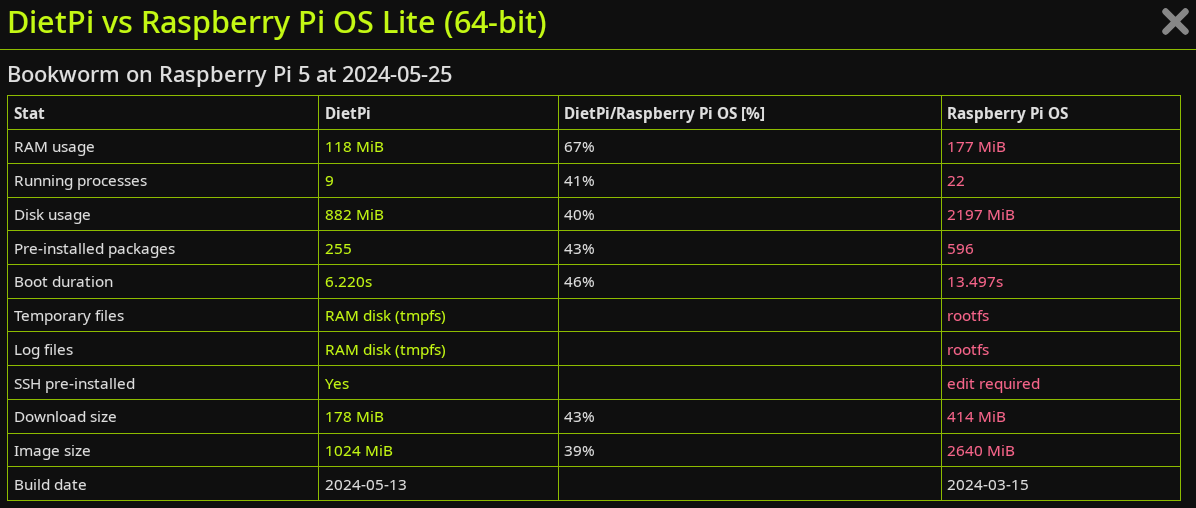
Anyway, I can actually recommend DietPi as an alternative. Especially when you’re going headless. In short, check their distrostats as well as their optimized and officially supported software stack.
But I can’t really change their color scheme / branding and the (in my opinion) awful logo
Just in case anyone wants to do a clean Debian Trixie KDE install on ARM64.
RPi 5 - How to install Debian 13 (Trixie) with KDE Plasma

$ preface equals input as user
# preface equals input as root

Download 64 bit image for Raspberry Pi OS Lite
A port of Debian Trixie with no desktop environment
which gives a nice clean slate to start from.
https://www.raspberrypi.com/software/operating-systems/

Burn image to storage device such as micro SD, USB SSD, etc.

Boot up the RPi Device.
At prompts, select language, keyboard layout, username, userpassword, etc.

At the TTY prompt,
enter your username and userpassword
$ sudo su       (become root user)
# apt update && apt dist-upgrade
# reboot

Login as user
$ sudo su
# apt install kde-plasma-desktop gldriver-test
# systemctl set-default graphical.target

For improved 4K video (not necessary for lower resolutions)
# raspi-config
     select Number 2 Display Options
     select D2 Screen Blanking
     would you like to enable screen blanking
          enter NO to disable screen blanking

# shutdown -h now

reboot into your new KDE Plasma desktop
To install the full KDE application suite, install kde-full
$ sudo apt install kde-full
OR just pick and choose the applications you desire for a leaner system.
 For example
$ sudo apt install vlc firefox rsyslog firewalld firewall-config
 gwenview  okular ark kcalc gimp libreoffice

Source:  https://m0aws.co.uk/?p=3713
 .
.