Tried sudo pacman -Syyuu too. Get the same errors
if you have internet you can try this:
sudo haveged -w 1024
sudo pacman-key --init
sudo pacman-key --populate
sudo pacman-key --refresh-keys
sudo pkill haveged
sudo cp /etc/pacman.d/mirrorlist /etc/pacman.d/mirrorlist.bak
sudo reflector --verbose --age 8 --fastest 128 --latest 64 --number 32 --sort rate --save /etc/pacman.d/mirrorlist
sudo pacman -Syu
or if you just wan’t to run at once with copy/paste
sudo haveged -w 1024; sudo pacman-key --init; sudo pacman-key --populate; sudo pacman-key --refresh-keys; sudo pkill haveged; sudo cp /etc/pacman.d/mirrorlist /etc/pacman.d/mirrorlist.bak; sudo reflector --verbose --age 8 --fastest 128 --latest 64 --number 32 --sort rate --save /etc/pacman.d/mirrorlist; sudo pacman -Syu
OBS: You can also check if your mirrors are commented with “#”. (they shouldn’t)
In this case you can cat /etc/pacman.d/mirrorlist and check.
I truly dont get it - it doesnt look like Im connected to the internet. I can search for packages but are unable to install them. When I tried what you suggested everything went fine until the reflector line. Lots of errors rolled by. I give up on this and download a new iso file… Thanks for the help though
It’s possible to search packages offline, the database is in the system, but is updated whenever you use “-y” option with pacman.
Most people that are having trouble with wifi usually have broadcom hardware, then downloading the package from another machine and installing in your system may solve it for you.
if you want to try download it
https://www.archlinux.org/packages/community/x86_64/broadcom-wl-dkms/download/
transfer using a usb drive to your /home/user folder.
Then open a terminal and type sudo pacman -U broadcom-wl-dkms-6.30.223.271-20-x86_64.pkg.tar.xz
and reboot
This post is getting too long. I already confirmed with @anon77235960 that his wifi is Intel iwlwifi when he thought he wasn’t connected. I think he has a bad mirroring problem or key or corruption of the cache. I’m not so sure it’s a wifi problem unless he really has a bad connection. This is just my opinion but i was originally trying to confirm his hardware when all this started and it was already connected to wifi. If he can ping a site he’s connected.
So maybe the problem you have will be fixed if you reinstall. It can’t hurt and doesn’t take long. If you can ping a site using the terminal then you are connected.
Try in the terminal a couple of sites. Use crtl c to quit after each.
ping www.endeavouros.com
ping www.google.com
ping www.facebook.com
Good luck and keep us informed.
@fernandomaroto Sorry, i meant the other post was getting too long like you said regarding Antergos switch to Endeavour. I’m so confused. 
No problem, i didn’t see he actually managed to ping to confirm internet connection, this only affirms that the post was getting too long hahahaha.
No he just said it was actually connected but he thought it wasn’t. I cannot confirm or deny! I know Nothing! 
Neither do I.
You know way more than i do! 
i just see a new article from Linux insider.
Newcomer EndeavourOS Offers a Friendlier Arch Linux Experience.
Just wondering if you got things working?
no I haven’t had the time yet. Will probably do it tonight or tomorrow. Will let you guys know how it goes 
I
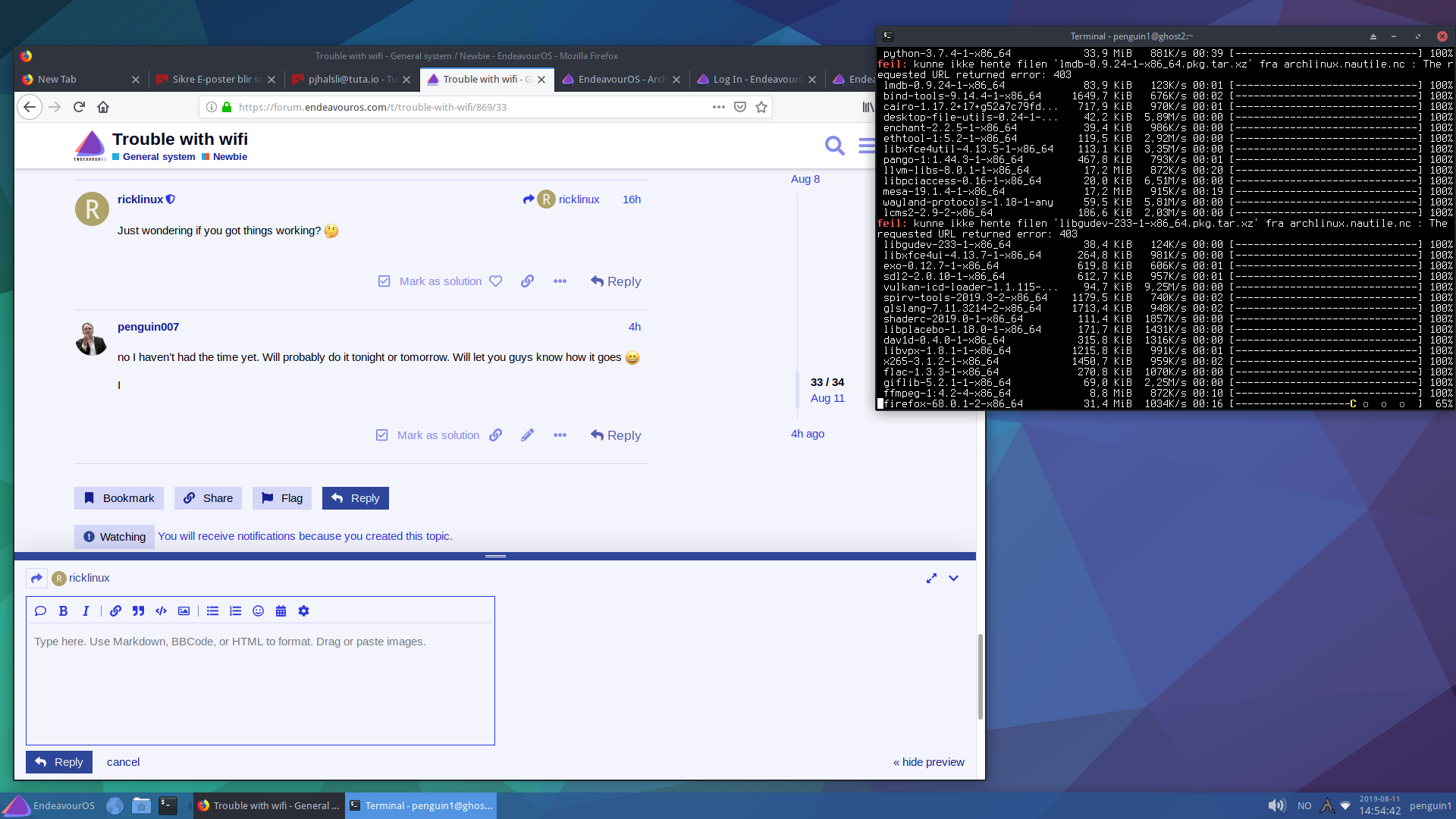
Finally happy - everything works just fine. Was something really wrong with that last download. Probably a corrupt file
Glad to finally see you got it working. It was obviously some sort of glitch in the software and something just didn’t set up properly as we did identify that the iwlwifi was the driver and it was loaded. Something was conflicting between the NetworkManager and the WIFI as there are a bunch of components installed for this.
WiFI is hard to figure out when it doesn’t work. Excellent news!
OT:
Oh another Tuta-User. 