I figured it probably was best to reboot for the network changes to take effect in the firewall.
Yeah, I did set it to permanent. I did reset the firewall. But is a reboot of the system needed?
Edit; If so, I’ll reboot in a little bit. Waiting for something to download atm
you do enable local hostname resolution already?
As of the printer wiki?
https://discovery.endeavouros.com/printers/printers/2021/03/
A BIG difference between an install in February and a Artemis install, is the inclusion of firewalld being enabled at installation.
In order to completely eliminate the firewall, have you disabled firewalld and reboot?
sudo systemctl disable firewalld
Pudge
Do you have ipp-usb service enabled and running? systemctl status ipp-usb
Can you see your printer by executing the next command? avahi-browse -rt _ipp._tcp
Also, you can use avahi-discover to see devices connected to the same network and search for your printer.
I don’t know if this could work, but from my own experience:
I had some issues while trying to reinstall an Epson printer over WiFi, it wasn’t detected by IP address, only using dnssd or ipp (driverless), but it didn’t work. So, I’ve added it using the dnssd one, then stopped cups service and edited /etc/cups/printers.conf.
I’ve got an old printers.conffile on backup and copied printer’s configuration from it. You can use the file that is working for the printer on Linux Mint to copy data.
<Printer EPSON_L3250_Series>
PrinterId 24
UUID urn:uuid:360d3481-4588-31d6-59b7-ca8fde1dc1fc
Info EPSON L3250 Series
Location
MakeModel EPSON L3250 Series , Epson Inkjet Printer Driver (ESC/P-R) for Linux
# Edit next line with corresponding URI
DeviceURI lpd://192.168.1.65:515/PASSTHRU
State Idle
StateTime 1664813244
ConfigTime 1664467914
Type 4108
Accepting Yes
Shared No
JobSheets none none
QuotaPeriod 0
PageLimit 0
KLimit 0
OpPolicy default
ErrorPolicy stop-printer
# I've added these lines from the backup file
Attribute marker-colors \#000000,#00FFFF,#FF00FF,#FFFF00
Attribute marker-levels -1,-1,-1,-1
Attribute marker-names Black Ink Bottle,Cyan Ink Bottle,Magenta Ink Bottle,Yellow Ink Bottle
Attribute marker-types ink,ink,ink,ink
Attribute marker-change-time 1664813244
</Printer>
Save the file, restart CUPS and it should work.
but will need local hostname resolution working … in some cases it is not needed seems some router firmwares can handle it too?
I’m not sure, I’ve used those commands to find my printer and can’t remember if I did the hostname resolution or not, maybe yes, but my memory isn’t good anymore. 
Edit: I guess I did the hostname resolution stuff:
pacman -Ss nss-mdns
extra/nss-mdns 0.15.1-1 [installed]
    glibc plugin providing host name resolution via mDNS
And avahi-daemon service is enabled and running.
@joekamprad
Printer is connected to a network switch via ethernet.
some switches are really bad  and some network devices too —
switches can be managed and unmanaged.. managed ones could cause issues if setup in the wrong way..
could be we need to open firewall for mdns also … i just get the question to adjust firewall when adding printer from system-config-printer tool…
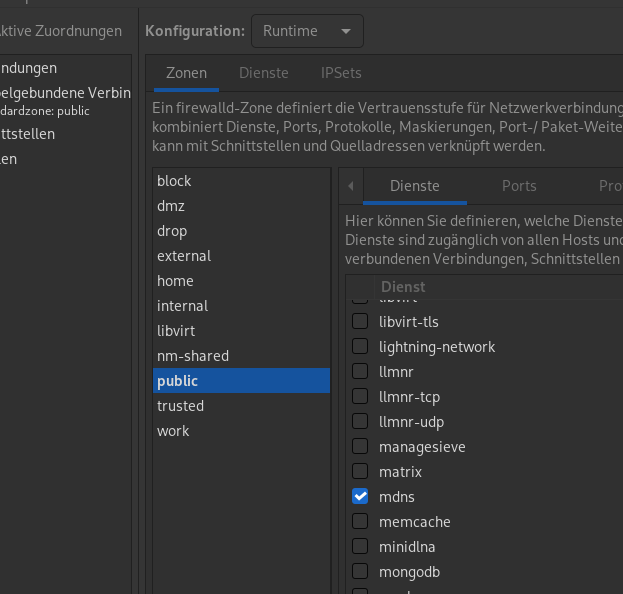
You are a god…
as soon as I applied that ^ and restarted firewall…
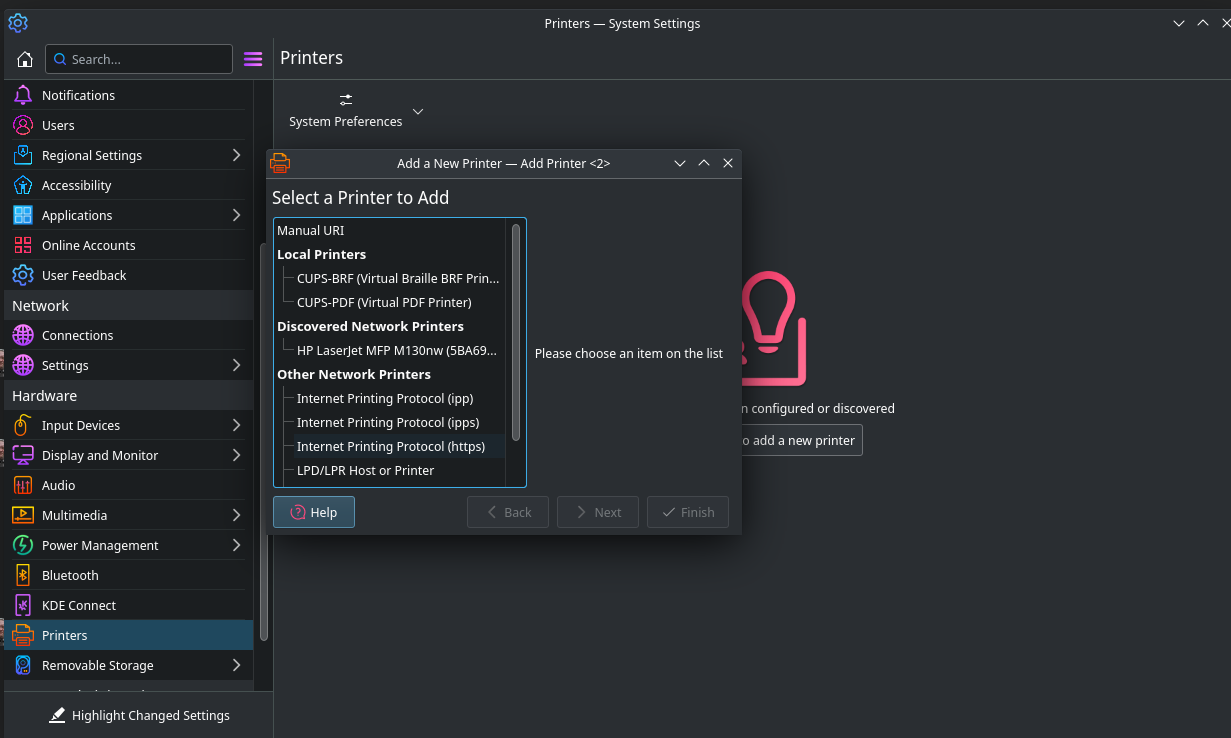
seems to be a change i do not see before… i will add the hint to the wiki soon 
We see again that helping helps both sides always… if no one ask for help we will not be able to get the knowledge 
B.T.W both big DEs have nice printer setup/management implementation inside settings… but both KDE and GNOME can be troublesome aside from system setup… in case system-config-printer is working in 99,999% of cases.
When I install my printer, yes, fully installed with drivers, I got to “print test page” and it brings up:
‘Unable to locate printer “NPI5BA69F.local”.’
Edit: As much as I like KDE, its system management is a bit weird…
Too bad I didn’t wait until I read this to install my printer. Last night I played the same frustrating game. Perhaps not the correct method but I just did the ‘systemctl stop firewalld.service’ installed printer then restarted the firewall. I just looked it up and the firewall opened mdns port 5353 udp under the services tab.
Welcome to the EndeavourOS forum. I hope you enjoy your time here.
Thank you for your feed back on the printer problem, glad you got it going.
Pudge
I appreciate the welcome, Thank you. Lurking for a few years so its about time I said something. lol
@Ze_Mind
Glad you got it working. After dawned on me I figured it had to have something to do with the firewall program.
OK, I got it working, 100%
Let me share with you my findings.
I looked into HP troubleshooting, and I found something odd… It said to run:
hp-makeuri <ip-address>
Being I knew the address, I got:
HP Linux Imaging and Printing System (ver. 3.22.6)
Device URI Creation Utility ver. 5.0

Copyright (c) 2001-18 HP Development Company, LP
This software comes with ABSOLUTELY NO WARRANTY.
This is free software, and you are welcome to distribute it
under certain conditions. See COPYING file for more details.

CUPS URI: hp:/net/HP_LaserJet_MFP_M129-M134?ip=192.168.1.228
SANE URI: hpaio:/net/HP_LaserJet_MFP_M129-M134?ip=192.168.1.228
HP Fax URI: hpfax:/net/HP_LaserJet_MFP_M129-M134?ip=192.168.1.228
Being that it had the CUPS URI, I then went into system-config-printer and deleted the old printer. I installed a new one, BUT before it was installed, I changed the URI to:
hp:/net/HP_LaserJet_MFP_M129-M134?ip=192.168.1.228
Originally, it was set to this:
ipps://HP%20LaserJet%20MFP%20M130nw%20(5BA69F)._ipps._tcp.local/
I think THAT is where it got confused. I was able to print a full test page after that. (was never able to prior)
Thanks for all your pointers, ricklinux and joekamprad! Joekamprad hit the bullseye, though…
If any of you fall into this problem, use your noggin’. 
This is exactly how it should be. That’s the ip of the printer connected to the switch i assume.
Why it didn’t do that prior, (besides MDNS) baffles me…