Oh so the Phonon framework will be an optional dependency and not a required dependency? Is that a correct summation?
Yup thats how I read it.
I would like the same treatment for okular though I confess I havent done the legwork to make sure its equally doable.
Whether or not that happens I happily await these changes.
Never did want or use any of those preview things to play media.
( And as the maintainer of the AUR phonon-mpv packages feels the same they have abandoned those packages - they currently have no maintainer. )
Updated! Thanks for the support 
Apparently, it’s not that simple after all!
After removing the three packages mentioned above, I noticed today that VLC Player no longer plays one of my AVI files.
The error message then appears (automatically translated into English!):
Codec is not supported:
VLC could not decode the format “MJPG” (Motion JPEG Video)
Just a few days ago, before uninstalling the three packages and also before today’s system update, this AVI file definitely still played with VLC-Player.
A little research revealed that I should install vlc-plugins-all.
But it turned out that this entails installing 65 (!) individual packages!
After some further research, it turned out that installing just vlc-plugin-ffmpeg as a single package would probably be sufficient for my above-mentioned problem.
And that’s exactly what happened; now playback works again.
But I’m still confused. Apparently, VLC has been split into many small packages?!
Should I perhaps still install vlc-plugins-all to get comprehensive functionality (as is actually expected from the VLC Player is used to, VLC is the “omnivore”!)?
Yes. When a package has optional functionality, it is often split into multiple packages so you can choose what parts you want installed on your system. This is especially useful in this case where those plugins are dependent on the libraries needed to play those formats which, as you noticed, is a lot of packages.
This saves not only disk space but reduces the bandwidth required for updates. Also, many Linux users prefer to keep as few packages as possible installed.
It is entirely up to you. If you want VLC to “play everything” then, sure, go for it.
Personally, I would only install what I need and add additional plugins if and when I needed them.
But that is the beauty of this method. We get to choose. If you want everything, install vlc-plugins-all and you get everything. If I want the minimal footprint, I can install none of them and we can both get what we want.
But I still don’t understand what happened!
Because I didn’t uninstall VLC Player or any of its plugins.
Actually, I only removed phonon-qt6-mpv and replaced it with phonon-qt6-vlc, and then removed the three packages mentioned above. And I think that only those three packages were removed and nothing else.
So one of these packages must have contained ffmpeg and possibly other tools and libraries?
Or does it have nothing to do with that and was it due to today’s system update (sudo pacman -Syu)? But that doesn’t actually just remove the codecs that VLC (optionally) requires and that are already present.
Certainly mpv depends on ffmpeg and a bunch of other libraries so I suppose that is possible.
However, if you did pacman -R and didn’t remove orphans, none of those would have been removed.
Indeed…
❯ pacman -Qi mpv
Name            : mpv
Version         : 1:0.40.0-3
Description     : a free, open source, and cross-platform media player
Architecture    : x86_64
URL             : https://mpv.io/
Licenses        : GPL-2.0-or-later AND LGPL-2.1-or-later
Groups          : None
Provides        : libmpv.so=2-64
Depends On      : alsa-lib  desktop-file-utils  ffmpeg  glibc  hicolor-icon-theme  jack  lcms2  libarchive
                  libass  libbluray  libcdio  libcdio-paranoia  libdisplay-info  libdrm  libdvdnav
                  libdvdread  libegl  libgl  libglvnd  libjpeg-turbo  libplacebo  libpulse  libsixel  libva
                  libvdpau  libx11  libxext  libxkbcommon  libxpresent  libxrandr  libxss  libxv  luajit
                  mesa  mujs  libpipewire  rubberband  openal  uchardet  vapoursynth  vulkan-icd-loader
                  wayland  zlib  libasound.so=2-64  libavcodec.so=61-64  libavdevice.so=61-64
                  libavfilter.so=10-64  libavformat.so=61-64  libavutil.so=59-64  libdisplay-info.so=2-64
                  libswresample.so=5-64  libswscale.so=8-64  libjack.so=0-64  liblcms2.so=2-64
                  libarchive.so=13-64  libass.so=9-64  libbluray.so=2-64  libjpeg.so=8-64
                  libplacebo.so=351-64  libpulse.so=0-64  libva.so=2-64  libva-drm.so=2-64
                  libva-wayland.so=2-64  libva-x11.so=2-64  libxkbcommon.so=0-64  librubberband.so=3-64
Optional Deps   : yt-dlp: for video-sharing websites playback [installed]
Required By     : mpvpaper  mpvqt  open-tv-bin
Optional For    : None
Conflicts With  : None
Replaces        : None
Installed Size  : 6.00 MiB
Packager        : Robin Candau <antiz@archlinux.org>
Build Date      : Wed 21 May 2025 03:53:16 PM CDT
Install Date    : Thu 22 May 2025 08:31:05 AM CDT
Install Reason  : Installed as a dependency for another package
Install Script  : No
Validated By    : Signature
❯
Yes, strange, I definitely only ran
sudo pacman -R mpv mpvqt haruna
and only those three packages were removed, so I don’t understand it.
But, okay, let’s just forget about it. It seems there’s no way to explain it, and it was solved by reinstalling vlc-plugin-ffmpeg.
I just don’t know what else was ripped out of the system (just like ffmpeg), but I’ll probably notice when I get the next error message from VLC that something can’t be played (which worked before) …
mpv has a ton of plugins, only they are called lua scripts here.
Also, cache/buffer settings are easily done with the settings demuxer-max-bytes=*KiB and --cache=<yes|no|auto>, --cache-secs, --cache-pause and probably loads more.
mpv is on par with VLC in terms of configurability and plugins, or better. But you need to know more of the underlying system to tune everything right.
VLC is like the Swiss Army knife of media players – it does everything, but nothing as good as it should. The settings are mediocre, you get better video, audio and subtitles with mpv and most likely other players. If you are happy with ‘it just works’, VLC is an attractive player. If you want to go beyond that, use mpv.
What does ‘efficiency’ mean in this context? Low CPU load? You can certainly have this with mpv, depending on your settings. mpv plays even in the console with something like vo=tct on low-spec hardware. But you can also have mpv play a 480p DVD video on a 4k screen with neural network interpolation and have the best video possible, for the price of full GPU load even on a Nvidia 4080 or better.
Honestly dont even see it as that since .. like the days of XP.
HW-Accel is off or broken by default.
Output does not automatically select the optimum settings.
So you end up with many users having bad or no playback at all unless they fiddle with the settings.
You know this stuff
These kinds of issues are absent with mpv, that is it will play and might even be hardware accelerated automatically, but users will likely get better performance by learning about all the little options.
Besides the persistent perceptions that somehow vlc is le goat, which are rather unfounded outside of proprietary ecosystems…
Mostly I think users might have had issues with mpv lacking a GUI.
But thats not true anymore .. it has a pretty intuitive one built in.
Not to mention all the various frontends like haruna.
The problem with using emuxer-max-bytes=*KiB, --cache=<yes|no|auto>, --cache-secs, --cache-pause, etc is that they have to be modified in the desktop file. Then also when we right click a file and then select the MPV to open it then these settings do not get applied. There is no configuration file or menu option where this can be set and is persisted for each and every launch.
Exactly, if a particular video or audio format cannot be played then try and use VLC.
And yes for most of the users out there, ‘it just works’ is why VLC is so famous and used. Like a no fuss media player.
Efficiency means using HW acceleration instead of SW acceleration.
Efficiency means adapting playback based on the battery status or whethet it is connected to direct power or not.
You can make all these options permanent in ~/.config/mpv/.
Sorry, as I know anecdotally, and as many a forum post will show .. this is simply not true the way it was on windoze. I know folks want to pretend like this is not a windoze-ism .. but it is. That is the only reason someone would think this.
This is a great example - actually VLC fails to automatically use hw-accel in most, if not all, cases.
This is actually true for general playback/output .. not just whether or not its hardware accelerated.
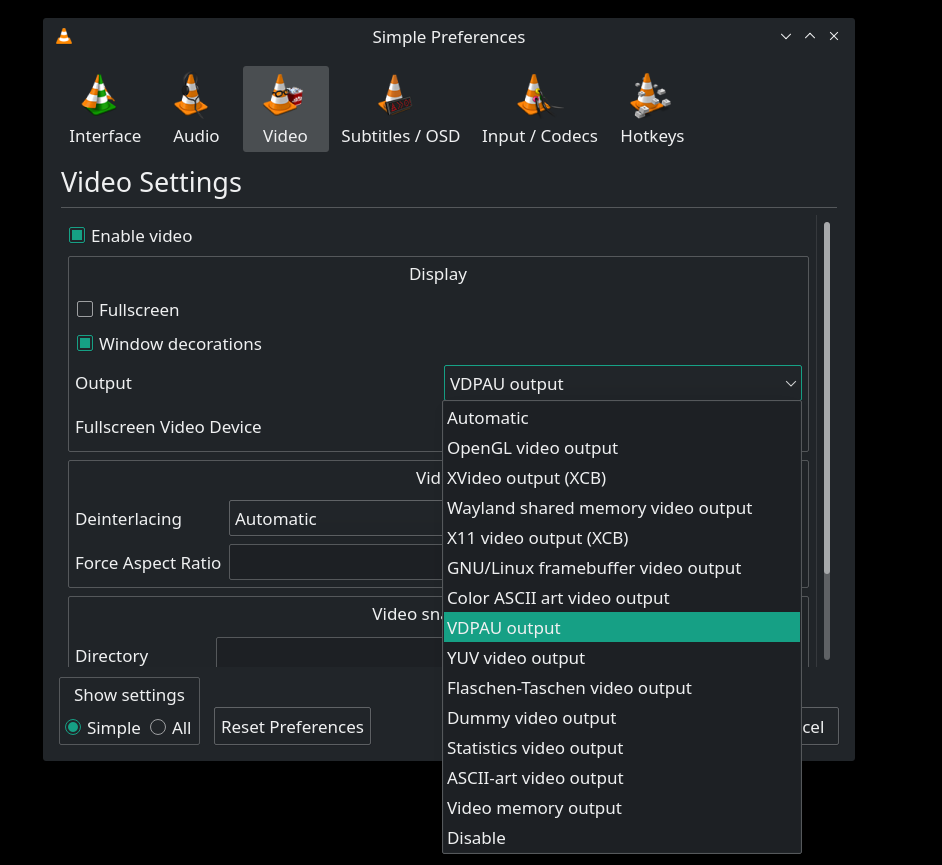
Funny there is a VDPAU, which is for NVIDIA GPUs but nothing similar is there for Intel based GPUs, i.e. VAAPI, nor for AMD.
Please correct me, from what I know the option for OpenGL Video Output, Wayland shared memory video output and X11 Video output (XCB) are for Software Encoding and not Hardware Encoding. So in other words they will end up using the CPU (for Software Encoding) and not the GPU (Hardware encoding).
Now that is intriguing. With MPV or Haruna there is no way to know whether some video playback is using Hardware Encoding or Software encoding. Nor is there some setting which can force that.
Also does Haruna depend on/use MPV? I did not know that. I assumed that like VLC it has its own back-end for playing videos and audio.
@Schlaefer, is there some documentation which will sheds some light on ~/config/mpv? I did not know about this. Thanks.
That’s how stuff is drawn on the screen. The hardware acceleration is a separate setting in Input/Codecs.
The bible is the mpv manual. Every option can either be set as app parameter or without the dashes in the mpv.conf
If you want to see what happens, you just need to press ShiftI while playing.
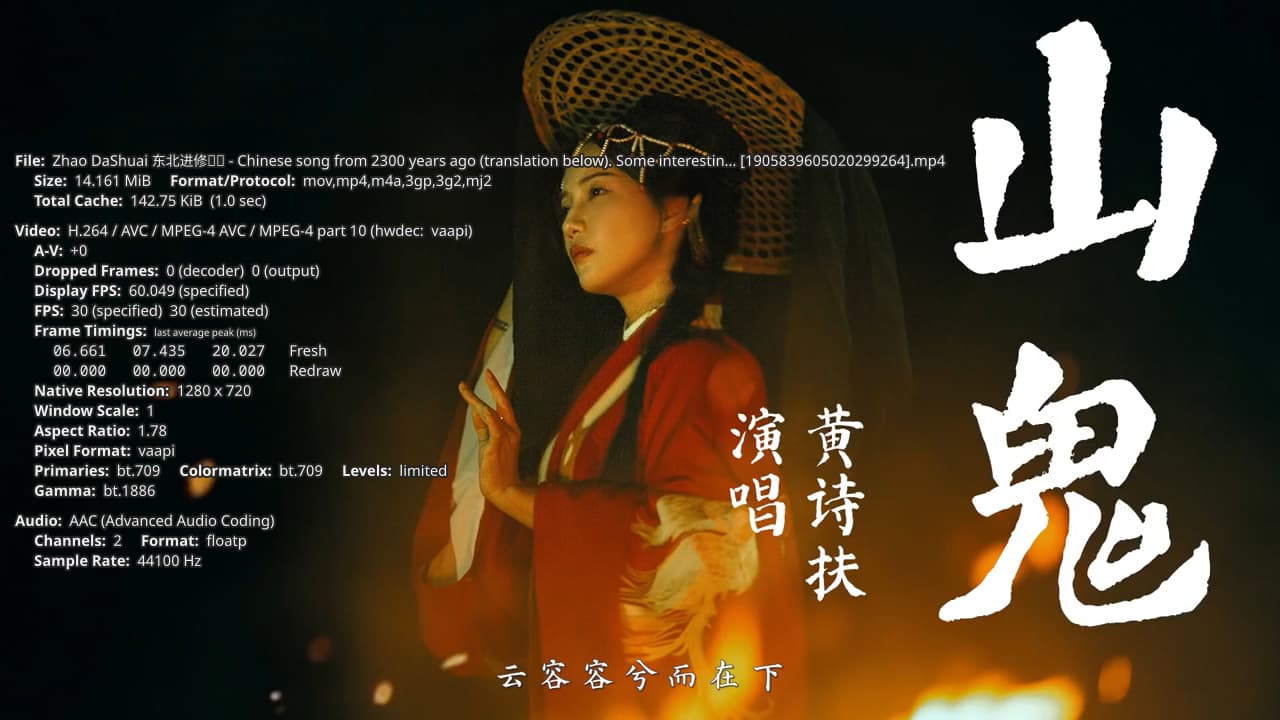
. Pressing 1 - 4 gives you access to the four pages of the statistics of the player. Also, even easier, start it via the console with
mpv <options> myvideofile.mkv and read what mpv throws during playback as information.
emk2203@E6540:~$ mpv ~/Videos/Dandadan04fightscene.mkv
[autoload] Prepending christmas-trees-desktop-wallpaperwaifu-com.mp4
[autoload] Prepending 10bitwhite.mkv
[autoload] Adding Idolmaster-Iori-tsundere.mp4
 ● Video  --vid=1               (h264 1280x720 23.976 fps) [default]
 ● Audio  --aid=1  --alang=jpn  (aac 2ch 44100 Hz) [default]
 ● Subs   --sid=1  --slang=eng  'English subs' (ass) [default]
MESA-INTEL: warning: Haswell Vulkan support is incomplete
[vo/gpu/libplacebo] Spent 1636.314 ms enumerating physical devices (slow!)
MESA-INTEL: warning: ../src/intel/vulkan_hasvk/anv_formats.c:790: FINISHME: support more multi-planar formats with DRM modifiers
[vaapi] libva: /usr/lib/x86_64-linux-gnu/dri/iHD_drv_video.so init failed
Using hardware decoding (vaapi).
[W][13:53:49.954429] pw.conf      | [          conf.c: 1204 pw_conf_load_conf_for_context()] setting config.name to client-rt.conf is deprecated, using client.conf
AO: [pipewire] 44100Hz stereo 2ch floatp
VO: [gpu] 1280x720 vaapi[nv12]
[sub/ass] fontselect: Using default font family: (Roboto Medium, 400, 0) -> /usr/share/fonts/truetype/noto/NotoSans-Regular.ttf, 0, NotoSans-Regular
AV: 00:00:04 / 00:02:26 (3%) A-V: -0.000
Exiting... (Quit)
There’s very little missing from mpv, in terms of documentation, plugins, configurability or output quality.