Hi, I’m relatively new to Linux, and wanted to get my Steam library running. All games, visually, run perfectly well.
My issue is that certain games don’t have any audio at all, and looking at qpwgraph, aren’t detected by pipewire whatsoever.
Games that do have audio:
Games that don’t have audio:
- Fallout 76
- Cyberpunk 2077
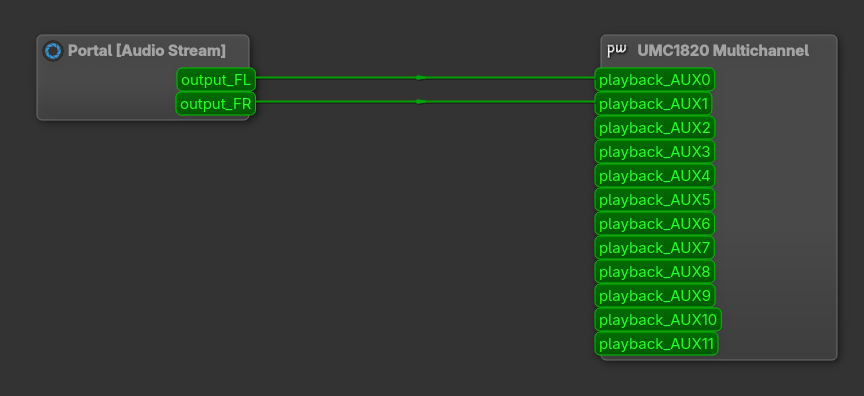
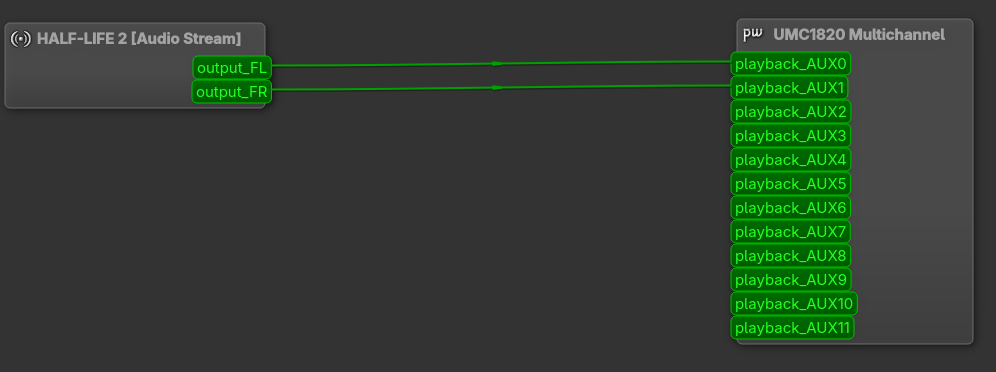
qpwgraph displays this with the games that do have audio:
However, games that don’t have audio aren’t displayed whatsoever, I’d guess meaning pipewire doesn’t detect them at all?
As far as Proton goes, I’ve tried all, some work to run the games, some don’t, but none work to fix the audio issues in Cyberpunk or F76.
I’m not sure what to do right now, whether theres a way to make Pipewire notice the game? Or is that not at all how it works?
PC Specs:
- CPU: AMD Ryzen 9 5900X
- GPU: NVIDIA GeForce RTX 3070ti
- RAM: 32GB
Do you have the package pipewire-alsa installed ?
Thanks for the reply, yeah, pipewire-alsa 1:1.6.1-1
The fact that the games don’t even appear in qpwgraph suggests they are failing to initialize an audio stream entirely, which usually points to missing compatibility layers or a mismatch in how the game perceives your audio hardware.
Why this happens
-
Missing PulseAudio Emulation: Most Steam/Proton games expect to talk to PulseAudio, not PipeWire directly. While you have pipewire-alsa, you also need pipewire-pulse to act as a bridge.
-
32-Bit Dependencies: Many games (and their launchers) still use 32-bit audio components. If the lib32 versions of the audio libraries are missing, the audio initialization fails silently.
-
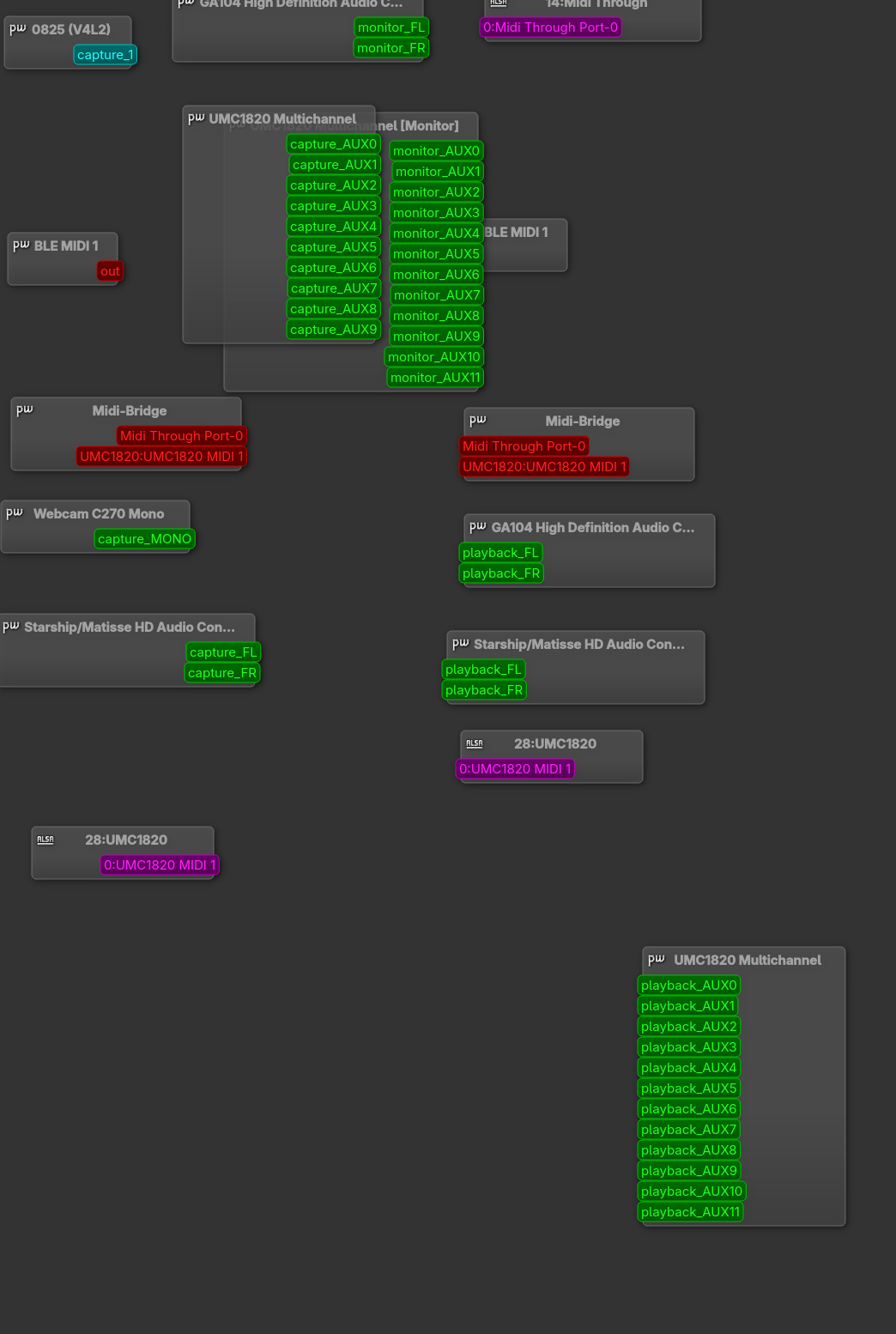
Interface Channel Mapping: As seen in your qpwgraph screenshot, your interface lists channels as playback_AUX0, AUX1, etc. Some games get confused by this “Multi-channel” layout and fail to find a “Front Left/Right” pair to output to.
Recommended Fixes
1. Install Missing Dependencies
Ensure you have the full PipeWire stack and the necessary 32-bit libraries. Open your terminal and run:
sudo pacman -S --needed pipewire-pulse lib32-pipewire lib32-libpulse lib32-alsa-plugins
After installing, restart your audio services (or reboot):
systemctl --user restart pipewire pipewire-pulse wireplumber
2. Create a Virtual Stereo Sink (For the UMC1820)
Creating a “Virtual Stereo” device often fixes games that can’t handle multi-channel output.
-
Create a configuration file:
mkdir -p ~/.config/pipewire/pipewire-pulse.conf.d && nano ~/.config/pipewire/pipewire-pulse.conf.d/99-stereo-sink.conf
-
Paste the following:
pulse.cmd = [
    { cmd = "load-module" args = "module-null-sink sink_name=GameStereo sink_properties=device.description=GameStereo channels=2" }
]
-
Restart PipeWire again. You will now see a new output device called GameStereo in your system sound settings. Set this as your Default Output, then use qpwgraph to manually route the GameStereo monitor to your interface’s AUX1 and AUX2.
3. Game-Specific Fix (Fallout 76)
Fallout 76 often requires faudio for its audio engine to work correctly under Proton.
-
Try using Proton GE (GloriousEggroll), which includes many of these audio fixes by default. You can install it easily using the protonup-qt app from the AUR or flatpak.
-
Alternatively, try this launch option in Steam (Right-click game > Properties > General > Launch Options):
WINEDLLOVERRIDES="xaudio2_7=n,b" %command%
4. Force ALSA (The “Nuclear” Option)
If the game still won’t show up in PipeWire, you can try forcing it to use ALSA directly.
-
Install protontricks:
sudo pacman -S protontricks
-
For Cyberpunk and Fallout 76 respectively, run:
Note: If you use a USB interface, some users have found that simply unplugging and replugging the interface after the game has launched can sometimes “force” the game to see the device, though the virtual sink method (Fix #2) is the more permanent solution.
That virtual stereo sink tutorial saved my ass and taught me a bit haha, thank you so much, I was struggling to comprehend that concept before. Only tested Cyberpunk, I’ll come back in the event I need to do that Fallout 76 fix. Thanks again dude.
Hell yeah, glad to hear that you’re back in business and that I was able to help! Please don’t forget to mark my response as the solution for future users who find themselves trying to fix this same problem. 
Have already marked as solution, however just to add, Fix #4 also worked perfectly for me. (for anyone else stumbling on this thread later who has the same problems)