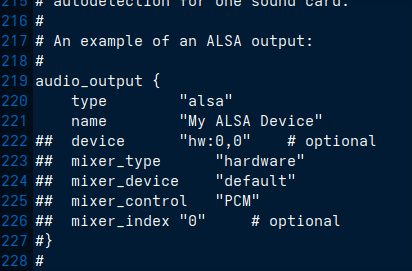
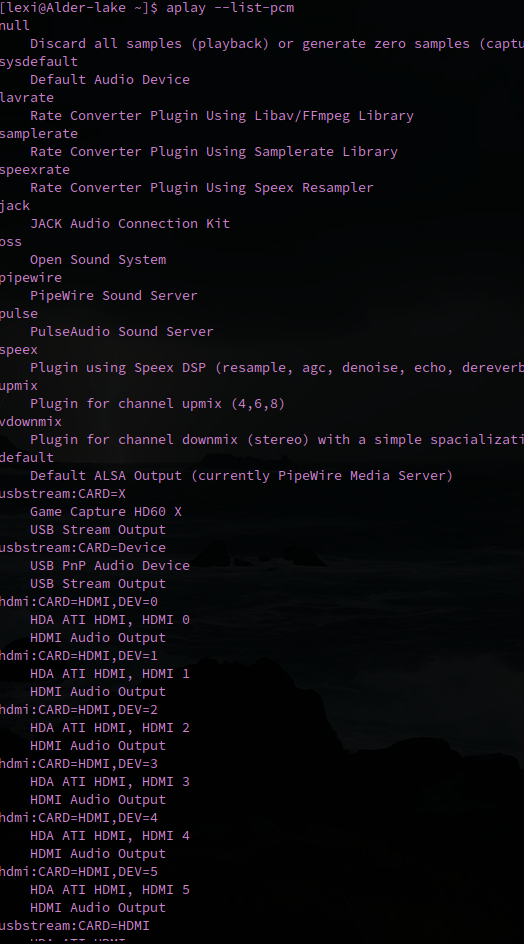
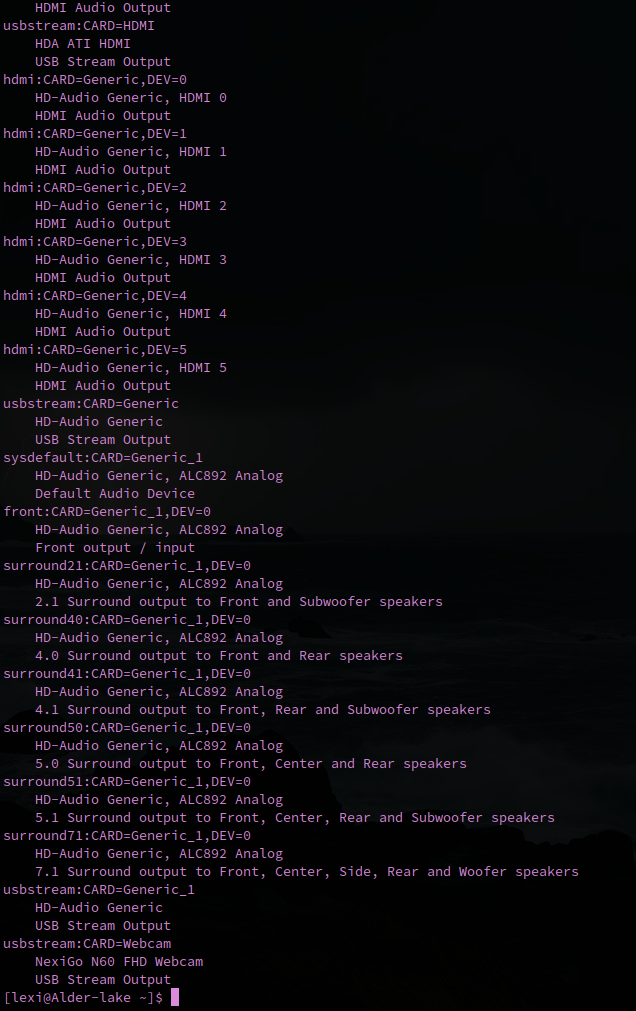
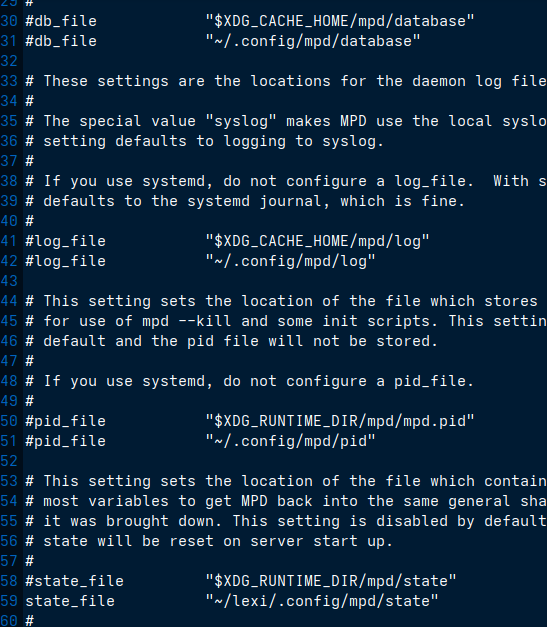
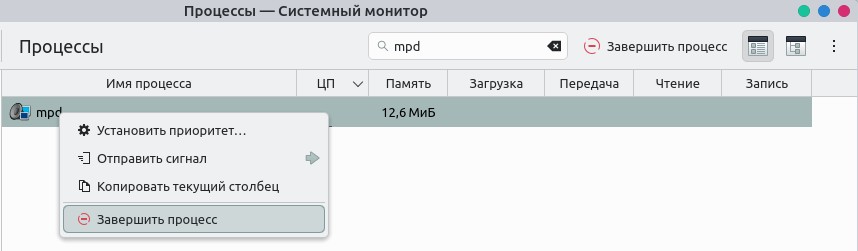
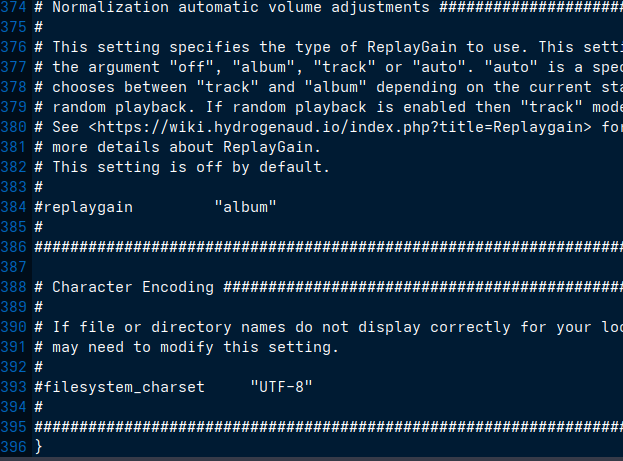
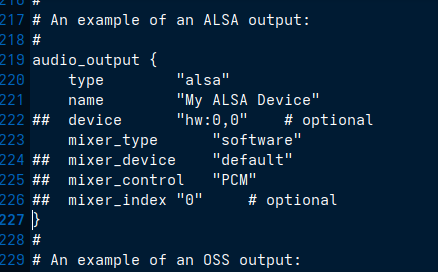
Can someone please help me with configuring mpd this has been an absolute nightmare and its eaten up 2 days of my time at this point. I have it set up so far so i can run mpd and run rmpc and they both work and open correctly but when i play music nothing happens it just reamians paused and when i try to adjust vulume i get “Failed to set mixer no such mixer control PCM” I’m using out of the box settings for eandeavor audio i haven’t changed anything but this is super confusing to me and I’m on the verge of giving up and just installing termusic again and calling it a day. (This is my entire mpd config)
Read the user manual for documentation: http://www.musicpd.org/doc/user/
Files and directories
This setting controls the top directory which MPD will search to discover the
available audio files and add them to the daemon’s online database. This
setting defaults to the XDG directory, otherwise the music directory will be
be disabled and audio files will only be accepted over ipc socket (using
file:// protocol) or streaming files over an accepted protocol.
#music_directory “$XDG_MUSIC_DIR”
music_directory “~/Music”
This setting sets the MPD internal playlist directory. The purpose of this
directory is storage for playlists created by MPD. The server will use
playlist files not created by the server but only if they are in the MPD
format. This setting defaults to playlist saving being disabled.
#playlist_directory “$XDG_CONFIG_HOME/mpd/playlists”
playlist_directory “~/Music/playlists”
This setting sets the location of the MPD database. This file is used to
load the database at server start up and store the database while the
server is not up. This setting defaults to disabled which will allow
MPD to accept files over ipc socket (using file:// protocol) or streaming
files over an accepted protocol.
#db_file “$XDG_CACHE_HOME/mpd/database”
#db_file “~/.config/mpd/database”
These settings are the locations for the daemon log files for the daemon.
The special value “syslog” makes MPD use the local syslog daemon. This
setting defaults to logging to syslog.
If you use systemd, do not configure a log_file. With systemd, MPD
defaults to the systemd journal, which is fine.
#log_file “$XDG_CACHE_HOME/mpd/log”
#log_file “~/.config/mpd/log”
This setting sets the location of the file which stores the process ID
for use of mpd --kill and some init scripts. This setting is disabled by
default and the pid file will not be stored.
If you use systemd, do not configure a pid_file.
#pid_file “$XDG_RUNTIME_DIR/mpd/mpd.pid”
#pid_file “~/.config/mpd/pid”
This setting sets the location of the file which contains information about
most variables to get MPD back into the same general shape it was in before
it was brought down. This setting is disabled by default and the server
state will be reset on server start up.
#state_file “$XDG_RUNTIME_DIR/mpd/state”
state_file “~/lexi/.config/mpd/state”
The location of the sticker database. This is a database which
manages dynamic information attached to songs.
#sticker_file “$XDG_CACHE_HOME/sticker.sql”
#sticker_file “~/lexi/.config/mpd/sticker.sql”
###############################################################################
General music daemon options
This setting specifies the user that MPD will run as. MPD should never run as
root and you may use this setting to make MPD change its user ID after
initialization. This setting is disabled by default and MPD is run as the
current user.
user “lexi”
This setting sets the address for the daemon to listen on. Careful attention
should be paid if this is assigned to anything other than the default, any.
This setting can deny access to control of the daemon. Not effective if
systemd socket activation is in use.
For network
#bind_to_address “localhost”
And for Unix Socket
#bind_to_address “$XDG_RUNTIME_DIR/mpd/socket”
#bind_to_address “~/.mpd/socket”
This setting is the TCP port that is desired for the daemon to get assigned
to.
port “6600”
Suppress all messages below the given threshold. Use “verbose” for
troubleshooting. Available setting arguments are “notice”, “info”, “verbose”,
“warning” and “error”.
#log_level “notice”
Setting “restore_paused” to “yes” puts MPD into pause mode instead
of starting playback after startup.
restore_paused “yes”
This setting enables MPD to create playlists in a format usable by other
music players.
#save_absolute_paths_in_playlists “no”
This setting defines a list of tag types that will be extracted during the
audio file discovery process. The complete list of possible values can be
found in the user manual.
#metadata_to_use “artist,album,title,track,name,genre,date,composer,performer,disc”
This example just enables the “comment” tag without disabling all
the other supported tags:
#metadata_to_use “+comment”
This setting enables automatic update of MPD’s database when files in
music_directory are changed. (Linux only)
#auto_update “yes”
Limit the depth of the directories being watched, 0 means only watch
the music directory itself. There is no limit by default.
#auto_update_depth “3”
###############################################################################
Symbolic link behavior
If this setting is set to “yes”, MPD will discover audio files by following
symbolic links outside of the configured music_directory.
#follow_outside_symlinks “yes”
If this setting is set to “yes”, MPD will discover audio files by following
symbolic links inside of the configured music_directory.
#follow_inside_symlinks “yes”
###############################################################################
Zeroconf / Avahi Service Discovery
If this setting is set to “yes”, service information will be published with
Zeroconf / Avahi.
#zeroconf_enabled “yes”
The argument to this setting will be the Zeroconf / Avahi unique name for
this MPD server on the network. %h will be replaced with the hostname.
#zeroconf_name “Music Player @ %h”
###############################################################################
Permissions
If this setting is set, MPD will require password authorization. The password
setting can be specified multiple times for different password profiles.
#password “password@read,add,control,admin”
This setting specifies the permissions a user has who has not yet logged in.
#default_permissions “read,add,control,admin”
###############################################################################
Database
An example of a database section instead of the old ‘db_file’ setting.
It enables mounting other storages into the music directory.
#database {
plugin “simple”
path “~/.local/share/mpd/db”
cache_directory “~/.local/share/mpd/cache”
#}
An example of database config for a satellite setup
#music_directory “nfs://fileserver.local/srv/mp3”
#database {
plugin “proxy”
host “other.mpd.host”
port “6600”
#}
Input
input {
plugin “curl”
proxy “proxy.isp.com:8080”
proxy_user “user”
proxy_password “password”
}
###############################################################################
Audio Output
MPD supports various audio output types, as well as playing through multiple
audio outputs at the same time, through multiple audio_output settings
blocks. Setting this block is optional, though the server will only attempt
autodetection for one sound card.
An example of an ALSA output:
audio_output {
type “alsa”
name “My ALSA Device”
device “hw:0,0” # optional
mixer_type “hardware”
mixer_device “default”
mixer_control “PCM”
mixer_index “0” # optional
#}
An example of an OSS output:
#audio_output {
type “oss”
name “My OSS Device”
device “/dev/dsp” # optional
mixer_type “hardware” # optional
mixer_device “/dev/mixer” # optional
mixer_control “PCM” # optional
#}
An example of a shout output (for streaming to Icecast):
#audio_output {
type “shout”
encoder “vorbis” # optional
name “My Shout Stream”
host “localhost”
port “8000”
mount “/mpd.ogg”
password “hackme”
quality “5.0”
bitrate “128”
format “44100:16:1”
protocol “icecast2” # optional
user “source” # optional
description “My Stream Description” # optional
url “http://example.com” # optional
genre “jazz” # optional
public “no” # optional
timeout “2” # optional
mixer_type “software” # optional
#}
An example of a recorder output:
#audio_output {
type “recorder”
name “My recorder”
encoder “vorbis” # optional, vorbis or lame
path “/var/lib/mpd/recorder/mpd.ogg”
quality “5.0” # do not define if bitrate is defined
bitrate “128” # do not define if quality is defined
format “44100:16:1”
#}
An example of a httpd output (built-in HTTP streaming server):
#audio_output {
type “httpd”
name “My HTTP Stream”
encoder “vorbis” # optional, vorbis or lame
port “8000”
bind_to_address “0.0.0.0” # optional, IPv4 or IPv6
quality “5.0” # do not define if bitrate is defined
bitrate “128” # do not define if quality is defined
format “44100:16:1”
max_clients “0” # optional 0=no limit
#}
An example of a pulseaudio output (streaming to a remote pulseaudio server)
#audio_output {
type “pulse”
name “My Pulse Output”
server “remote_server” # optional
sink “remote_server_sink” # optional
media_role “media_role” #optional
#}
An example of a winmm output (Windows multimedia API).
#audio_output {
type “winmm”
name “My WinMM output”
device “Digital Audio (S/PDIF) (High Definition Audio Device)” # optional
or
device “0” # optional
mixer_type “hardware” # optional
#}
An example of a wasapi output (Windows multimedia API).
#audio_output {
type “wasapi”
name “My WASAPI output”
device “Digital Audio (S/PDIF) (High Definition Audio Device)” # optional
or
device “0” # optional
mixer_type “hardware” # optional
Exclusive mode blocks all other audio source, and get best audio quality without resampling.
exclusive “no” # optional
Enumerate all devices in log.
enumerate “no” # optional
#}
An example of an openal output.
#audio_output {
type “openal”
name “My OpenAL output”
device “Digital Audio (S/PDIF) (High Definition Audio Device)” # optional
#}
An example of an sndio output.
#audio_output {
type “sndio”
name “sndio output”
mixer_type “hardware”
#}
An example of an OS X output:
#audio_output {
type “osx”
name “My OS X Device”
device “Built-in Output” # optional
channel_map “-1,-1,0,1” # optional
#}
Example “pipe” output:
#audio_output {
type “pipe”
name “my pipe”
command “aplay -f cd 2>/dev/null”
Or if you’re want to use AudioCompress
command “AudioCompress -m | aplay -f cd 2>/dev/null”
Or to send raw PCM stream through PCM:
command “nc example.org 8765”
format “44100:16:2”
#}
An example of a null output (for no audio output):
#audio_output {
type “null”
name “My Null Output”
mixer_type “none” # optional
#}
###############################################################################
Normalization automatic volume adjustments
This setting specifies the type of ReplayGain to use. This setting can have
the argument “off”, “album”, “track” or “auto”. “auto” is a special mode that
chooses between “track” and “album” depending on the current state of
random playback. If random playback is enabled then “track” mode is used.
See https://wiki.hydrogenaud.io/index.php?title=Replaygain for
more details about ReplayGain.
This setting is off by default.
#replaygain “album”
###############################################################################
Character Encoding
If file or directory names do not display correctly for your locale then you
may need to modify this setting.
#filesystem_charset “UTF-8”
###############################################################################
}