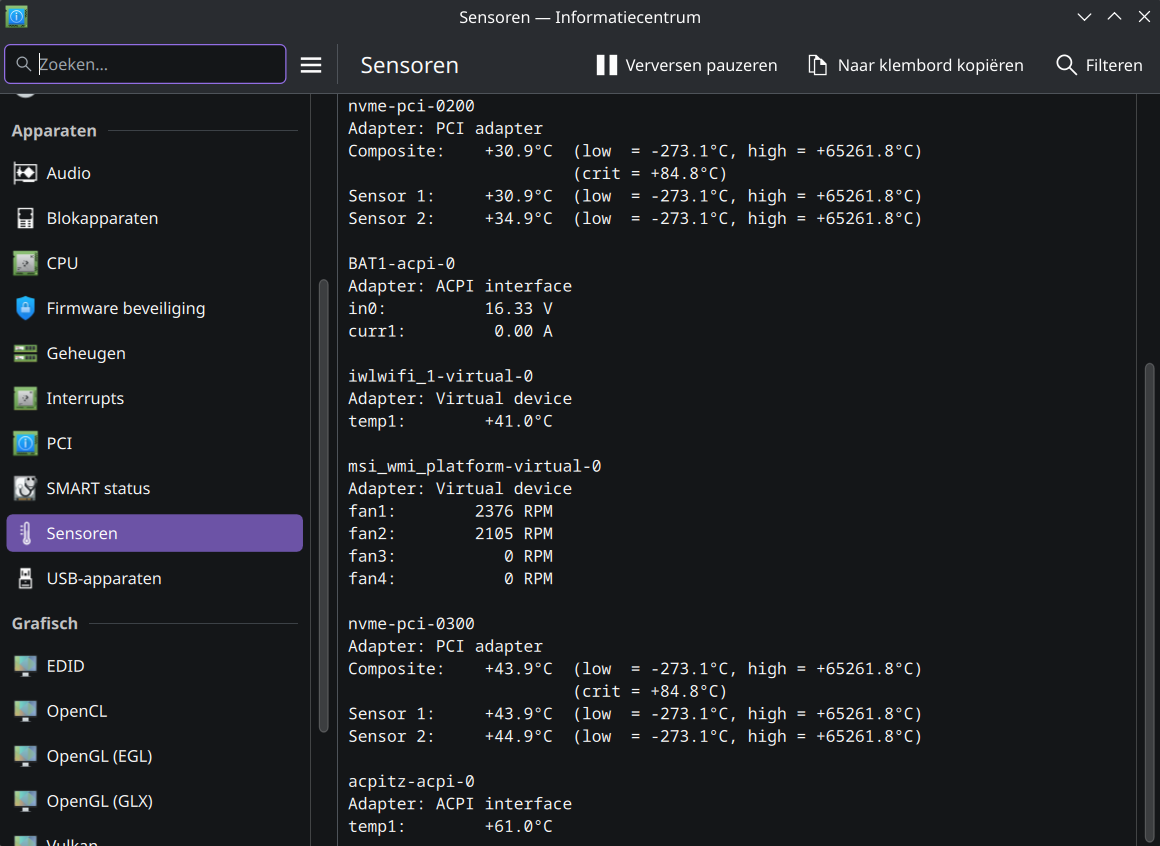
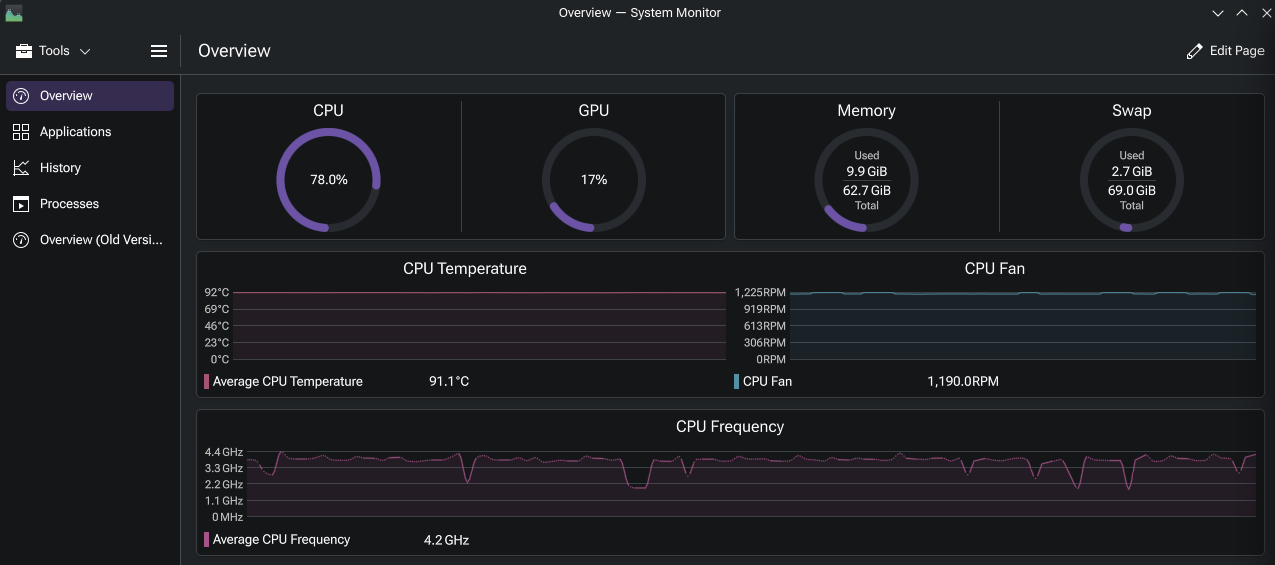
I just installed Endeavor OS and it turns out my laptop fan isn’t working, and after I fiddled with it… the fan is working but isn’t detected, but the main problem is that the fan isn’t working optimally.
My laptop is OMEN 16 wd0xxx

System:
  Kernel: 6.12.71-1-lts arch: x86_64 bits: 64 compiler: gcc v: 15.2.1
  Desktop: KDE Plasma v: 6.5.5 tk: Qt v: N/A wm: kwin_x11 dm: SDDM
    Distro: EndeavourOS base: Arch Linux
Machine:
  Type: Laptop System: HP product: OMEN by HP Gaming Laptop 16-wd0xxx
    v: Type1ProductConfigId serial: <superuser required> Chassis: type: 10
    serial: <superuser required>
  Mobo: HP model: 8BA9 v: 76.50 serial: <superuser required>
    part-nu: 7R002UAR#ABL Firmware: UEFI vendor: Insyde v: F.30 date: 11/12/2025
Battery:
  ID-1: BAT1 charge: 65.2 Wh (100%) condition: 65.2/83 Wh (78.6%) volts: 12.84
    min: 11.58 model: 313-CD-12-A WK06083XL serial: <filter> charging:
    status: full cycles: N/A
CPU:
  Info: 8-core (4-mt/4-st) model: 13th Gen Intel Core i5-13420H bits: 64
    type: MST AMCP arch: Raptor Lake rev: 2 cache: L1: 704 KiB L2: 7 MiB
    L3: 12 MiB
  Speed (MHz): avg: 400 min/max: 400/4600:3400 cores: 1: 400 2: 400 3: 400
    4: 400 5: 400 6: 400 7: 400 8: 400 9: 400 10: 400 11: 400 12: 400
    bogomips: 62688
  Flags-basic: avx avx2 ht lm nx pae sse sse2 sse3 sse4_1 sse4_2 ssse3 vmx
Graphics:
  Device-1: Intel Raptor Lake-P [UHD Graphics] vendor: Hewlett-Packard
    driver: i915 v: kernel arch: Xe ports: active: eDP-1 empty: DP-1
    bus-ID: 00:02.0 chip-ID: 8086:a7a8
  Device-2: NVIDIA AD107M [GeForce RTX 4050 Max-Q / Mobile]
    vendor: Hewlett-Packard driver: nvidia v: 590.48.01 arch: Lovelace pcie:
    speed: 16 GT/s lanes: 8 ports: active: none empty: HDMI-A-1
    bus-ID: 01:00.0 chip-ID: 10de:28a1
  Device-3: Luxvisions Innotech HP True Vision FHD Camera driver: uvcvideo
    type: USB rev: 2.0 speed: 480 Mb/s lanes: 1 bus-ID: 3-7:4 chip-ID: 30c9:009f
  Display: x11 server: X.Org v: 21.1.21 with: Xwayland v: 24.1.9
    compositor: kwin_x11 driver: X: loaded: modesetting,nvidia
    alternate: fbdev,intel,nouveau,nv,vesa dri: iris gpu: i915 display-ID: :0
    screens: 1
  Screen-1: 0 s-res: 1920x1080 s-dpi: 96
  Monitor-1: eDP-1 model: BOE Display 0x0b9f res: 1920x1080 hz: 144 dpi: 137
    diag: 407mm (16")
  API: EGL v: 1.5 platforms: device: 0 drv: nvidia device: 1 drv: iris
    device: 3 drv: swrast gbm: drv: iris surfaceless: drv: nvidia x11: drv: iris
    inactive: wayland,device-2
  API: OpenGL v: 4.6.0 compat-v: 4.5 vendor: intel mesa v: 25.3.5-arch1.1
    glx-v: 1.4 direct-render: yes renderer: Mesa Intel Graphics (RPL-P)
    device-ID: 8086:a7a8
  API: Vulkan v: 1.4.341 surfaces: N/A device: 0 type: discrete-gpu
    driver: nvidia device-ID: 10de:28a1
  Info: Tools: api: clinfo, eglinfo, glxinfo, vulkaninfo
    de: kscreen-console,kscreen-doctor gpu: nvidia-settings,nvidia-smi
    wl: wayland-info x11: xdpyinfo, xprop, xrandr
Audio:
  Device-1: Intel Raptor Lake-P/U/H cAVS vendor: Hewlett-Packard
    driver: sof-audio-pci-intel-tgl bus-ID: 00:1f.3 chip-ID: 8086:51ca
  Device-2: NVIDIA AD107 High Definition Audio vendor: Hewlett-Packard
    driver: snd_hda_intel v: kernel pcie: speed: 16 GT/s lanes: 8
    bus-ID: 01:00.1 chip-ID: 10de:22be
  API: ALSA v: k6.12.71-1-lts status: kernel-api
  Server-1: sndiod v: N/A status: off
  Server-2: PipeWire v: 1.4.10 status: active with: 1: pipewire-pulse
    status: active 2: wireplumber status: active 3: pipewire-alsa type: plugin
    4: pw-jack type: plugin
Network:
  Device-1: Intel Raptor Lake PCH CNVi WiFi driver: iwlwifi v: kernel
    bus-ID: 00:14.3 chip-ID: 8086:51f1
  IF: wlan0 state: up mac: <filter>
  Device-2: Realtek RTL8111/8168/8211/8411 PCI Express Gigabit Ethernet
    vendor: Hewlett-Packard driver: r8169 v: kernel pcie: speed: 2.5 GT/s
    lanes: 1 port: 3000 bus-ID: 03:00.0 chip-ID: 10ec:8168
  IF: eno1 state: down mac: <filter>
  IF-ID-1: enp0s20f0u1 state: unknown speed: -1 duplex: half mac: <filter>
Bluetooth:
  Device-1: Qualcomm Android driver: rndis_host v: kernel type: USB rev: 2.0
    speed: 480 Mb/s lanes: 1 bus-ID: 3-1:2 chip-ID: 05c6:90b6
  Report: btmgmt ID: hci0 rfk-id: 0 state: up address: N/A
  Device-2: Intel AX211 Bluetooth driver: btusb v: 0.8 type: USB rev: 2.0
    speed: 12 Mb/s lanes: 1 bus-ID: 3-10:5 chip-ID: 8087:0033
Drives:
  Local Storage: total: 953.87 GiB used: 149.07 GiB (15.6%)
  ID-1: /dev/nvme0n1 vendor: Western Digital model: WD PC SN810
    SDCPNRY-1T00-1006 size: 953.87 GiB speed: 63.2 Gb/s lanes: 4
    serial: <filter> temp: 44.9 C
Partition:
  ID-1: / size: 919.27 GiB used: 148.53 GiB (16.2%) fs: ext4
    dev: /dev/nvme0n1p2
Swap:
  ID-1: swap-1 type: partition size: 16.84 GiB used: 0 KiB (0.0%) priority: -2
    dev: /dev/nvme0n1p3
Sensors:
  System Temperatures: cpu: 50.0 C mobo: N/A
  Fan Speeds (rpm): cpu: 0 fan-2: 0
Info:
  Memory: total: 16 GiB note: est. available: 15.32 GiB used: 3.13 GiB (20.4%)
  Processes: 304 Power: uptime: 1h 11m wakeups: 0 Init: systemd v: 259
    default: graphical
  Packages: pm: pacman pkgs: 1359 Compilers: clang: 21.1.6 gcc: 15.2.1
    Shell: Bash v: 5.3.9 running-in: konsole inxi: 3.3.40