Missing WiFi card please respond here if found

I updated my computer and my wifi card is for all intents and purposes just gone.

Firstly I noticed the wireless interface seems to be gone from nmtui.
I tried classic troubleshooting steps such as typing in rfkill unblock all.
Now after trying all sorts of commands I came to the conclusion that while I was gone aliens beamed my wifi card out of my laptop.
Running rfkill list all does not show a wifi option:

0: ideapad_bluetooth: Bluetooth
	Soft blocked: no
	Hard blocked: no
1: hci0: Bluetooth
	Soft blocked: no
	Hard blocked: no

Trying rfkill list wlan instead just returns nothing, not even an empty line.

Running iw phy has the same result, just nothing.

Running nmcli device show only tells me that I have an ethernet interface and no wireless:

GENERAL.DEVICE:                         lo
GENERAL.TYPE:                           loopback
GENERAL.HWADDR:                         00:00:00:00:00:00
GENERAL.MTU:                            65536
GENERAL.STATE:                          100 (connected (externally))https://forum.endeavouros.com/t/
GENERAL.CONNECTION:                     lo
GENERAL.CON-PATH:                       /org/freedesktop/NetworkManager/ActiveConnection/1
IP4.ADDRESS[1]:                         127.0.0.1/8
IP4.GATEWAY:                            --
IP6.ADDRESS[1]:                         ::1/128
IP6.GATEWAY:                            --

GENERAL.DEVICE:                         enp8s0
GENERAL.TYPE:                           ethernet
GENERAL.HWADDR:                         Not showing that because privacy ig?
GENERAL.MTU:                            1500
GENERAL.STATE:                          20 (unavailable)
GENERAL.CONNECTION:                     --
GENERAL.CON-PATH:                       --
WIRED-PROPERTIES.CARRIER:               off
IP4.GATEWAY:                            --
IP6.GATEWAY:                            --

Running lspci -k again shows no trace of my WiFi card, it does however show again that I indeed still have my ethernet port:

08:00.0 Ethernet controller: Realtek Semiconductor Co., Ltd. RTL8111/8168/8211/8411 PCI Express Gigabit Ethernet Controller (rev 15)
	Subsystem: Lenovo Device 396e
	Kernel driver in use: r8169
	Kernel modules: r8169

Running lsusb shows that I at least have bluetooth connected:

Bus 001 Device 004: ID 0bda:5852 Realtek Semiconductor Corp. Bluetooth Radio

Running inxi -Fxz just reafirms that the only network device I seem to have is the ethernet interface

Network:
  Device-1: Realtek RTL8111/8168/8211/8411 PCI Express Gigabit Ethernet
    vendor: Lenovo driver: r8169 v: kernel port: 3000 bus-ID: 08:00.0
  IF: enp8s0 state: down mac: <filter>

The only reason I can even post this here is because I hijacked the ethernet cable from the hotels TV.

Does the WiFi work if you boot on the live ISO? From there you can see what the hardware is.

inxi -Na

EditZ: Also run

lspci -k

Sadly I do not have a USB or anything that would let me boot into a live ISO

Well I can’t really help not knowing what the hardware is. Have you tried disconnecting Bluetooth to see if it is interfering.

Edit: I assume it’s a Realtek chip that has the bluetooth on it also. :thinking:

If I recall correctly its an Intel AX 211.

Edit: also how could I disable bluetooth? Just use rfkill?

Okay that helps. Have you tried unloading and loading the module? Also if you are dual booting with Windows make sure the Fast Start Up Feature in Windows Power Management is turned off.

Then reboot see if it is working. If not try removing the module and then reloading it.

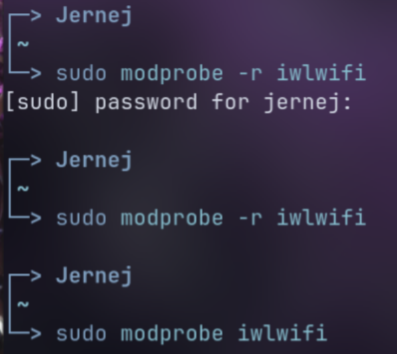
sudo modprobe -r iwlwifi
sudo modprobe iwlwifi

Edit: I have to step out for a few hours. Hope this helps.

I am not dual booting, and both of the commands return absolutely nothing.
image

Not even an empty line or n error.

Thanks for all your help :slight_smile:

Edit: whoops I am an iditot the commands arent supposed to show anything. But they seemed to have no effect. Everything is still as described in the original post

UPDATE 1

Tried the latest Endevour OS live ISO, got the same results, wifi not working, and the WiFi card not showing up with any command I tried.
For good measure I also tried the latest Fedora ISO (Fedora 40) to the same results

If you boot on the live ISO you obviously have to connect to WiFi in order to have internet. Are you not able to click on the network icon and do that or is that not showing up?

You can also post

inxi -Na

lspci -k

you boot on the live ISO you obviously have to connect to WiFi in order to have internet.

Yes, that mutch was obvious, and I should have made it more clear in my comment that ALL results are the same as my original post.
This means that:
A wifi card does not show up on lspci or lsusb or inxi -Na
I cant find a wifi in the network settings
Network Manager does not see a wireless interface

I assume this is from recollection. Do you remember when it worked? You said when you updated it was gone so maybe it was a newer kernel or some other update. Maybe you can check the log in /var/log/pacman.log and figure that out. You can downgrade the kernel and headers but you need internet unfortunately. Don’t know how else i can help. Do you have ethernet?

Yes, luckily I have Ethernet now.
The WiFi had wroked before (and during) the update, and stoped after the reboot. That I am certain off since I used the WiFi to actually install the update.
I do not know how to downgrade the Kernel.

Since the WiFi card did not work on Fedora I am suspecting a hardware issue

Going to take a wild swing because I’ve seen this happen over the years multiple times to multiple people, including myself, and it’s one of those things that makes you feel like a fool for overlooking it because it’s just so simple that it’s surely not the problem you’ve been banging your head against for however long -

Does your ideapad include a FN+function key control to enable/disable the wifi card? If so -

Have you checked that this hasn’t been toggled by something?

I have an Legion 5 16IRX9, and I do have a button to disable wifi (the airplane mode button on f9) pressing it does not seem to bring my WiFi back.
Also if that were the problem why would the same problem persist over 3 different systems, and why or how would it make it completely invisible to all the different systems?

EDIT:

Have you checked that this hasn’t been toggled by something?

According to wev (walyand euivalent to xev) the key does nothing??? (unless it somehow affects the hardware directly???

[14:     wl_keyboard] key: serial: 11983; time: 12252686; key: 248; state: 1 (pressed)
                      sym: NoSymbol     (0), utf8: ''
[14:     wl_keyboard] key: serial: 11984; time: 12252686; key: 248; state: 0 (released)
                      sym: NoSymbol     (0), utf8: ''

I have pressed the key, waited a few minutes and ran the the commands, however no new pcie or usb devices appeared and I still dont have a network card detected.

However the key used to returning some rfkill command when pressed, however I dont know when that cahnged. Maybe when the wifi card stopped working

In my experience, while not true in every system where it’s sometimes implemented as a soft toggle, the FN toggle can turn the actual hardware off which renders it invisible to all host OSes (since it’s turned off, so they can’t see it :smile:)

Along the same train of thought, have you checked in your machine’s BIOS/UEFI settings to see if the wireless is still enabled there? The only thing I can imagine that may have flipped that would be a BIOS/UEFI update which seems very unlikely based on what you’ve said, but if you’re considering hardware to be the culprit it may be worth a look.

Thank you for your response.
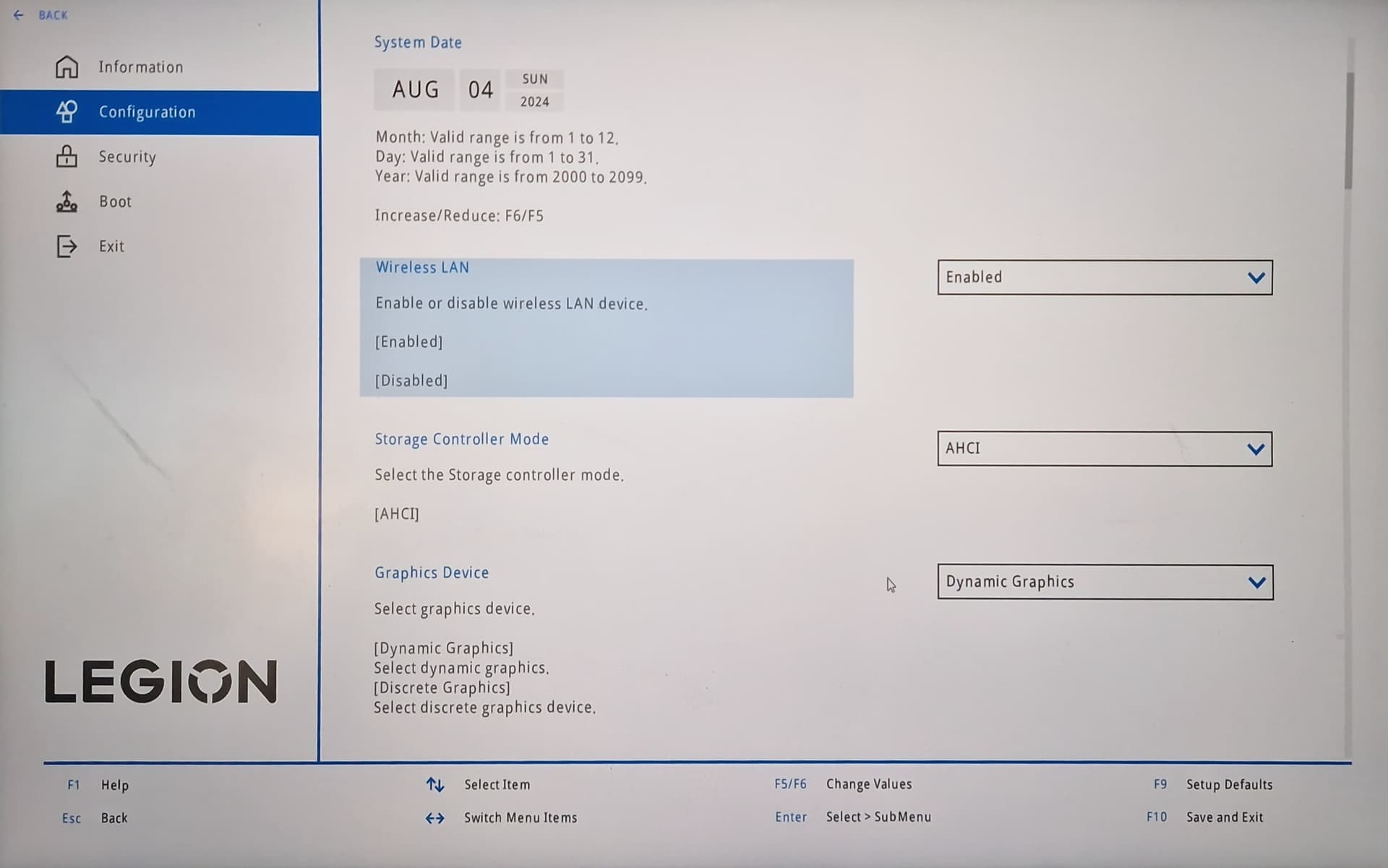
In the BIOS, the wireless LAN option is enabled.
As can be seen on the image below.

The only key that could be the culprit is the f8 key or its alternate function the airplane mode key. However after pressing it and waiting a few minutes and trying to connect to a network/look for a WiFi card yielded no results. Tried pressing waiting and running the commands multiple times.

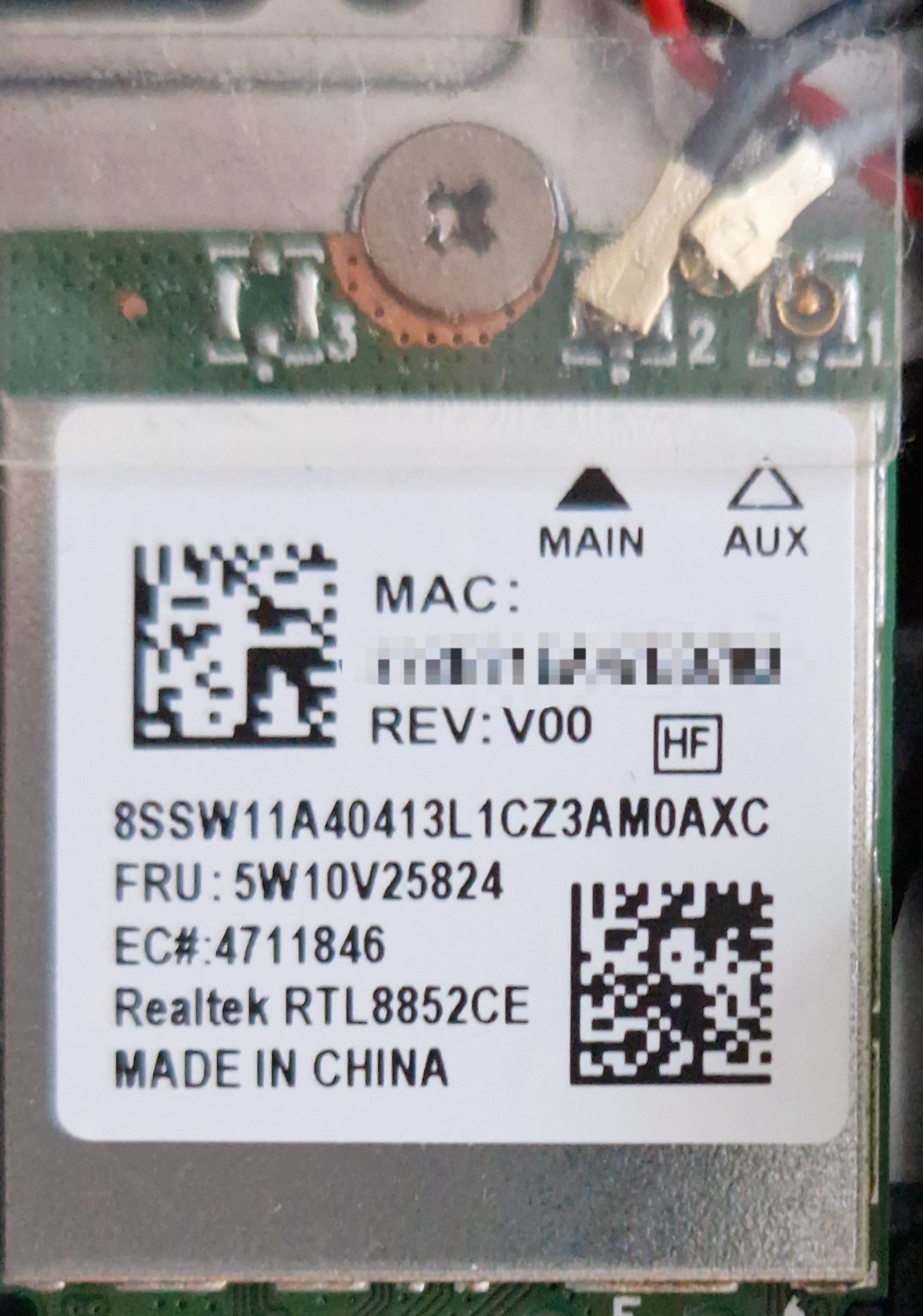
Opening my laptop to see if there is anything immediately wrong with the WiFi card

Assuming this is the WiFi card it appears that one of the connectors came loose, and that another source of it not working

Well that’s not Intel as you said earlier. :thinking:

Edit: I agree it’s a hardware issue. because it’s not recognizing it.

That is indeed a wifi card, and those little connectors feed to the antenna.

It would be strange if a disconnected antenna disabled the card entirely since in my experience it usually operates without it (you just get absolutely terrible, if any, reception).

If you’ve not plugged/unplugged those type of connectors before they can be a little tricky, rather than pressing straight down I always found it easiest to lay them across it tip first and apply the pressure to the connector from the front then rock it back towards the lead-end.

Yes I misremembered it was an Intel AX 211 as the previous laptop I owned had it and it was also a Lenovo legion
My apploogies