Greeting, everybody
On a system with Manjaro and Windows 10, I replaced Manjaro with EndeavourOS. I’d like to give a small map of the partition structure of the disk at this time
- sda1 - FAT32 EFI partition
- sda2 - ext4 linux root partition
- sda3 - 16 MB windows reserved
- sda4 - ntfs Windows C: drive partition
- sda5 - ntfs partition (something required by windows idk)
- sda6 - Linux swap partition
When I used to boot my system, I saw a menu with the manjaro logo that let me choose between windows and linux. I think that was grub, but I can’t be sure. I wiped sda1 and sda2, and created one new partition which was mounted as root / on endeavour OS during installation.
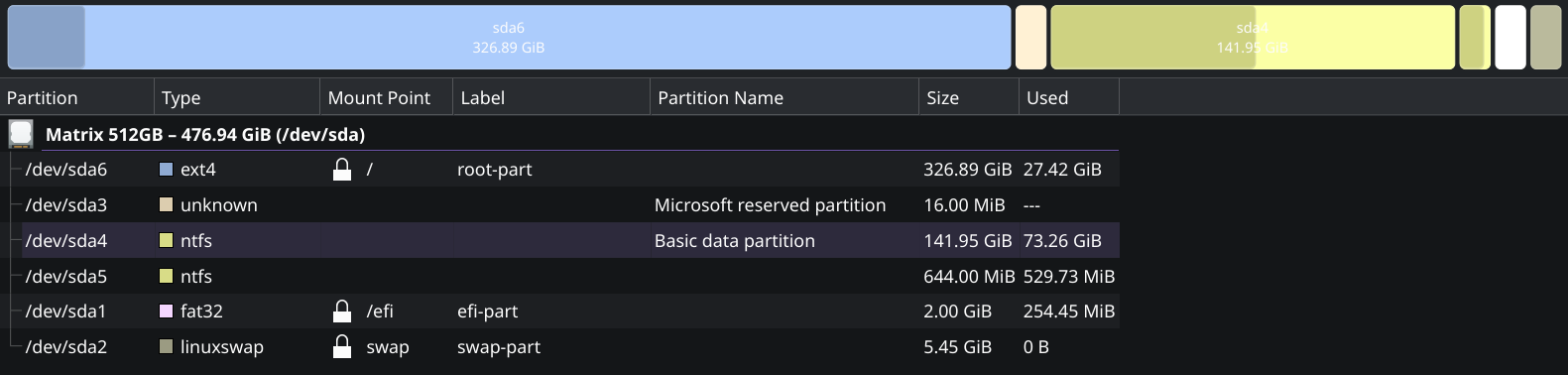
Then, I divided sda6 into two parts, one of which I used as a new boot efi partition in EOS insallation. I chose systemd boot, not grub. I cannot boot into my windows partition anymore, there is no windows option at startup and trying to boot into windows from bios doesn’t work. Here is my partition structure as of now:
How to fix this. My windows C: should still be intact, and I want to boot into windows without having to wipe that data.
Thank you
That’s because you wiped the sda1 partition, which removed the Windows and Manjaro boot entry.
Effectively you made the Windows installation unbootable, but there are ways to create the EFI entry back and fix it.
You start by getting a USB drive flashed with the Windows 11 installation media, you won’t reinstall the OS, but you will use the rescue features. Go through the installer until lets you choose to install or repair Widows, there you should choose to repair. Choose your language and go to the command prompt. There you will need to execute some commands, but i am not sure which. I’ll find a guide for you.
In the command prompt you should do the following commands (Disclaimer, this should work but I don’t have any experience with this, if you’re unsure wait for someone else to join the post):
diskpart To enter the disk partitioning tool.
Now it should say in the terminal diskpart >
Next do list disk This will list all disks in your system.
Choose the disk in which the Windows installation is with sel disk <disk_number>
Now list the volumes (partitions) of the disk with list vol
Select the volume in which the EFI Partition is in (Most likely the type will be “System”) with sel vol <volume_number> (Be sure to choose the EFI partition, or else you will wipe data from other partitions)
Do assign letter=F (you can really use any letter, but just use F)
exit to get out of diskpart. Now we have the EFI partition mounted onto the rescue prompt.
Lastly, do bcdboot C:\Windows /s F: /f ALL. Which will build the Windows EFI data.
Now you should have a working Windows EFI, and should be able to boot. If you had any errors post them here, and if it failed no data should’ve been removed.
This worked perfectly ! Thank you very much. I’m gonna mark this as solved now.
I also posted this question on stack exchange. If you would allow, I will post your solution under that topic myself, for any poor souls who might need it in the future.
Ok that’s alright, just link them to this topic too at the end.