Kde plasma lock screen freeze issue

Hi all,

I’m new to EndeavourOS and running KDE Plasma. I’m facing a recurring issue where the system freezes after locking the screen — I can’t log back in and have to reboot every time.

I was using Wayland, switched to X11, but the problem still happens. I have *hybrid graphics (Intel + NVIDIA GTX 1650 with proprietary drivers)

Anyone else experienced this? Any suggestions to fix or debug it?

Thanks in advance!

Welcome to our community @gautam256! :waving_hand::partying_face: :enos_flag:

Can I just clarify first, the issue isn’t when you login to Plasma, but rather after you’ve already logged in and you have then locked the session, and then tried to unlock it?

Yes exactly when I try to unlock it it freezes.

@Bink happy to provide any more info if needed.

This command will retrieve your previous session’s boot log. This is only really helpful, if your previous session crashed as you’ve described. There are ways to adjust this command to make it look to older sessions, so let me know if that’s required.

The eos-sendlog part will send the output to a pastebin host, and provide you with a link that you can share here, so we can look at the log.

journalctl -k -b -1 | eos-sendlog

Can you also describe exactly what happens after you lock the screen? Are you away for a while (does your system sleep/hibernate)? Is the unlock screen interactive at all?

Here are the logs: https://0x0.st/8Eg9.txt.

Sure it doesn’t immediately happens but if I am away for a while let’s say 5 mins and when I am back my screen freezes everytime and I need to reboot to get the login screen back.

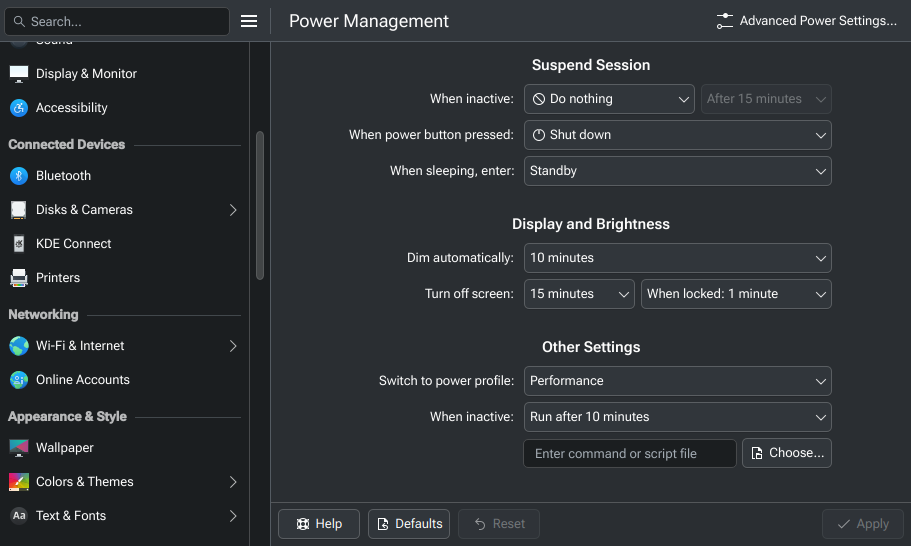
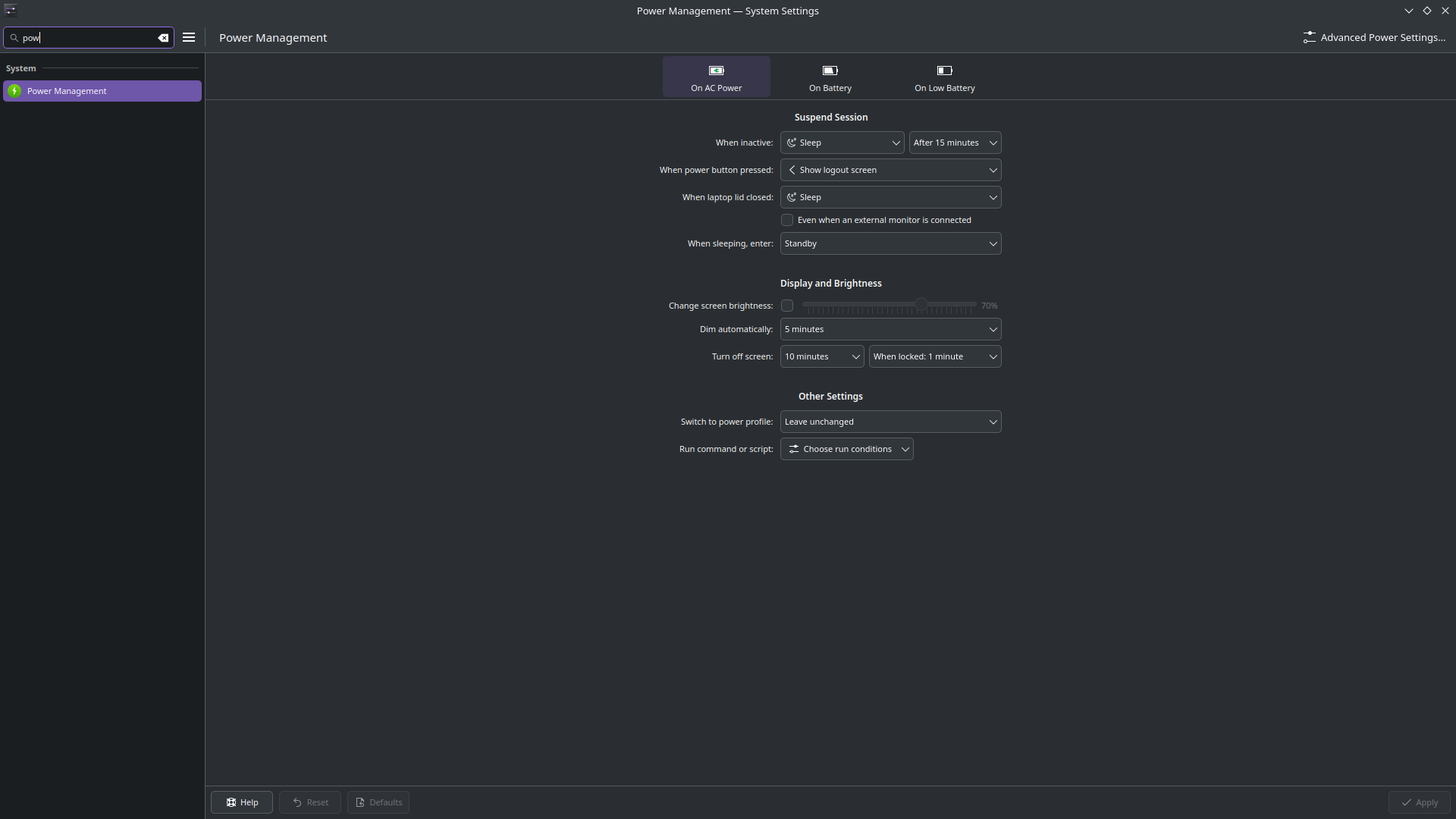
Can you take a screenshot (using Spectacle) of your Power Management screen? For example:

Here is the screenshot:

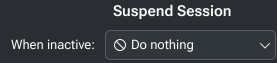
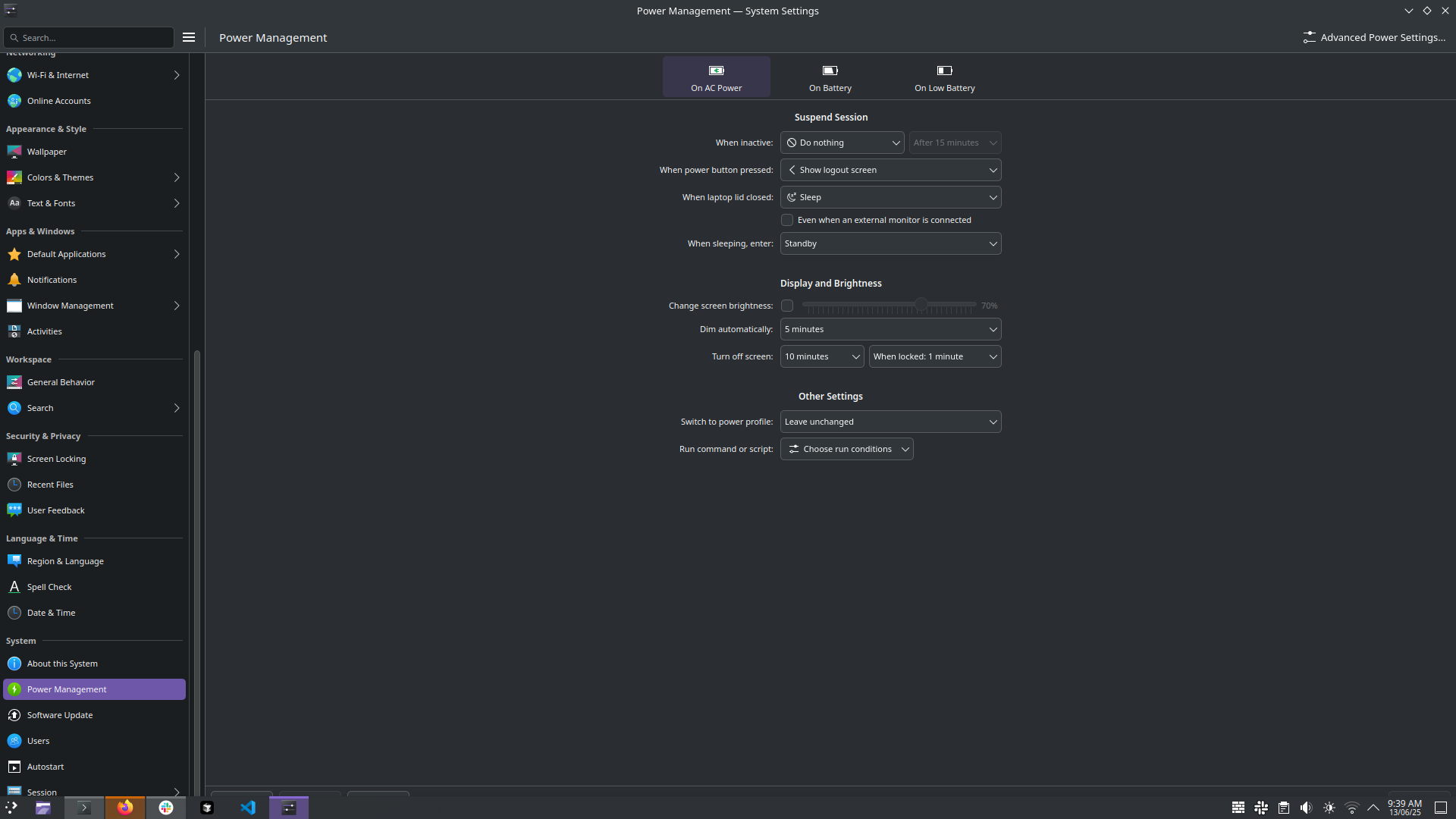
I suspect this is actually a Sleep issue, not a lock/unlock issue. Try setting “When inactive” there, to “Do nothing”:
image

That’ll hopefully stop the crashes. Not a permanent solution, but hopefully it’ll stop any further potential data corruption or loss.

Can you share the output of:

yay -Q | grep nvidia

This didn’t worked also got the warning this might lead to high power consumption.

The command output :

$ yay -Q | grep nvidia
nvidia 575.57.08-5
nvidia-inst 25.6.3-1
nvidia-utils 575.57.08-3

I was checking if you were using nvidia or nvidia-open, as nvidia-open has had suspend issues in the past. So, it’s not that then.

Can you please share the output of:

inxi -MSCGmsx --za

System:
Kernel: 6.15.2-arch1-1 arch: x86_64 bits: 64 compiler: gcc v: 15.1.1
Desktop: KDE Plasma v: 6.3.5 Distro: EndeavourOS base: Arch Linux
Machine:
Type: Laptop System: HP product: Victus by HP Gaming Laptop 15-fa0xxx v: N/A
serial:
Mobo: HP model: 8A50 v: 37.55 serial: UEFI: AMI
v: F.26 date: 03/20/2024
Memory:
System RAM: total: 16 GiB available: 15.28 GiB used: 3.35 GiB (21.9%)
Array-1: capacity: 64 GiB slots: 2 modules: 2 EC: None
max-module-size: 32 GiB note: est.
Device-1: Bottom - Slot 1 (left) type: DDR4 size: 8 GiB speed: 3200 MT/s
Device-2: Bottom - Slot 2 (right) type: DDR4 size: 8 GiB speed: 3200 MT/s
CPU:
Info: 8-core (4-mt/4-st) model: 12th Gen Intel Core i5-12450H bits: 64
type: MST AMCP arch: Alder Lake rev: 3 cache: L1: 704 KiB L2: 7 MiB
L3: 12 MiB
Speed (MHz): avg: 813 min/max: 400/4400:3300 cores: 1: 813 2: 813 3: 813
4: 813 5: 813 6: 813 7: 813 8: 813 9: 813 10: 813 11: 813 12: 813
bogomips: 59904
Flags: avx avx2 ht lm nx pae sse sse2 sse3 sse4_1 sse4_2 ssse3 vmx
Graphics:
Device-1: Intel Alder Lake-P GT1 [UHD Graphics] vendor: Hewlett-Packard
driver: i915 v: kernel arch: Xe bus-ID: 00:02.0
Device-2: NVIDIA TU117M [GeForce GTX 1650 Mobile / Max-Q]
vendor: Hewlett-Packard driver: nvidia v: 575.57.08 arch: Turing
bus-ID: 01:00.0
Device-3: Quanta HP Wide Vision HD Camera driver: uvcvideo type: USB
bus-ID: 3-6:3
Display: x11 server: X.Org v: 21.1.16 with: Xwayland v: 24.1.6 driver: X:
loaded: modesetting,nvidia dri: iris gpu: i915 resolution: 1920x1080~144Hz
API: EGL v: 1.5 drivers: iris,nvidia,swrast platforms:
active: gbm,x11,surfaceless,device inactive: wayland,device-2
API: OpenGL v: 4.6.0 compat-v: 4.5 vendor: intel mesa v: 25.1.3-arch1.3
glx-v: 1.4 direct-render: yes renderer: Mesa Intel Graphics (ADL GT2)
API: Vulkan v: 1.4.313 drivers: nvidia surfaces: N/A devices: 1
Info: Tools: api: clinfo, eglinfo, glxinfo, vulkaninfo
de: kscreen-console,kscreen-doctor gpu: nvidia-smi wl: wayland-info
x11: xdpyinfo, xprop, xrandr
Sensors:
System Temperatures: cpu: N/A mobo: N/A
Fan Speeds (rpm): cpu: 3581 fan-2: 3286

Given this has hybrid graphics, in the interest in isolating the potential issue, are you able to disable the Nvidia GPU in the BIOS, for testing purposes?

I wanted to also mention, BIOS updates are available for your motherboard, but I’m not sure how you’d go about applying those without Windows on a HP laptop. Maybe another HP laptop user in the forum can chime in there.

Thanks a lot for the reply! I’ll check the BIOS settings and see if I can disable the Nvidia GPU for testing.

If anyone else has faced a similar issue on an HP laptop or knows how to apply BIOS updates without Windows, I’d really appreciate the help.

Also one more key thing I noticed that if the system gets automatically locked after some time I am not facing this issue.

But If I manually lock the screen let’s say by pressing (Windows + L) then after some time the same freezing happens which causes me to reboot the system

Welcome to the community!

For your dGPU Nvidia recommends using package nvidia-open instead of nvidia so that’s one thing to try too.

Have you installed an app that can switch between the Intel and Nvidia GPU?

I haven’t installed any tool myself if any internal tool exists I can check.

Should I use nvidia-open instead of nvidia?

@manuel I check and I do not have a GPU switching tool like optimus-manager or nvidia-prime installed — I guess I am just using the NVIDIA GPU directly via these packages:

  • nvidia
  • nvidia-utils
  • nvidia-inst

To use nvidia-open instead of nvidia, run the following commands:

sudo pacman -R nvidia
sudo pacman -Syu nvidia-open   # does system update too

Alternatively you can use nvidia-inst to manage the Nvidia driver packages.

Test mode example:

nvidia-inst --test --no-dkms

This “dry run” operation shows what nvidia-inst would do.
Note that if you are gaming, add option --32 to it (and enable [multilib] repo in pacman.conf).

If you are happy with the test mode result, run the same command again without
option --test.

@manuel nvidia-open lacks full support for my GPU (GTX 1650) and this can cause instability I guess.

Also tried with the nvidia-inst but the issue still persists.