Internet Speed SLOW/inconsistent(?) across applications on Ganymede

OS: EndeavourOS x86_64
Host: B650M C V3-Y1 (Default string-CF)
Kernel: Linux 6.18.5-arch1-1
CPU: AMD Ryzen 7 7800X3D (16) @ 5.05 GHz
Swap: Disabled
Local IP (wlan0)

My ISP is AT&T Internet.

”All” packages are up to date, in quotes due to error: failed retrieving file ‘endeavouros.db’ from ``repo.c48.uk`` : Resolving timed out after 10001 milliseconds rendering me unable to check fully.

I use the default NetworkManager with iwd as my backend,
powersave is disabled via /etc/NetworkManager/conf.d/wifi-powersave.conf, but running iw dev wlan0 get power_save returns Power save: on with every reboot.

I have also added ipv6.disable_ipv6=1 to my kernel line via grub, this did not change anything.

In addition I’ve added 1.1.1.1 to my DNS servers via nmcli, this also did not change anything.

Video embeds and images on Discord 0.0.120 (system package, not flatpak) load incredibly slowly, as do websites on Firefox for Arch Linux 147.0.1 64-bit. Browser downloads are also consistently slow, with downloads via pacman and paru fluctuating in speed based on the time of day.
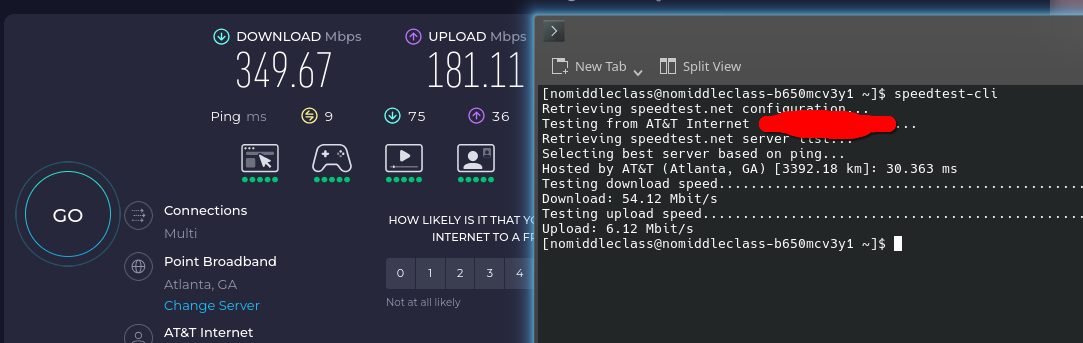

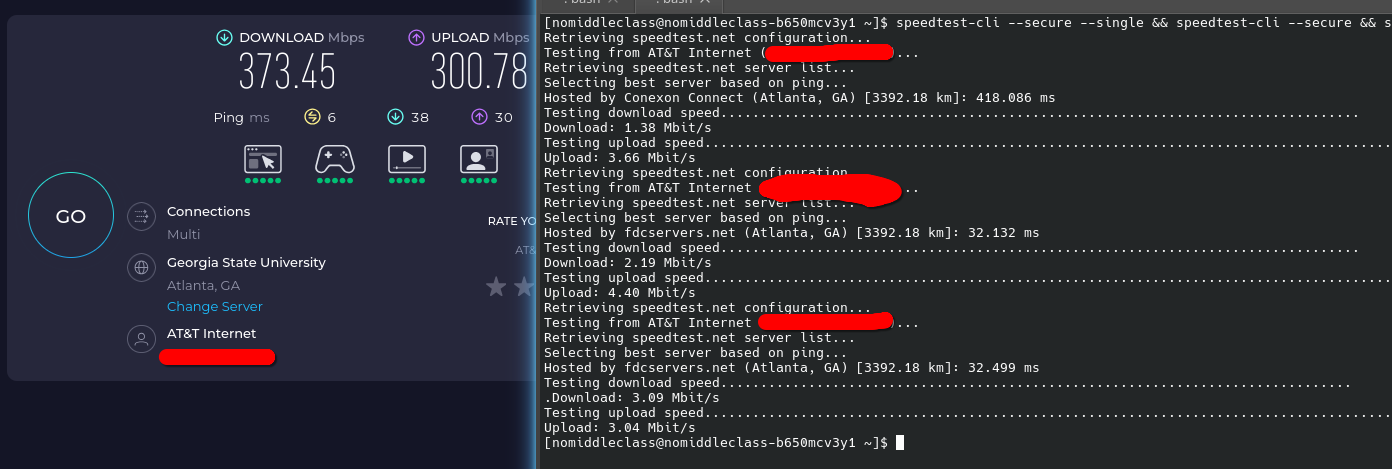
In addition, as seen in this screenshot, using speedtest-cli and speedtest.net show wildly different results. speedtest.net in browser gives 349.67 Mbp/s DL and 181.11 Mbp/s UP while, while speedtest-cli in konsole shows 54.12 Mbit/s DL and 6.12 Mbit/s UP.

What could I do about this?

UPDATE (1/19/26, 10:47 PM):
powersave is now disabled on startup thanks to a udev rule I’ve added, this still has not changed anything. I am still having the same issue.
The speed isn’t terrible, but yes I can see you’re getting inconsistent results. Are you on a shared network, and are you performing these tests near your wireless access point each time? WiFi itself is variable.

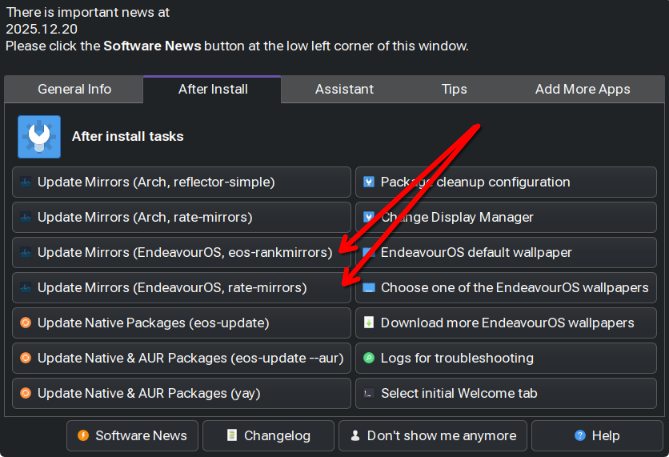
This issue at least, may be resolved by ranking your EndeavourOS mirrors. You might try using the Welcome app and use the buttons there to assist with that. You only need to choose one of these. Personally I prefer the rate-mirrors option, which will be available when you have rate-mirrors installed.

1 Like

Checking after ranking mirrors finally lets me retrieve endeavouros.db successfully for the most part, however the process of checking updates is agonizingly slow regardless.

Unfortunately, no..? The router is in the next room over, and as of now I cannot move it or my setup any closer together. Maybe I’ll try moving my setup to the same room temporarily tomorrow? Idk.

I’m unsure if this can be defined as a shared network, as from what I can tell no resources are shared across it between connected devices, but I’m not alone in using it to connect to the internet.
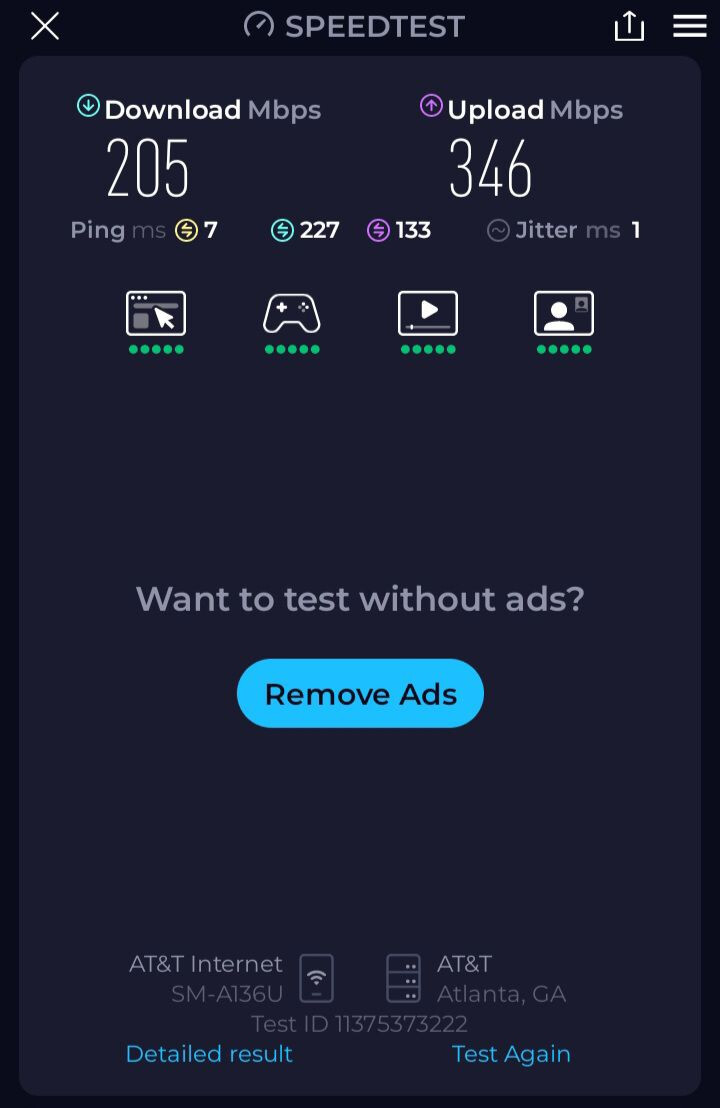
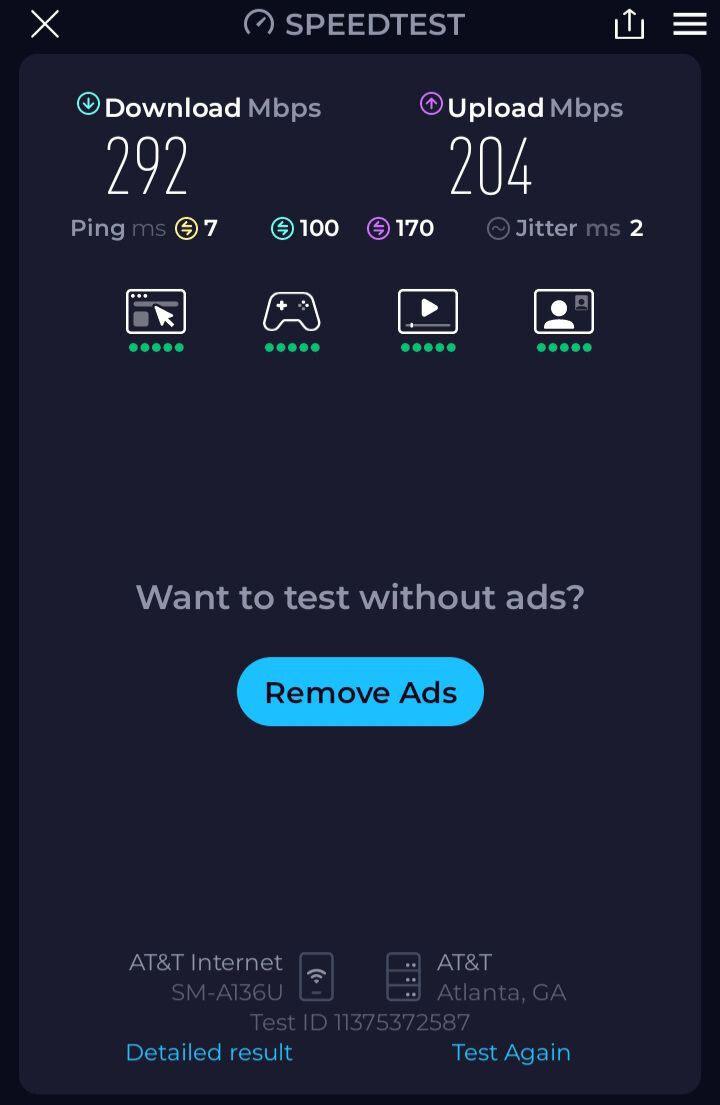
There is 1 AT&T Router, and aside from my PC there are typically 4 other devices connected during the day. 3 belong to family members so I cannot test them, but I can test my Samsung Galaxy A13 5G.
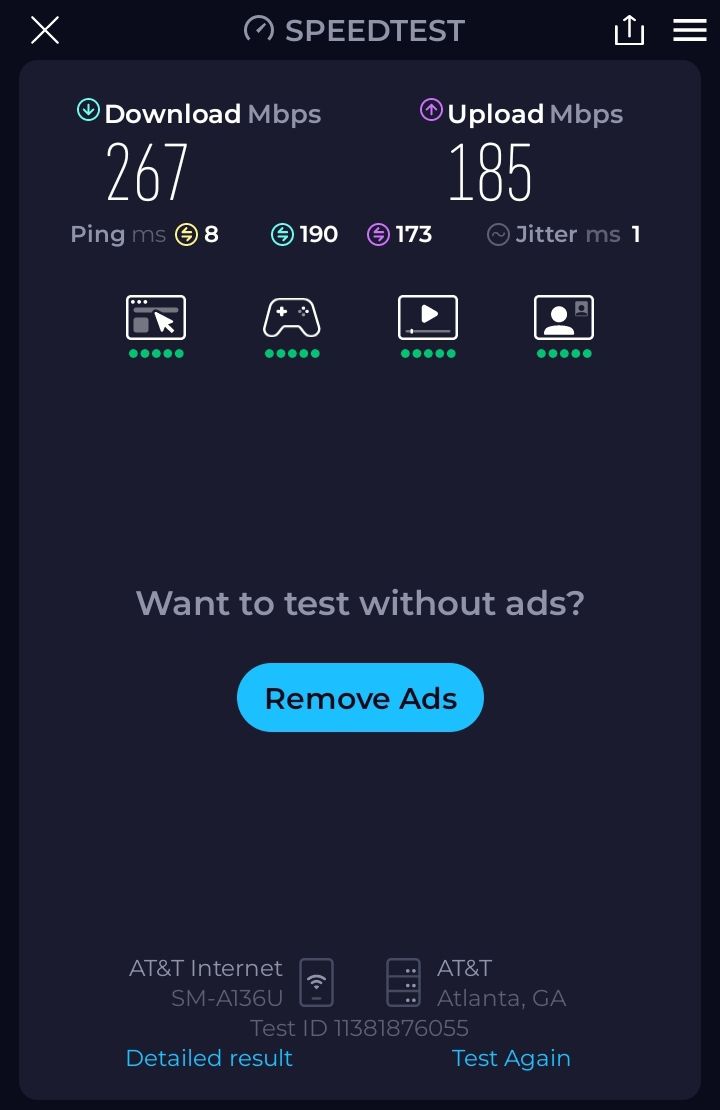
near router


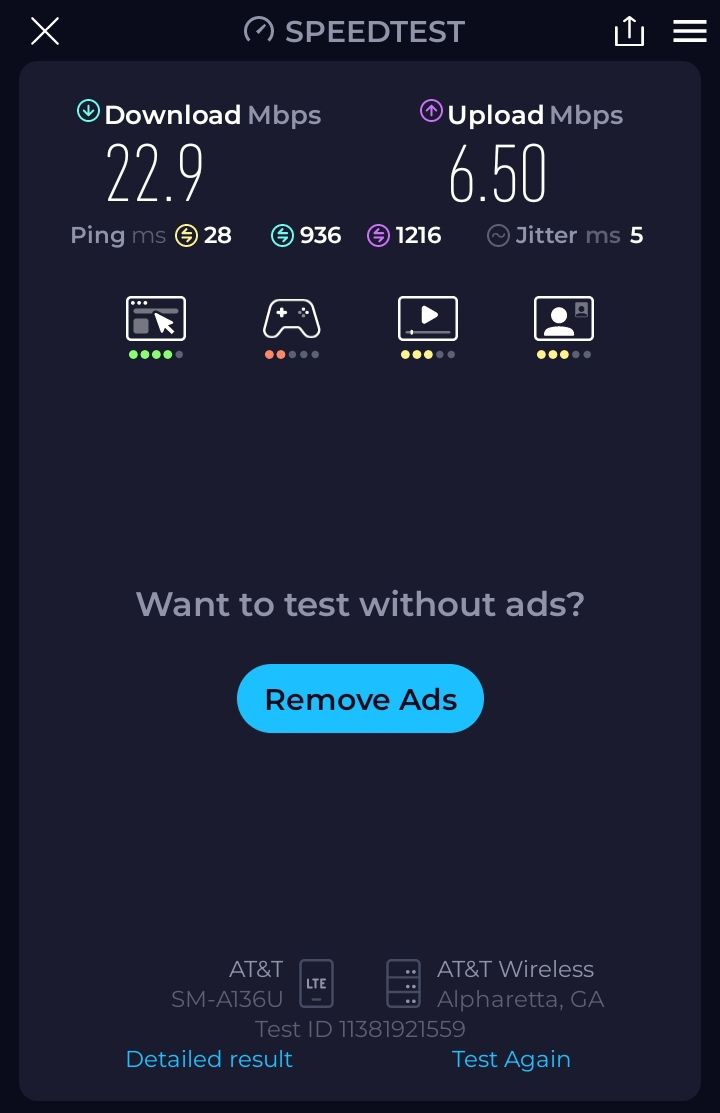
far from router (upload is faster??)

Mobile Data was disabled for both tests.
Aside from the test results being good, it consistently loads websites and downloads files significantly faster than my PC regardless of how far away from the router it is.
For this reason I believe the issue has more to do with my system than it does my hardware or the network. Keep in mind however that I only started having the issues I described after switching ISPs to AT&T, prior to this event all devices could connect normally.

1 Like

In that change to AT&T, was any hardware changed also, such as the router/access-point?

And just checking, are you using a VPN? That will impact results as well.

Yes. The access point (router) from the previous ISP was replaced.

No.

I dare say it’s probably a WiFi issue, specific to the adaptor on your PC and how it’s managing the frequencies or settings on the new router, given other devices you’ve tested don’t also have the issue.

To help confirm that, are you able to temporarily run a LAN cable between the router and your PC, disable WiFi, and test over a cabled connection?

I do not currently have a long enough cable to accomplish this. For now I’ve instead decided to share my phone’s internet connection with my PC through USB Tethering to see what happens.
Sure enough, my connection is now consistently faster and more stable.

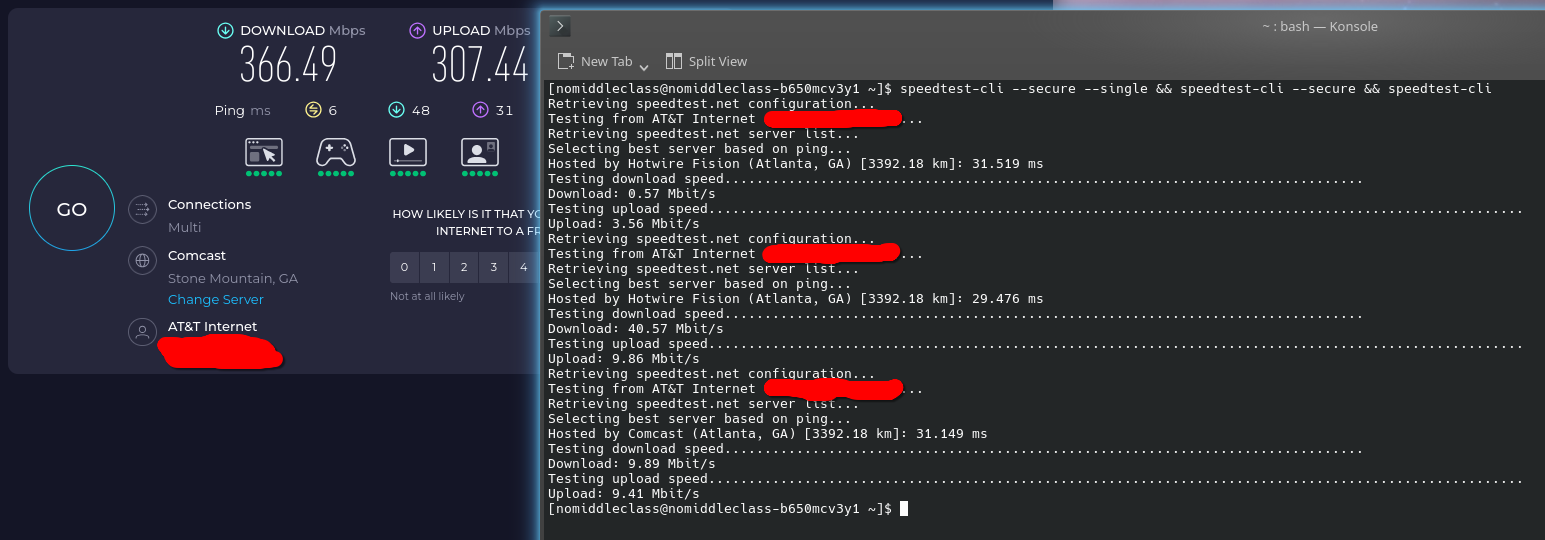
Here is my connection using my pc’s wifi as of now:


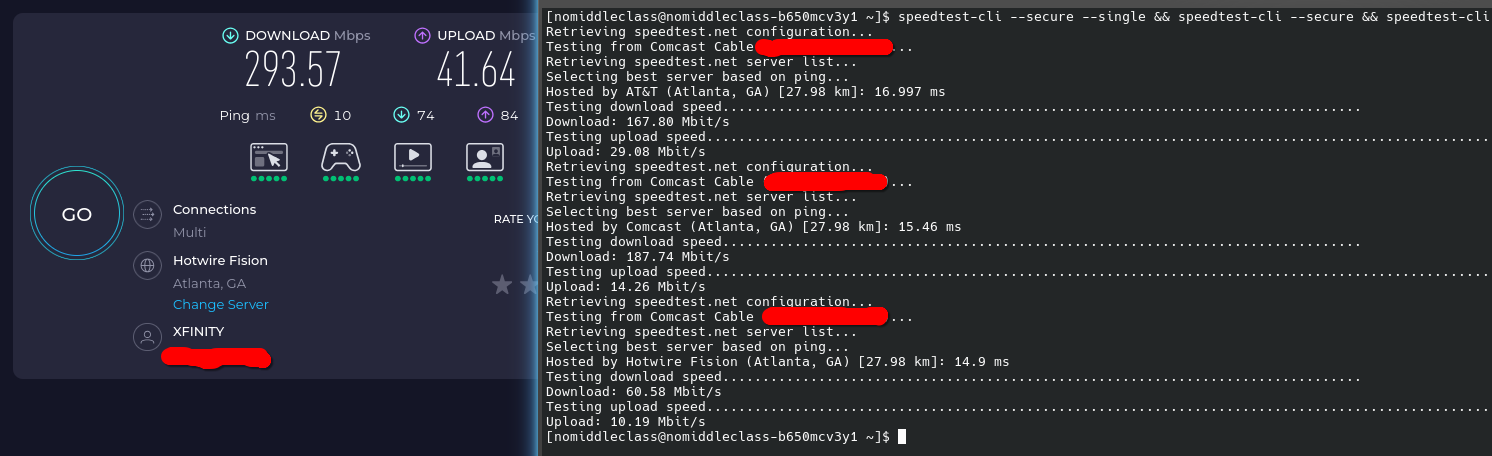
and here is my connection over USB Tether (Internet over Mobile Data was disabled for this test, phone displays as Xfinity due to it being a carrier variation provided by them):


Once I’m able to connect my PC to my router via cable (either by securing a long enough cable or by obtaining a shorter one and moving my setup into the same room), I will conduct another test as you’ve requested. While using USB Tethering is a working solution for now I would much prefer not having to do that, so I still hope something can be done regarding my PC’s own WiFi.

If it helps my motherboard is a B650M C V3-Y1 from GIGA-BYTE Technology, which has Wi-Fi 6 802.11ax built in.

I do not currently have a long enough cable to accomplish this. For now I’ve instead decided to share my phone’s internet connection with my PC through USB Tethering to see what happens.
Sure enough, my connection is now consistently faster and more stable.

Here is my connection using my pc’s wifi as of now:


and here is my connection over USB Tether (Internet over Mobile Data was disabled for this test, phone displays as Xfinity due to it being a carrier variation provided by them):


Once I’m able to connect my PC to my router via cable (either by securing a long enough cable or by digging a shorter one out of my garage and moving my setup into the same room), I will conduct another test as you’ve requested. While using USB Tethering is a working solution for now I would much prefer not having to do that, so I still hope something can be done regarding my PC’s own WiFi.

If it helps my motherboard is a B650M C V3-Y1 (as stated in my initial post) from GIGA-BYTE Technology, which has Wi-Fi 6 802.11ax built in.

EDIT:
The output of lspci -k | grep -A 3 -i network is:

09:00.0 Network controller: Realtek Semiconductor Co., Ltd. RTL8851BE PCIe 802.11ax Wireless Network Controller
        Subsystem: Realtek Semiconductor Co., Ltd. RTL8851BE PCIe 802.11ax Wireless Network Controller
        Kernel driver in use: rtw89_8851be
        Kernel modules: rtw89_8851be
13:00.0 USB controller: Advanced Micro Devices, Inc. [AMD] 600 Series Chipset USB 3.2 Controller (rev 01)

EDIT 2:
The output of inxi -zan is:

Network:
  Device-1: Realtek RTL8111/8168/8211/8411 PCI Express Gigabit Ethernet
    vendor: Gigabyte driver: r8169 v: kernel pcie: gen: 1 speed: 2.5 GT/s
    lanes: 1 port: e000 bus-ID: 08:00.0 chip-ID: 10ec:8168 class-ID: 0200
  IF: enp8s0 state: down mac: <filter>
  Device-2: Realtek RTL8851BE PCIe 802.11ax Wireless Network
    driver: rtw89_8851be v: kernel pcie: gen: 1 speed: 2.5 GT/s lanes: 1
    port: d000 bus-ID: 09:00.0 chip-ID: 10ec:b851 class-ID: 0280
  IF: wlan0 state: up mac: <filter>
  Info: services: iwd, NetworkManager, systemd-timesyncd, wpa_supplicant

I can’t see any obvious reasons why this should be giving you grief, there isn’t really any obvious issues I can see with the Realtek RTL8851BE under Arch, provided your just using the standard kernel driver (not the AUR one).

I’d suggest updating the BIOS on your motherboard, resetting it, and re-checking your settings. It might sound strange, but the only other account I can find of issues with this adaptor under EndeavourOS, says that was one of the contributing fixes (they also re-installed, but one step at a time).

sudo inxi -M returns

Machine:
  Type: Desktop Mobo: Gigabyte model: B650M C V3-Y1 v: x.x serial: N/A
    Firmware: UEFI vendor: American Megatrends LLC. v: F34 date: 05/23/2025

Based on “v” and the version numbers of bios updates available on gigabyte’s website, I’m assuming my mainboard is Revision 1.0.
In the situation where this is correct and the bios update I should install is B650MCV3Y1.F37, how would I go about flashing?

You’d download and extract the BIOS to a USB thumb drive formatted simply with FAT16 or FAT32.

Then, from within the Gigabyte BIOS/UEFI, you should hopefully be able to find a BIOS update tool. I believe Gigabyte call this Q-Flash? In there, you should be able to direct it to the update file on the USB thumb drive.

CAUTION
Be careful updating the BIOS. It’s critical you let this process complete fully initiating a restart or power-off.

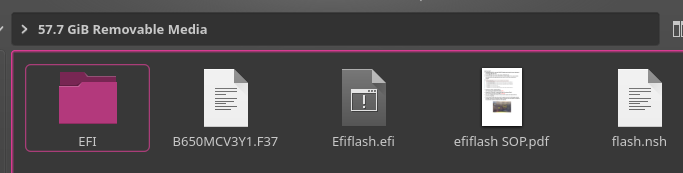
is this correct?


(there was nothing of value on this drive)

1 Like

Yup, looks good. I suspect B650MCV3Y1.F37 is the actual BIOS update file.

1 Like

To preface:
I’m running a dualboot with Windows 11 IOT Enterprise LTSC, this installation is exclusively present on my pc incase there is any software I’m completely unable to run on Endeavour.
I also downloaded the latest available BIOS for my mainboard from https://www.gigabyte.com/Motherboard/B650M-C-V3-rev-10/support#Support-Bios, triple-checking the URL to confirm it was the actual gigabyte website.

To postface:
I had to do manual repairs after the update because all of my bios settings were reset and I got kicked straight into Windows 11, this was annoying to deal with but I’m back in EndeavourOS now.

Aside from the bios settings though, nothing has changed.


Before and after the repair I noticed a few things:

  • The connection issue almost seems, seasonal?
    • It only seems to occur between 7:00PM and 12:00AM(? unsure) each day.
  • Both in my EndeavourOS install and the live media (Windows updated so I had to reinstall grub), I’ve noticed the wifi icon on the taskbar fluctuates between 1 to 2 bars.
    • If at any point I have to reinstall EndeavourOS I think it’d be important for me to test connection from within the live media first, but I’m unsure how to do that.

Dual booting with Windows can prove to be a bit of a wrestling match, that may see Windows getting the upper hand on some Windows updates, or when you update the BIOS as you’ve discovered.

It’s unfortunate that caused a bit of trouble for you, but if it’s any consolation I do believe it’s worthwhile keeping your BIOS up-to-date so you’re benefiting from all the security, performance, stability and compatibility improvements that provides.

It’s doubly unfortunate that it doesn’t seem to have helped the current situation at all, despite the chore it became :face_exhaling: So I’m sorry to hear that.

You’ll need to ensure that with the BIOS reset, you have done these things:

  • Disable legacy boot / CSM (compatibility support module)
  • Disable secure boot

Importantly, you’ll also need to ensure you disable fast boot, in the BIOS if there are settings there but also in Windows. This is known to cause issues with bluetooth and wireless devices.

This is actually a fantastic idea. You’ve hopefully eliminated a BIOS anomaly as being the culprit, and checked those other settings mentioned above are disabled.

If the problem persists, next step would be boot off the live ISO, and perform the same tests and see if they persist. This will help rule in/out an installation anomaly.

Terrible new development.

While disabling fastboot I thought to ““test”” my connection on windows by downloading the same file i tried to on Endeavour, and got the same result.

In addition I’ve realized that my phone was automatically connecting to the old router from the previous ISP (Xfinity) instead of the new AT&T one, I feel stupid for not noticing this sooner but at least I didn’t spiral because of Windows for a second time in my life.
Assuming this meant that every single one of my previous tests using the phone were invalid, though only the USB Tether one was, I tested my connection from the phone AGAIN.


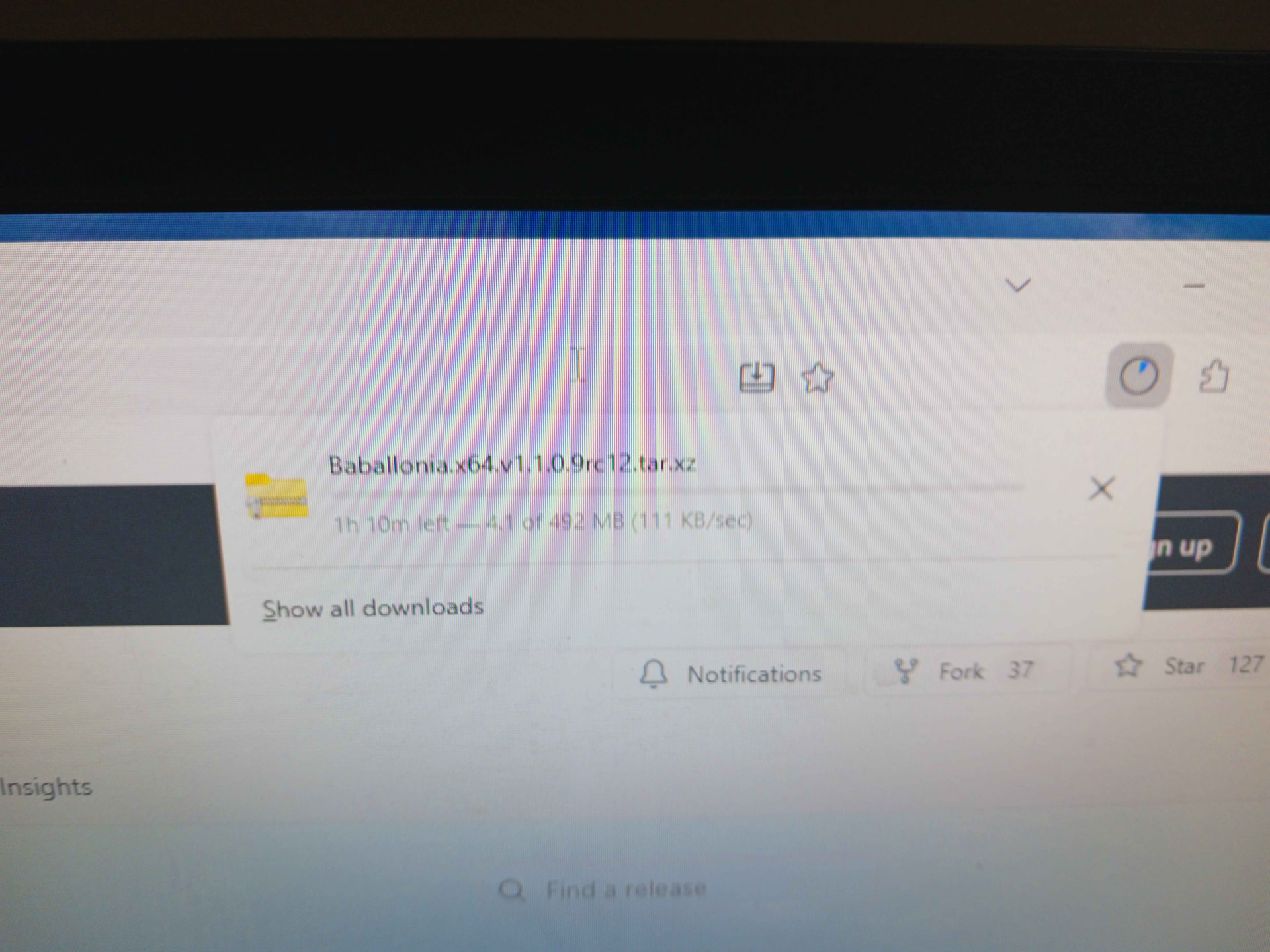
Though this is worse than the first results from 3 days ago, it still doesn’t look terrible. This time though I also started a file download on it for the first time in this thread, just to check if I had missed something back then.
Turns out, I did.

For comparison, here are both of the same things done exclusively using Mobile Data (file download is significantly faster, though everything else is predictably worse).


I think this rules out any inkling of a thought this could have anything to do with my setup.
That may also mean I didn’t have to update my BIOS, but that’s ok because as you’ve stated it’s still best to keep that up to date anyways.

I’ll contact AT&T about the issue soon, since it seems like their router (or worse, the local infrastructure) may have been the cause all along.
I’ll reply with any updates on the matter as they come along, I’m very sorry if I’ve wasted your time.

1 Like

All good @PRGSPY. Whilst the troubleshooting we covered here may have ultimately been unrelated to the issue, it offers you the certainty when dealing with AT&T, that these things have already been tried and tested, as they’ll probably want to assume similar things first as well.

  • The fact that the issue persists under both Windows and Linux rules out an OS related issue.
  • You’ve updated the BIOS to the latest available version, and reset your BIOS settings ruling out a possible cause there.

And if I correctly followed what you were testing with your phone, you’ve been able to replicate the issue on another completely different device.

These were all important troubleshooting steps, and hopefully you’ll waste less time with AT&T as a result.

Hopefully, they’ll help you get it sorted quickly :+1: