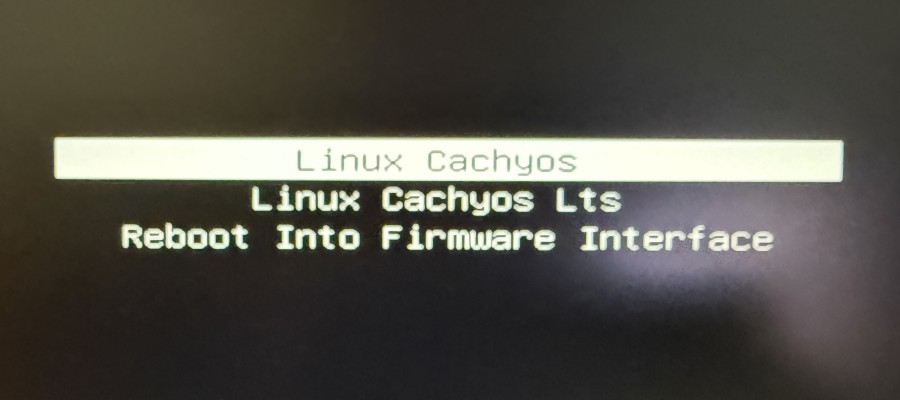
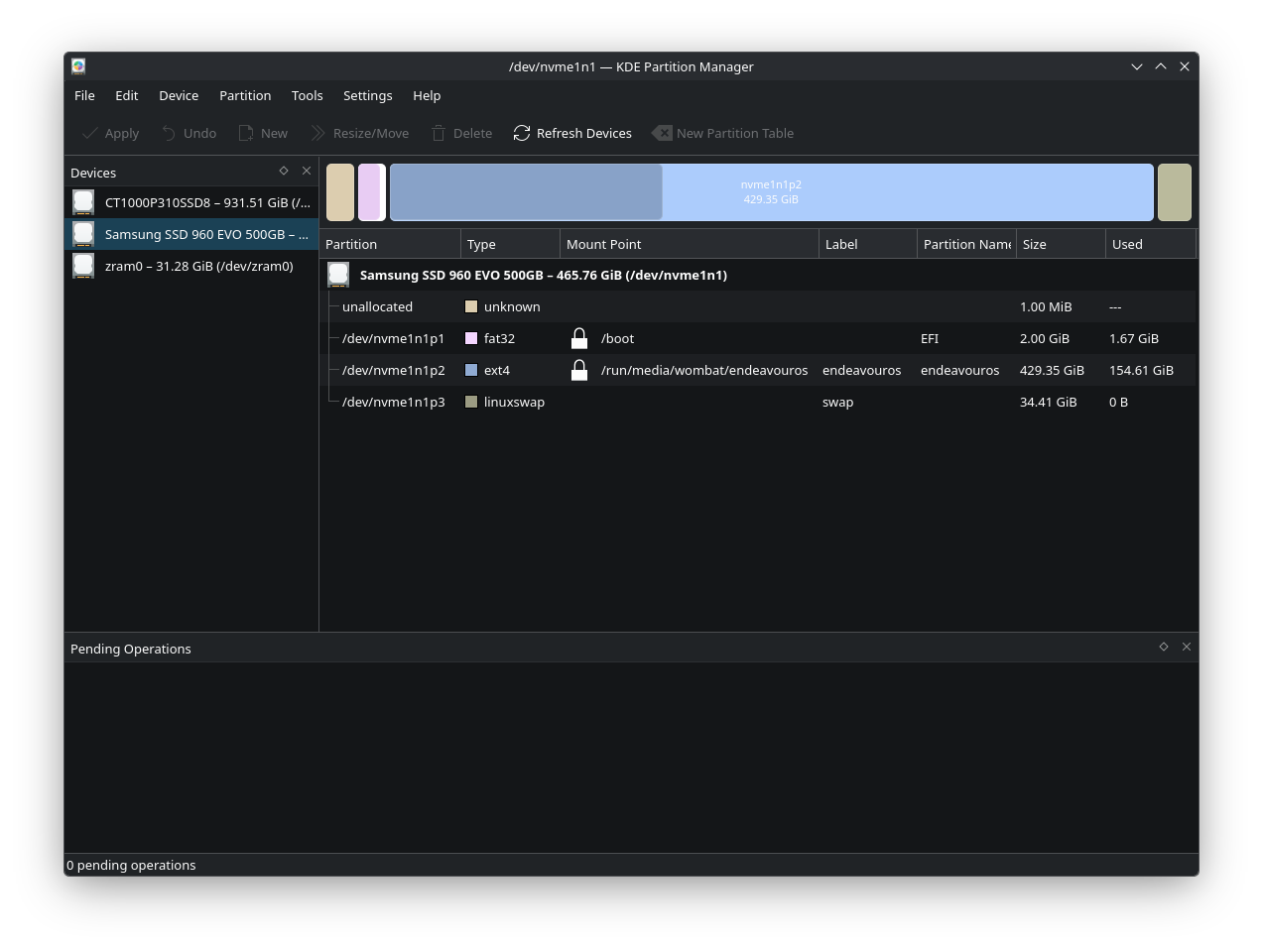
Yes, I can boot Cachy just fine. There seems to be no way to get to EOS.
❯ sudo parted -l
Model: SABRENT  (scsi)
Disk /dev/sda: 512GB
Sector size (logical/physical): 512B/4096B
Partition Table: gpt
Disk Flags:

Number  Start   End    Size   File system  Name  Flags
 1      1049kB  512GB  512GB  ext4


Model: Samsung SSD 960 EVO 500GB (nvme)
Disk /dev/nvme0n1: 500GB
Sector size (logical/physical): 512B/512B
Partition Table: gpt
Disk Flags:

Number  Start   End     Size    File system     Name         Flags
 1      2097kB  2150MB  2147MB  fat32           EFI          boot, esp
 2      2150MB  463GB   461GB   ext4            endeavouros
 3      463GB   500GB   36.9GB  linux-swap(v1)               swap


Model: CT1000P310SSD8 (nvme)
Disk /dev/nvme1n1: 1000GB
Sector size (logical/physical): 512B/512B
Partition Table: gpt
Disk Flags:

Number  Start   End     Size   File system  Name  Flags
 1      1049kB  580GB   580GB  ext4
 2      580GB   1000GB  420GB  btrfs        root


Model: Unknown (unknown)
Disk /dev/zram0: 33.6GB
Sector size (logical/physical): 4096B/4096B
Partition Table: loop
Disk Flags:

Number  Start  End     Size    File system     Flags
 1      0.00B  33.6GB  33.6GB  linux-swap(v1)
❯
❯ lsblk -f
NAME        FSTYPE FSVER LABEL       UUID                                 FSAVAIL FSUSE% MOUNTPOINTS
sda
└─sda1      ext4   1.0   Vault 2     d781f3bd-16b3-4b58-bd1b-c7be1fdbf6f7
sr0
zram0       swap   1     zram0       f75b67d4-ac8a-4209-8b51-cb20337bcdca                [SWAP]
nvme0n1
├─nvme0n1p1 vfat   FAT32             E16D-5EFD                             330.2M    84% /boot
├─nvme0n1p2 ext4   1.0   endeavouros 57be57a1-f032-4a31-ac54-de7e5f7b4d62
└─nvme0n1p3 swap   1     swap        464cfb54-6435-4585-a6bf-e985c406f6d6
nvme1n1
├─nvme1n1p1 ext4   1.0   Vault       137cfa00-202a-44f6-92c3-8760bef40323
└─nvme1n1p2 btrfs                    83ff6666-4c45-4c25-b23a-037c57cecb10  372.7G     4% /var/log
                                                                                         /var/tmp
                                                                                         /var/cache
                                                                                         /home
                                                                                         /root
                                                                                         /srv
                                                                                         /

~
❯ cat /etc/fstab
# /etc/fstab: static file system information.
#
# Use 'blkid' to print the universally unique identifier for a device; this may
# be used with UUID= as a more robust way to name devices that works even if
# disks are added and removed. See fstab(5).
#
# <file system>             <mount point>  <type>  <options>  <dump>  <pass>
UUID=83ff6666-4c45-4c25-b23a-037c57cecb10 /              btrfs   subvol=/@,defaults,noatime,compress=zstd,space_cache=v2,commit=120 0 0
UUID=83ff6666-4c45-4c25-b23a-037c57cecb10 /home          btrfs   subvol=/@home,defaults,noatime,compress=zstd,space_cache=v2,commit=120 0 0
UUID=83ff6666-4c45-4c25-b23a-037c57cecb10 /root          btrfs   subvol=/@root,defaults,noatime,compress=zstd,space_cache=v2,commit=120 0 0
UUID=83ff6666-4c45-4c25-b23a-037c57cecb10 /srv           btrfs   subvol=/@srv,defaults,noatime,compress=zstd,space_cache=v2,commit=120 0 0
UUID=83ff6666-4c45-4c25-b23a-037c57cecb10 /var/cache     btrfs   subvol=/@cache,defaults,noatime,compress=zstd,space_cache=v2,commit=120 0 0
UUID=83ff6666-4c45-4c25-b23a-037c57cecb10 /var/tmp       btrfs   subvol=/@tmp,defaults,noatime,compress=zstd,space_cache=v2,commit=120 0 0
UUID=83ff6666-4c45-4c25-b23a-037c57cecb10 /var/log       btrfs   subvol=/@log,defaults,noatime,compress=zstd,space_cache=v2,commit=120 0 0
UUID=E16D-5EFD                            /boot          vfat    defaults,umask=0077 0 2
tmpfs                                     /tmp           tmpfs   defaults,noatime,mode=1777 0 0

~
❯
 ❯ efibootmgr
BootCurrent: 0006
Timeout: 1 seconds
BootOrder: 0005,0006,0007,000B,000A
Boot0005* Linux Boot Manager    HD(1,GPT,0126c0d9-6b98-4089-a481-b341966ac38c,0x1000,0x400000)/\EFI\SYSTEMD\SYSTEMD-BOOTX64.EFI
Boot0006* UEFI OS       HD(1,GPT,0126c0d9-6b98-4089-a481-b341966ac38c,0x1000,0x400000)/\EFI\BOOT\BOOTX64.EFI0000424f
Boot0007* Hard Drive    BBS(HD,,0x0)/VenHw(5ce8128b-2cec-40f0-8372-80640e3dc858,0200)0000474f00004e4fb1000000010000008100430054003100300030003000500033003100300053005300440038000000050109000200000000010416008b12e85cec2cf040837280640e3dc85802007fff040002010c00d041030a0000000001010600001b010106000000031710000100000000a075014d960dd97fff040001042e00ef47642dc93ba041ac194d51d01b4ce632003500300033003400440039003600300044004400390000007fff04000000424f00004e4fcd000000010000008700530061006d00730075006e006700200053005300440020003900360030002000450056004f002000350030003000470042000000050109000200000000010416008b12e85cec2cf040837280640e3dc85802007fff040002010c00d041030a0000000001010600001d01010600000003171000010000000025385381b178617fff040001043400ef47642dc93ba041ac194d51d01b4ce653003300580034004e00420030004b00330030003200370031003400480000007fff04000000424f
Boot000A* USB CD        BBS(CDROM,,0x0)/VenHw(5ce8128b-2cec-40f0-8372-80640e3dc858,0a00)0000474f00004e4fcd00000001000000810048004c002d00440054002d0053005400440056004400520041004d00200047005000360035004e00420036003000200052004600300031000000050109000300000000010416008b12e85cec2cf040837280640e3dc8580a007fff040002010c00d041030a00000000010106000014030506000a007fff040001043e00ef47642dc93ba041ac194d51d01b4ce64d00300035004f00430047003800340039003000310020002000200020002000200020002000200000007fff04000000424f
Boot000B* USB HDD       BBS(HD,,0x0)/VenHw(5ce8128b-2cec-40f0-8372-80640e3dc858,0900)0000474f00004e4f9b000000010000007900530041004200520045004e0054000000050109000200000000010416008b12e85cec2cf040837280640e3dc85809007fff040002010c00d041030a0000000001010600041c0101060000000305060001007fff040001043000ef47642dc93ba041ac194d51d01b4ce6440042003900380037003600350034003300320031003400450000007fff04000000424f

~
❯