Introduction
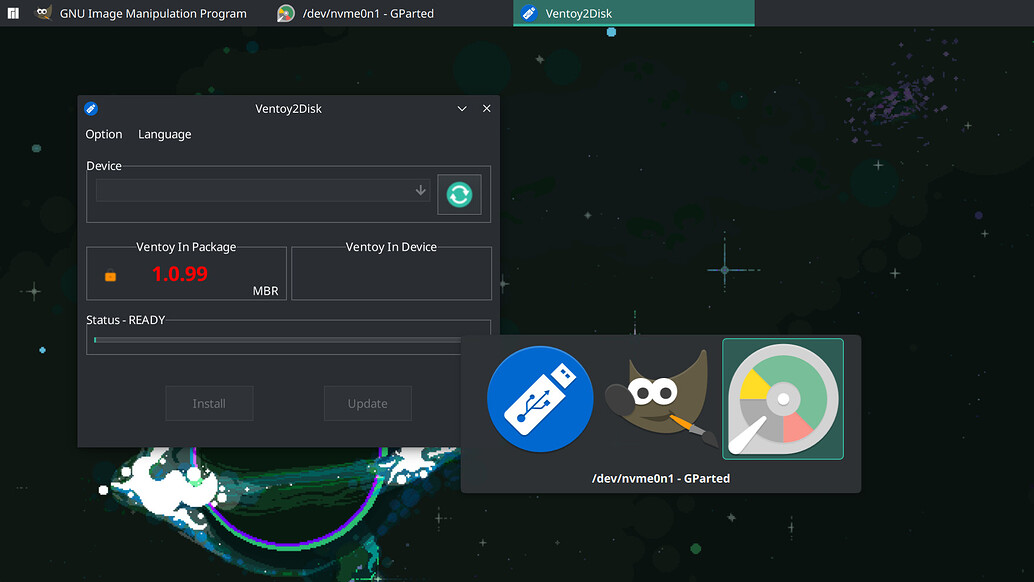
Aside from any launchers there are generally 3 main locations that icons for applications are displayed in a Plasma Wayland session.
Any one or multiples of these may be displayed incorrectly or may be missing entirely and default to a generic wayland icon.
-
On the Taskbar

-
In the corner of the Application Window

-
In the Task Switcher

This seems especially common and pronounced for applications whose desktop file names do not mirror the name of the application itself. For example the ‘Goodvibes’ music player and it’s io.gitlab.Goodvibes.desktop file.
Workaround
The solution in any of these cases (blurry, incorrect, missing icon) is to use the Window Rules utility.
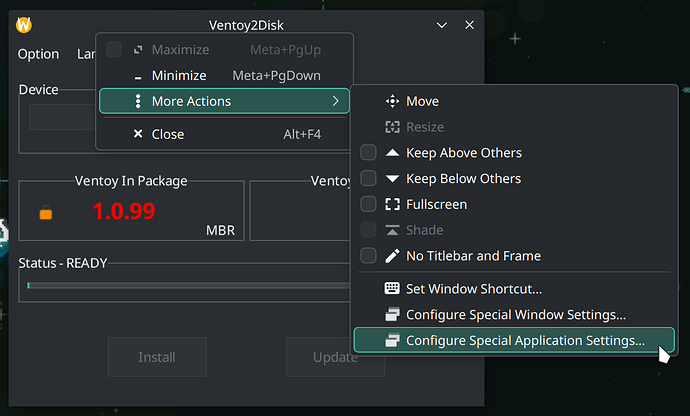
The easiest approach may be to Right-Click on the application window header and select:
More Actions > Configure Special Application Settings
In the resulting window press the ‘Add Property’ button.
From the pop-up menu select ‘Desktop file name’.
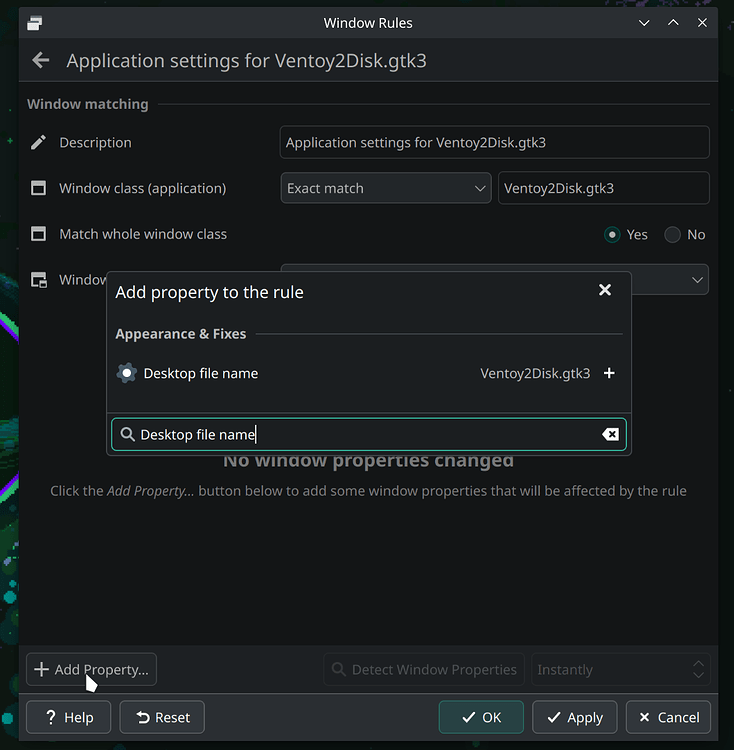
In the new configuration line input the desired desktop file name (without .desktop if it is in the default paths), or optionally the full path.

To find the desktop file of an installed package you may
- Use
pacman;
pacman -Ql $PACKAGE_NAME | grep desktop - Or use your Application Launcher;
Right-Click on the application and select ‘Edit Application’
The desktop file should be listed under the ‘Application’ Tab, on the ‘Program’ line.
Dont forget to press ‘Apply’ in the Window Rules window when finished.
Your icons should now be displayed correctly after any offending applications are restarted.
Result