Yes, both OS were installed with that setting. I think it was default setting, dont remember if I changed or if it was default.
Hope it will work out.
Alright I’m tired of all this will go chill and try stuff tomorrow 
Holy crimity that’s a lot of posts for dual boot!
2 Likes
Any luck on your new install of Windows 11 and EOS?
After many tries somehow it worked.
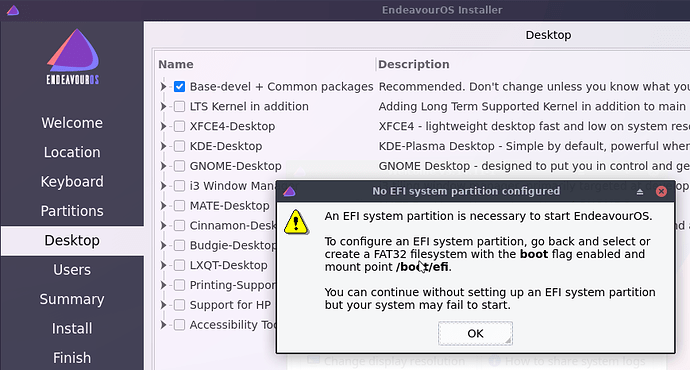
First of all, I selected Windows UEFI mode see screenshot. Then I tried tag Windows created EFI partion as /boot/efi still this error:
My hypothesis is that I need to disable Secure Boot, previously I was thinking it cannot be disabled because I couldn’t find anywhere “Disable Secure Boot”, but then I stumbled on something called “Launch EFI Shell from USB drives” pressing on this gave me this warning
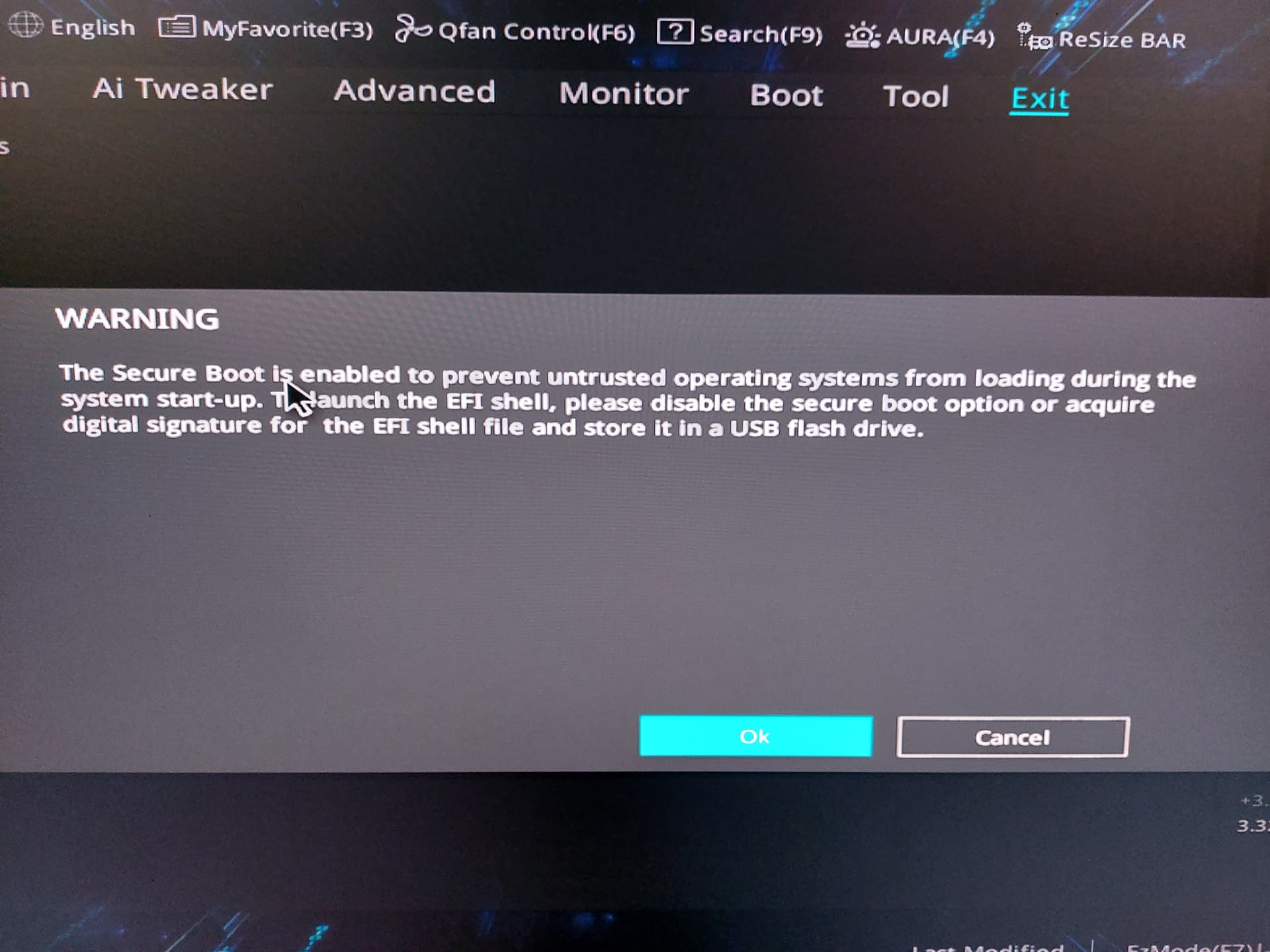
…please disable the secure boot…
So I googled this article on how to disable secure boot on Asus motherboards.
Delete Platform Key (PK) to disable secure boot.
(Note : Do not delete other keys)
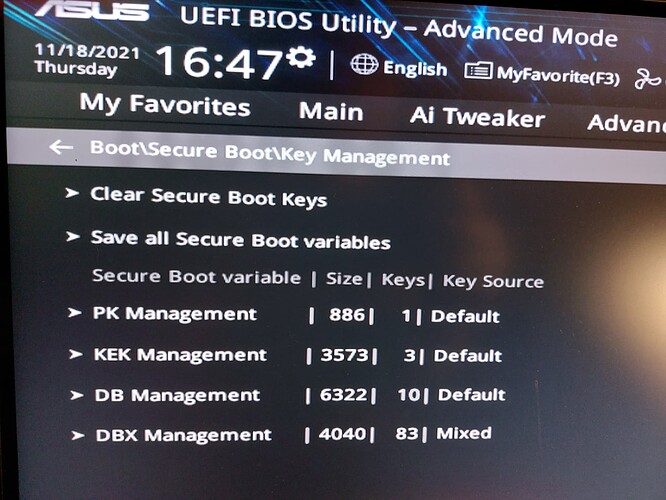
As show in this screenshot I deleted Platform Key PK. But honestly I don’t think it did anything. Some steps probably in incorrect order.
Summary
I finally got GRUB to show Windows entry by following these steps to add GRUB_DISABLE_OS_PROBER=false.
I think Windows UEFI mode (in secure boot BIOS options) only allowed to grub work without issues to make os-prober work.
Questions
1) I should had been able to tag Windows EFI partition with /boot/efi but the error indicates I didn’t have disabled Secure Boot ??! My guess is if secure boot was disabled I wouldn’t need to create my own efi partion in gparted and could easily use Windows one. ??
2) And is my assumption correct, that
I think
Windows UEFI mode(in secure boot BIOS options) only allowed to grub work without issues
1 Like
I truly beleive that secure boot is or was the issue. On both my motherboards one is an ASUS but it is a Z370 Pro Gaming Intel so it’s a couple years old if not more and my MSI X570 Gaming Pro have settings to turn off CSM which is a compatibility setting to be able to boot Bios or MBR. They both also have settings to completely disable secure boot. They also have Windows UEFI only settings. There also are settings for turning on or off TPM which is required for Windows 11.
Both of my installs i have use the Windows efi with no issues and they are both 100 MB that Windows creates. Having said that i have installed it other ways also. My EOS install is on a separate SSD on the Intel system so i have Windows installed on an nvme drive(m.2) I have installed it with a separate efi partition on the SSD for EOS and i typically make it larger. But it makes no difference. It’s just a different way of doing it.
On mine like i said i removed the secure keys, disabled CSM, disabled secure boot and also set it to Windows UEFI. But I have installed it with other OS and CSM enabled with no issue. But, my motherboards have a definite setting to disable secure boot!
I don’t know how the UEFI settings work on your particular board. If i were you i would also keep an eye out to see if there is an update to your UEFI Bios for that board. B550 is fairly new and ive already put 13 UEFI Bios updates on both of my boards and I’m currently waiting for the MSI UEFI update to go from Beta to final so i can update it again.
Also did you install it the same way by installing Windows to 200 GB? How did you partition the unallocated space that was left? Did you use the manual partitioning in the installer as you installed it?
1 Like
The platform key is the secure boot key. As i have said to others and i know some people don’t believe me but on some boards you have to remove the secure keys before disabling secure boot. These keys are automatically created or you can use custom keys on mine. On some boards if you don’t remove them first then secure boot doesn’t get disabled even if turned off because it’s still using the keys. This is what i believe happens so i always remove the keys and turn off secure boot or disable it.
1 Like
Not sure which Asus B550 motherboard you have. You can check the bios version in the hardware output.
inxi -Faz --no-host | eos-sendlog
I will now reinstall to Plasma EnOS, just did offline for fast test if stuff works. Lets hope I wont regret this
1 Like
This is indeed only a warning.. but the message is somehow confusing.. you could install just fine and will be able to boot also if ESP is 50MB.
The warning message is already changed upstream on calamares to be more clear..
But for the warning it still wouldn’t let it install because i believe that secure boot wasn’t actually disabled. I knew this from previous. Eventually the secure boot keys were removed and it worked. Well see if the Plasma install has the same issue? I hope not!
Secure Boot is not supported in general, but some BIS/Firmware allow to overgo secureboot partly what could work but could cause issues also… like not being able to write boot entries or simply failing to read needed information from the firmware…
The only known way to use Secure Boot is to have a signed Bootloader or a wrapper that is signed and starts the unsigned bootloader… which is in no way implemented in our installer currently.
So I did install Plasma. Forgot to check if it will let me install /boot/efi on Windows EFI partition. Probably wouldn’t. Made mine 512mb EFI partition.
-
sudo nano /etc/default/gruband changingGRUB_DISABLE_OS_PROBER=tofalse - and
sudo grub-mkconfig -o /boot/grub/grub.cfgdidn’t work - Windows entry wasn’t added.
[elnath@elnath-ryzen ~]$ efibootmgr
BootCurrent: 0001
Timeout: 1 seconds
BootOrder: 0001,0000,0005,0004
Boot0000* Windows Boot Manager
Boot0001* EndeavourOS
Boot0004* UEFI: KingstonDT microDuo 3.0 PMAP, Partition 2
Boot0005* UEFI OS
One difference which maybe indicates something is that when I was doing offline (XFCE) install there was no line as GRUB_DISABLE_OS_PROBER= by default nothing like that, but doing online (Plasma) install I got line GRUB_DISABLE_OS_PROBER= with a value of true.
As I said I did change this to false and updated grub, nothing changed.
Why?
If the line isn’t there it has to be added. This was something new from upstream over whoever deciding that os-prober was a security problem so this is how they dealt with it by turning it off. The line in question has to be uncommented. So remove the hash tag # at the beginning of the line also besides changing it to true and save the file. Then you need to use the update grub command.
Edit: Lines that are commented won’t run in the process.
1 Like
If the line is uncommented and you run the command to update grub it’s supposed to find windows and add it to grub.
Sometimes what i do first is run this to see if it finds Windows.
os-prober
Then run
sudo grub-mkconfig -o /boot/grub/grub.cfg
If it doesn’t add Windows to grub then we are back to the same issue as original. Which then throws my theory about secure boot out the Window so to speak. 
Edit: I’m going to look at the manual and see if i can decipher it’s settings.
Edit2: Unfortunately the manual is very limited and shows none of what you see of the settings.
1 Like
The only thing you can do is go through the secure boot settings in UEFI again. Make sure it hasn’t added any secure keys and that you check the settings and make sure you aren’t missing something. There has to be a way of turning secure boot off. The manual is useless as it shows nothing.
1 Like
Here you go to make sure to disable secure boot.
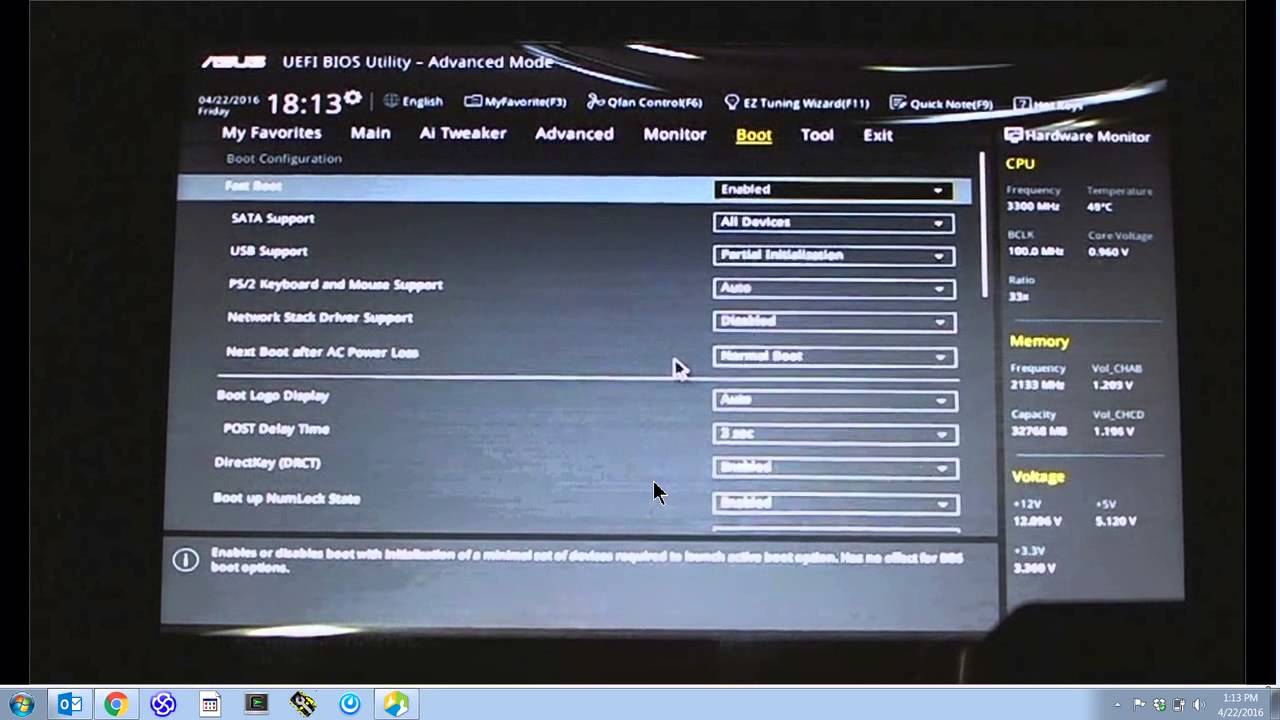
Edit: Yours is slightly different but it’s about removing the secure keys.
Edit2: Here is one that is exactly like yours.
1 Like
There was a line in Plasma install. What I was saying in previous XFCE install I had no such line. And in XFCE I had to add it. The stuff worked for XFCE. Doing same steps but different DE. On plasma DE it doesn’t work wheras on xfce it does work. 
Yup I did that yesterday.
more info
Also checked now there was 0 keys in PK.
If the line is uncommented and you run the command to update grub it’s supposed to find windows and add it to grub.


Well it doesn’t.
[elnath@elnath-ryzen ~]$ os-prober
bash: os-prober: command not found
[elnath@elnath-ryzen ~]$
I guess we found problem?
@ricklinux
1 Like
Yes, os-prober must be installed for it to work. 
1 Like