i have just started, i made a partition and i mounted the disk image. but im confused on how to get the iso to the partition, would anyone be willing to help me out?
Welcome to the community @isotericFauna 


If you mean, how do you make the Live ISO install media, there’s a great article about how to do that here:
EndeavourOS Wiki - Create install media (USB key)
Let us know if you still have any questions though.
nothing shows up for me using ventoy, im currently on windows trying to get onto endeavorOS and i dont have a physical USB
To help us guide you better, perhaps you could tell us what it is you’re hoping to do, and we might be able to best guide your options?
At the moment, it’s not really clear.
im currently using windows 11 and i want to make the switch to linux, but i only got as far as getting the iso downloaded. when i mount it it doesnt show up in my boot menu and im not sure how to boot it up
Ah ok, thank you, that helped 
First thing is, make sure you’ve backed up anything of importance to external media, because replacing Windows with Linux, is going to completely wipe your drive. I suggest backing up to an external hard drive.
For the installation, you will need a USB thumb drive. This must not be the same drive you have all your important data backed up to! (and I wouldn’t recommend storing your only copy of important data on a USB thumb drive anyway)
Using one of the tools detailed in the link I shared above, write the EndeavourOS ISO file to that USB drive. You then need to boot off it, which may required changing the boot order settings in your system’s BIOS.
If you’ve successfully booted off the USB, you should see this screen when the computer starts up:
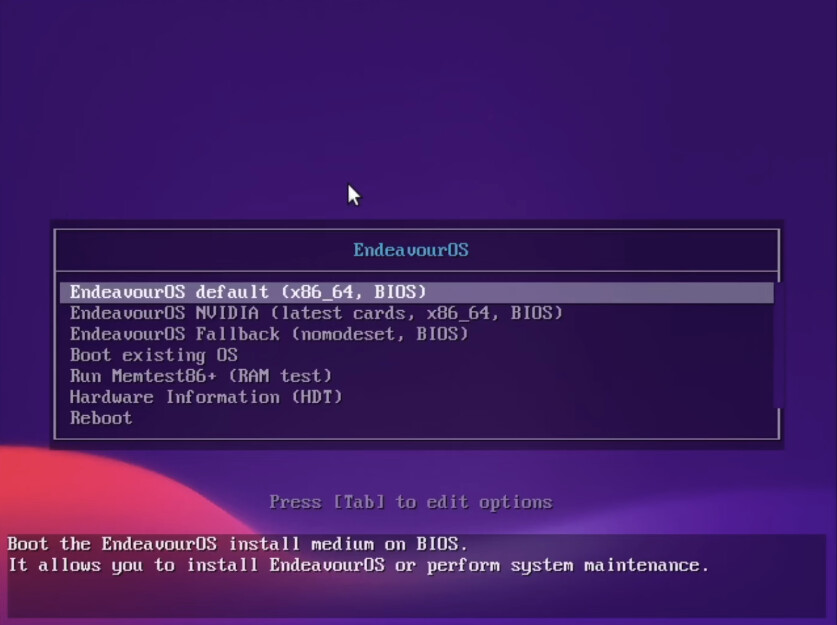
If you have a Nvidia GPU and it’s at least a Nvidia GTX 1650 or newer, then you can select the second option, “EndeavourOS NVIDIA” to ensure the correct Nvidia drivers will be installed for you. In all other cases, select the top option.
That’ll take you to a Live version of EndeavourOS, where you’ll be able to perform an install.
This video looks like it might be helpful to you:

There’s also some extra things you might need to check. This article is also very helpful:
EndeavourOS Wiki - Live ISO Installation Info Tricks & Tips
ok that helps, looks like ill need to scavenge for a usb then. thank you so much for helping!
You’re welcome @isotericFauna. Let us know how you go, or if you need a hand.

In your BIOS, you’ll need to check two things:
-
EFI/BIOS: In case, modern EFI systems can provide the option to support legacy boot so called CSM mode (Compatibility Support Module ) Best is to disable this feature if possible, as the installer is not always detecting this correctly. In case you are dual booting with Windows installed in legacy mode, the options are indeed limited to go reinstall Windows in EFI mode or try to add EndeavourOS in CSM legacy mode .
-
Secureboot: The main downside is that we do still not support secure-boot , so this feature must be disabled to be able to install EndeavourOS in most cases. There are some Firmware opting to add secure-boot keys manually, but these are rare.
ok i disabled secureboot and ive installed endeavor and im in, for some reason my bluetooth is broken? i cant find a wired mouse in my house anywhere so i navigated here solely through my keyboard, do you have any idea why it might be broken? i switch the enable button in settings, but theres no pair devices button
Have a look here https://discovery.endeavouros.com/audio/bluetooth/2021/03/
And welcome to the forum
If the suggestions @smokey has shared don’t get you BlueTooth success, you can share your boot log with us, which may provide some useful errors. To do that, run this command, which will upload your boot log and generate a URL that you can share with us:
journalctl -k -b -0 | eos-sendlog
it worked! thank you guys so much, is there perhaps a website that has all the common and useful commands?
Not too sure but some useful sites for information that you may find handy
https://discovery.endeavouros.com/
The commands you use really depend on how you use your PC, some people will only yay and nothing else while others will do alot of things with it.
I think there is also a thread on this forum somewhere.
Our resident @UncleSpellbinder has made an awesome cheat sheet:
In that he recommends yay for updating your system. That’s a good option, and I use it too, but personally I use it largely for AUR related tasks.
EndeavourOS provides a helper for updating, that checks some extra things:
eos-update
That’ll update your official Arch packages. If you’d like it to also update your AUR packages, you’d instead run:
eos-update --yay
This is the one I was thinking of
You might discover @isotericFauna as you start to get familiar with EndeavourOS, and the Arch ecosystem more broadly, there’s a number of ways you can do things.
Arch Linux is a “build-your-own” style distro.
EndeavourOS helps you with the first step, providing you with a good place to start. But, now it’s up to you to make it what you want it to be, and use it how you want to use it.
The Arch Wiki, and the EndeavourOS Wiki that @smokey noted, are powerful resources, I use them a lot!
But of course, if you ever get stuck, feel free to ask in these forums