No you can’t it’s only in the Bios settings but no worries. If you want to try a completely new install of EndeavourOS by itself without Mint is entirely up to you. I would just like to see you try installing it by itself without Mint.
Edit: I would like you to delete the whole drive and start fresh though.
while just rebooting, the grub window came up, i selected endevour os, and i get a different message now.
‘’’
error: file’/boot/initramfslinux-lts.img’ not found.
press any key to continue
‘’’’
seems it is finding the partition but not the image now ?
is this something to troubleshoot, or should i just reinstall and revert ?
It’s up to you. I mean it’s possible you could get it resolved. I guess it all depends on how bad you want to have Mint installed as a dual boot with EndeavourOS and how much effort you want to put into it. I’m not sure if you have any files on Mint that matter to you? I’d just like to see you get EndeavourOS installed and working.
This line is not correct. You have LTS kernel on the line, but you must use the non-LTS kernel instead (because that is most likely the only kernel you have installed now).
Did you create a new GUID Partition Table (GPT) as it was suggested above as a possible solution or you just reinstalled the system. If the latter please try the former.
Important If you have several drives on your system, make sure to pick up the one you intend to manipulate from the drop-down menu at top right of Gparted’s window.
i understand your message to be get into gparted first and set up /boot/efi , /, and swap partitions. is that right ? or do you want me to set up partitions differently.
No, you just get into Gparted to create a new partiton table (GPT). Then you close Gparted and use the installer to install as you would normally. Let the installer do the partitioning for you, that is no manual partitioning.
i am lost. i chose the erase disk and install option, which i take to be “Let the installer do the partitioning for you, that is no manual partitioning.”
if the installer is going to erase the disk and do its own thing, what does it matter what i did prior with gparted ?
i have done a reinstall with the ‘erase disk’ option and posted it as a new thread as this one was getting too long, will see how that evolves
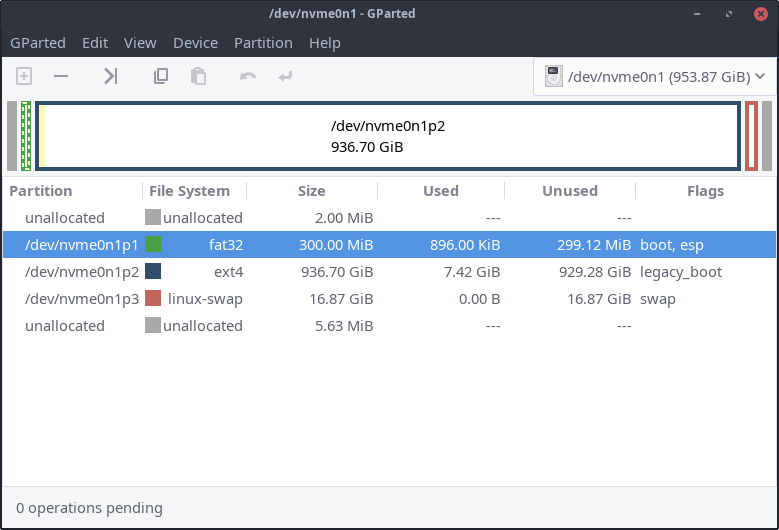
You don’t really need the flag legacy_boot on your system partition.
I am not sure if this is related to your issue. You could remove it by right clicking on the partition: manage flags and remove the tick on the box. Reboot and see if it resolves the issue.
If not create a new GPT in gparted: Devices: create partition table: GPT.
@nals
Try what @pebcak suggested above to create a new GPT partition with gparted from the live ISO. Then you close gparted and run the installer. As he stated you don’t need to create partitions manually as the installer will do it. The point of using gparted and creating a new GPT partition is that it will remove all installed previously including all partitions and create unallocated space on the drive. Hopefully this clears up the UUID issue.
@nals
Did you go into UEFI Bios and go to advanced (F7) and look under SATA Configuration and make sure that it is set to AHCI. This is the only thing that i can think of because this laptop from my understanding may have Intel RST software raid. If it is set to RST or Raid change to AHCI. It is getting the wrong UUID for a reason and may be hardware related.