I’m still pretty new to Linus and EOS but I mostly managed until now (with some help for some technical issues).
I launched EOS as I do everyday, checking and updating native and AUR packages.
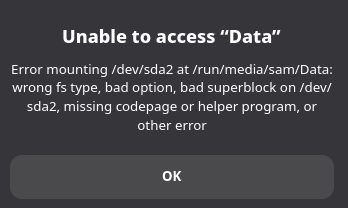
I wanted to access some files on my HDD drive and couldn’t access it (some error mounting something, I don’t really get it).
My computer contains 2 SSD (one for Linux and one for Windows, and I use the grub system to choose when I start the computer). I also have 1 HDD which contains various files. This disk is accessible (in theory) both from Linux and from Windows.
I turned off the computer to start it on Windows and could access the data without any fuss. So I guess the issue is somewhere in Linux (a “failed” update ? a deleted file I shouldn’t have deleted ?). Anyway, it’s probably not “mechanical” as it is working properly from Windows.
Any hint as to what I should check ? I created a log for troubleshooting but there’s probably a lot of unimportant info in it as checked various “just in case” options …
Also, I use Gnome (don’t know if it’s relevant, as I said, I’m still a noob and I have a lot to figure out).
(please tell me any relevant info you might need to help me clear this issue)
If that is the case, Windows won’t perform a proper shutdown and will leave a hiber.sys file on the drive.
When attempting to mount the partition on Linux, it will be considered “dirty” or rather perhaps “still in use”. So not being able to use it in Linux is actually a safety measure.
The command given in the article linked to above should in principle remove the hiber.sys file. However if it is the case that you have Fast Startup enabled in Windows, the safesr option would be to boot up Windows and disable it there.
Soooo … took me ages to find the option, the fast startup was on, turned it of and … it’s still not working (and I checked, I cannot access the other SSD either but since they both have their own system, I haven’t checked before, I think).
I have to give up trying for today but I guess I know what I’ll do tomorrow night =D (and no, conquering the world won’t be part of the program ^^).
Thanks for your help already, at least, every fail is an opportunity to learn and understand better, I guess
So I’m back, the issue is not resolved but I have more time on my hand to check what needs to be checked.
I cannot access any of the disks (one SSD m2 (with Windows on it) and one HDD). I can pull up a log for troubleshooting but maybe you can help me narrow down what I need to check ?
Unable to mount with ntfs3 with partition marked dirty
When trying to mount a good NTFS partition (i.e. which successfully mounts with NTFS-3G and for which ntfsfix --no-action does not report any error), you may get the following error:
mount: /mnt: wrong fs type, bad option, bad superblock on /dev/sdb1, missing codepage or helper program, or other error. dmesg(1) may have more information after failed mount system call.
ntfs3 will not mount a partition where the volume is marked dirty without the force option. dmesg explicitly helps recognizing the situation, saying:
sdb1: volume is dirty and “force” flag is not set!
You can try passing the --clear-dirty argument to ntfsfix(8) to clean it. [2]
I’m not certain about how to resolve it/what command I should use.
Should I use " dmesg" first to be sure of what the issue is ?
So I ran “dmesg” and these were amongst the last lines :
[10236.539253] ntfs3(sda2): It is recommened to use chkdsk.
[10236.591925] ntfs3(sda2): volume is dirty and “force” flag is not set!
[11795.879896] ntfs3(nvme1n1p2): It is recommened to use chkdsk.
[11795.881247] ntfs3(nvme1n1p2): volume is dirty and “force” flag is not set!
I checked : NTFS-3G and if I undertsand correctly, this command should do the trick :
mount /dev/your_NTFS_partition/mount/point
(but then, in my precise case, I’m not sure of how to “translate” it )
NTFS(3) are kernel level drivers with read/write functionality that are shipped with the kernel.
The ntfsfix solution won’t work with it, you’ll need to install the package ntfs-3g for this.
Alternatively, boot into your Windows environment and run chkdsk there to get rid of the dirty flag.
If you perform chkdsk in a native Windows environment or if you use ntfsfix via the ntfs-3g implementation, ntfsfix allegedly only removes the dirty flag without attempting to repair the underlying issue. The cause of the dirty flag may just be some inconsistencies of metadata which eventually could result in data loss. The safer bet would be to try to fix it via chkdsk in the windows environment.
Nevertheless, with ntfs-3g installed you should be capable to mount the partition despite it’s dirty flag.
Edit: I don’t use paru usually, but I think paru ntfs-3g should be the correct command to install it. No need to add the version.
Victory, chkdsk /f did the trick. I can access my data disk.
I still cannot access my other SSD disk but it’s the Windows disk so it’s just … standing there (and Windows seems to work fine).
And thank you for correcting the command line. It works but apparently, I already installed it (I tried it first, before switching to Windows but didn’t get that outcome … I guess I mispelled something) :
paru ntfs-3g
1 extra/ntfs-3g 2022.10.3-2 [545.38 KiB 1.58 MiB] [Installed]
NTFS filesystem driver and utilities
2 aur/ntfs-3g-system-compression 1.0-1 [+11 ~0.00] [Out-of-date: 2024-05-22]
NTFS-3G plugin for reading “system compressed” files
3 aur/ntfs-3g-system-compression-git 1.0.r14.f27f924-1 [+3 ~0.00]
NTFS-3G plugin for reading “system compressed” files
4 aur/ntfs-3g-onedrive-bin 1.2.0-1 [+1 ~0.00] [Out-of-date: 2023-12-01]
NTFS-3G plugin for reading OneDrive directories created by Windows 10
Anyway, thanks a lot for your help (and your patience). I’ll probably be back later with some other question, though. Still have a lot to learn.


 )
)