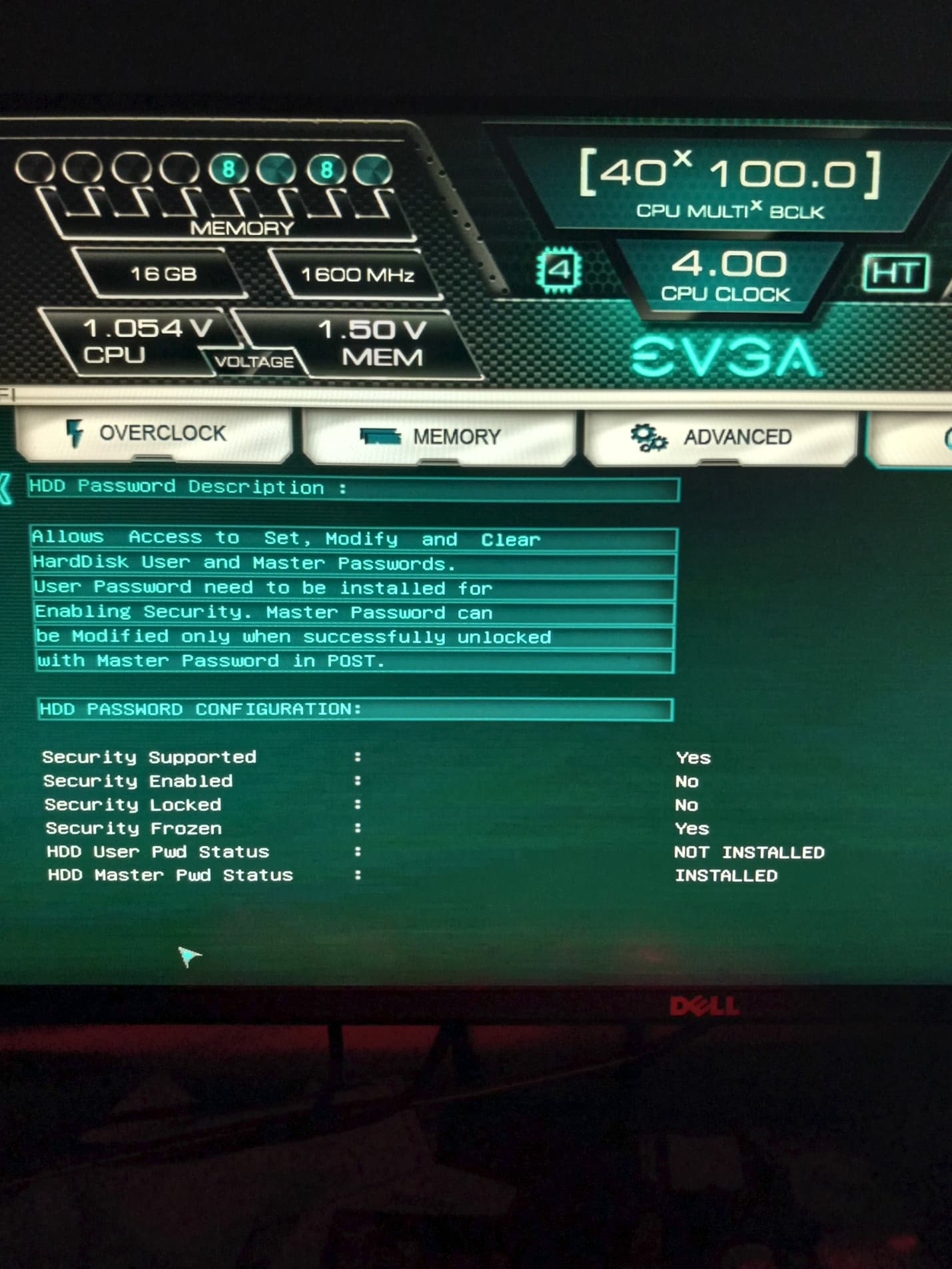
In some image of the BIOS, there was a list of the drives (Samsung, Adata). Enter these options and look for Security or Boot related settings.
When investigating BIOS pages, look for anything Security related. USB, drives…
Try CSM Enabled + UEFI only, and CSM Disabled. In both cases, after setting these options, go to the Boot page and see for changed available options. At least you would understand/confirm how the firmware controls the Boot options. Again, Security related options have something to do with the issue.
In any case that you try booting
Use a dedicated USB drive with EnOS flashed to it, not Ventoy.
Always use the Quick Boot Menu for selecting/checking available options
When going into black screen(s), check and note down
Is UEFI/BIOS on both monitors or one? Which one?
No signal on one or both monitors? Which one?
Drive activity LED is flashing or not?
Do you get a difference when trying Ctrl+Alt+F3 (other TTY)?
I meant if you have a live USB of eos then when booting press e when you see the menu and add nomodeset to the command line. Then continue to boot i think by pressing F10 or enter … not sure which works. See if it boots to the live ISO installer screen.
Which is why I didn’t include them. Everything under the Security section is just related to setting a password on either accessing BIOS or the drives themselves.
In any case that you try booting
Use a dedicated USB drive with EnOS flashed to it, not Ventoy.
Always use the Quick Boot Menu for selecting/checking available options
When going into black screen(s), check and note down
Is UEFI/BIOS on both monitors or one? Which one?
No signal on one or both monitors? Which one?
Drive activity LED is flashing or not?
Do you get a difference when trying Ctrl+Alt+F3 (other TTY)?
As stated previously in this thread, I’ve been using the same drive with EOS flashed onto it.
Using the Quick Boot Menu has the same results, unfortunately. I didn’t think to try selecting the drive from there yet as I’ve set the system to attempt to boot from the USB first anyway.
the UEFI displays only on my primary monitor. The other gets no signal so displays nothing.
My secondary monitor gets no signal from the moment the system is powered on up until Windows has loaded (if my EOS drive is unplugged). At no point does the secondary monitor receive signal when messing around in BIOS settings or attempting to get a live session on the EOS drive.
There is, unfortunately, no activity light on the USB drive I’m using.
I’m not familiar with TTY but trying to use Ctrl+Alt+F3 after getting to the ‘blank screen’ after the motherboard splash screen didn’t appear to do anything.
I appreciate the help, though! Sorry for not including some of those details like Security being only useful for setting passwords on things in my original post. I thought it was already plenty long so didn’t want to muddle it up with things I figured wouldn’t be necessary .
I would if I could! But, unfortunately, that’s kind of the crux of the problem. I can’t get to those boot menu screens (or, at least, can’t see them ). After seeing my motherboard’s splash screen display, if I have my EOS flashed drive plugged in, my system then proceeds to displaying just a blank, black screen on my primary monitor (but still on!) and my secondary remains at no signal the entire time.
Not yet, though I’ve considered it. I figured the one I’m using appears to be functioning as, when I was using Rufus originally, I did 2 bad block checks on it and both passed. Windows also didn’t report anything wrong with it when performing an error check on it. I do have some other drives lying around in a box in the basement, though, they’re a pain to find .
The overall assumption on the issue, after all feedback and reports, is IMO not related to Graphics drivers on Linux, rather Windows and/or BIOS is blocking the external drive OS to boot properly.
Several possible reasons.
I would try other Linux distros’ installers, like Debian-like, Fedora and pure Archlinux. At least for getting more context/info.
It generally looks like SecureBoot blockage, or a similar way vendor’s firmware (BIOS) has to protect PC owners from alien attackers (like a Linux OS).
Alright, I was able to retrieve my 2 identical other drives from the basement. I first checked for bad sectors and did error checking and everything came back good. I then loaded each of them with EOS, one using Etcher and the other using Rufus (the spice of life and whatnot). I double-checked my BIOS settings to make sure everything is as it should be (boot in UEFI, CSM disabled, USB shows up as a bootable media) and restarted. In each event, they resulted in the same thing as before.
I could try to get Garuda working again first since that was at least able to get to the boot selector menu and I could try messing with nomodeset on that and see if I can get a live session. When I was using Ventoy, I did also have an ISO of pure Arch and Nobara (fedora-based) on there but each of those had the same result.
Yeah, I really am unsure what more I can do in BIOS to try to configure it to be friendly for EOS. There really isn’t anything else I’ve seen that jumped out as potentially being useful for that. I was able to find my mobo’s BIOS manual after some digging if you’re interested:
(BIOS) has to protect PC owners from alien attackers (like a Linux OS)
Oh yeah, we wouldn’t want to be installing any trojans like Linux on a system .
UEFI Boot Drive BBS priorities: UEFI (FAT) Your USB drive
Then go to BOOT page and confirm the Boot Override list has your UEFI (FAT) USB drive as first.
If not, select it from the list and press Enter (IIRC it should boot it then).
I assume you have not modified Overclocking features.
Edit:
Also, during boot-up, check MB LED for POST Codes, as described in Support manual Part-2 .
‘Boot mode select’ to UEFI as I think that’s what you meant by “Boot Option filter” except that there is only the option to have it on either UEFI or Legacy
‘Launch Storage OpROM policy’ to UEFI
‘UEFI Hard Desk Drive BBS Priorities’ kept it on Windows Boot Manager (only other option is disabled)
‘UEFI USB Key Drive BBS Priorities’ kept it on its UEFI setting listing my USB drive (again, other option is disabled)
There isn’t an option for “UEFI Boot Drive BBS priorities”
Then made sure my USB was still listed as first launch option still. There are currently no overclocks set on the system and the SATA Mode Selection is still set to AHCI.
Once I restarted, I was able to see the EOS boot selector menu! I then tried each option there (Default, with Nvidia, and nomodeset fallback) but each one briefly flashed a screen which read:
EFI stub: ERROR: exit_boot() failed!
EFI stub: ERROR: efi_stub_entry() failed!
Failed to execute EndeaourOS x86_64 (whatever launch option I used, but the following is the nomodeset example): Fallback (nomodeset) (\arch\boot\x86_66\vmlinuz-linux): Buffer too small
It holds this for about a second or two before then booting Windows instead.
EFI_BUFFER_TOO_SMALL
The buffer is not large enough to hold the requested data. The required buffer size is returned in the appropriate parameter when this error occurs.
Use a USB drive for pure Archlinux installer. If you can’t boot a clean Archlinux installer drive, then check fo any options in BIOS about memory, or buffer (terminology may vary). If there is a setting to assign more memory to BIOS boot, instead of somewhere else, this could be equivalent to the buffer term. Don’t start with this. First check if you can boot Archlinux, or even a debian/fedora distro.
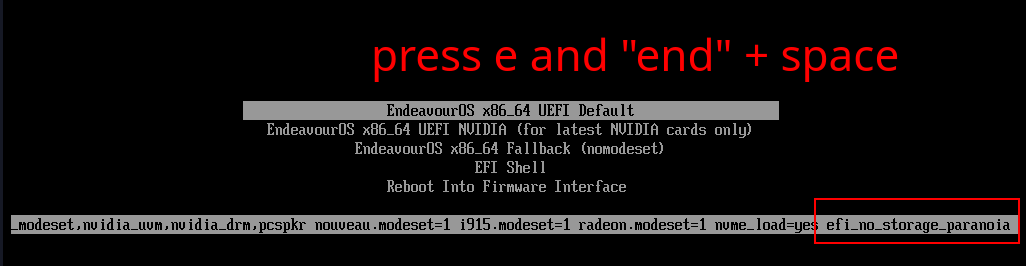
Unless you can use paranoia.
Can you add a kernel parameter at the EnOS menu entries?
If you know how to add kernel parameter on a systemd-boot entry, add the bellow (for testing)
indeed same as with archiso only that we do not switch to grub and still using systemd-boot for efi and syslinux for Bios systems.
ISO is still archiso only with some modifications
I was able to edit the kernel parameters as you and joekamprad described but it went to the same “buffer too small” screen.
I tried looking through my memory options in BIOS but everything just looked to be about adjusting the timings on the DIMMs so left them as is. Potentially worth noting, though, is that inside of Advanced>USB configuration, the option to toggle Legacy USB Support seems to insist on being toggled on. Each time I’ve restarted and checked there, it is on despite experimenting with toggling it off (and yes, I’m saving settings each time before resetting).
I also loaded an ISO of arch on one of the drives and tossed that in the back. This, too, was able to get to that boot selector menu. My computer’s POST speaker starting beeping somewhat randomly including most times if I arrowed up or down in menu. I attempted to do the regular boot option which gave the buffer too small error. Then tried the default with nomodeset which gave the same.
Interestingly, though, if I run the default with that paranoia setting, Arch does actually boot!

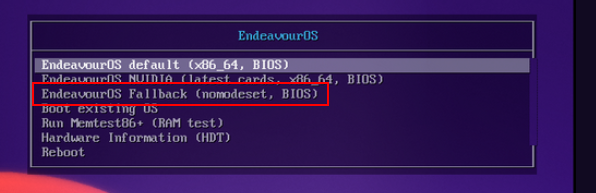
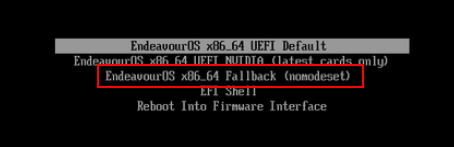

 .
. ). After seeing my motherboard’s splash screen display, if I have my EOS flashed drive plugged in, my system then proceeds to displaying just a blank, black screen on my primary monitor (but still on!) and my secondary remains at no signal the entire time.
 .
.
 .
.