AwesomeWM fresh installation

Hello there,

I am a newbie and I love AwesomeWM. However, I am facing a problem.

I am doing a fresh EndeavourOS install after living with it for the last 6 months. But, after following the instructions given at the AwesomeWM community edition, I still couldn’t boot into the DM and neither into the

AwesomeWM. I guess bash awesome-install didn’t worked idk why.

Is there any way I can do a fresh installation of the AwesomeWM Community Edition? I like to keep my workstation minimal and free of unnecessary stuff.

Welcome to the EndeavourOS forum. :handshake: I hope you enjoy your time here.

There isn’t a Endeavouros Community Edition. Here are the Community Editions

I have never used AwesomeWM so I am not much help. However there a few members who do use AwesomeWM and maybe they can help.

Also, maybe you can pick up some help here?

Pudge

1 Like

Arco Linux had a config for AwesomeWM, looks like it’s still exists in the Github even though the project has retired. You could use that as a start.

https://github.com/arcolinux/arcolinux-awesome/blob/master/etc/skel/.config/awesome

Otherwise you can just search for “AwesomeWM config” or “AwesomeWM dotfiles” with your favorite search engine and you will come across plenty of configs you can use as a start.

1 Like

I was searching through github, but all of them are pre-configured to the creators liking. But I wanted a fresh one. However, thanks for letting me know about Arco Linux AwesomeWM config. Didn’t knew about that.

There is one community edition actually,

However, it’s awesome-install command doesn’t seem to work from my end. Even though the script has a DM, my system couldn’t find it.

I would just look at the two scripts.

The latter one you already looked at but seems the setup one does something you might need too.

It seems most of the files you need are in this location for ~/.config

And in the main directory it lists some files and directoreis that are mentioned in those scripts:
.Xresources, .gtkrc-2.0 and .nanorc.

So I would play around by copying the ones in the .config to your ~/.config and then those other files in your homedir. That way you won’t have anything overwritten if you run those scripts manually.

I have been tinkering with Awesome on a RPi 5, my results so far.
The awesome-install script failed because the command:

sudo pacman -Syu --needed --noconfirm - < calamares/awesome.txt

looks in calamares/awesome.txt for a list of packages to install. awesome.txt contains four packages that are no longer available in the EnOS repo or the Archlinux repo.

  1. arc-x-icons-theme – AUR only, orphaned, last update 2018-06-19
  2. eos-skel-ce-awesome – all of the eos-skel-xxx packages no longer exist
  3. gtk-engine-murrine – AUR only, last updated 2025-11-18
  4. lxapperance-gtk3 – has been renamed to lxapperance

I installed the latest RPi 5 image and when asked for Desktop, i used no desktop.
After booting, logged in as my_user_name.
used the Git Clone command.
cd awesome/calamares

next I used vi (or nano) to edit the awesome.txt file as follows
remove the first three packages listed above.
renamed lxapperance-gtk3 line to lxapperance

cd .. (go back one directory)
sudo bash awesome-stall

This ran to completion with no stoppages.

reboot

Came up to a TTY terminal and didn’t start a greeter. not sure what command to use for starting a awesome session. startx did not work.

I tried to use yay to install arc-x-icons-theme and gtk-engine-murrine, to see if that brought up a Graphical greeter. Neither one compiled properly

Next I will dig up a spare x86_64 computer and see what I get.

Pudge

1 Like

if ~/.xinitrc contains
exec awesome
then startx will start it.
or maybe a more flexible one

If OP can afford XFCE4 alongside then lightdm will show session awesome
or start lightdm service with systemctl enable lightdm --now or so

2 Likes

Which basically means that the EOS community edition of AwesomeWM, needs to be updated?

Yes, that is correct.

Right now nobody in the EnOS community has taken on that task. The x86_64 developers and the ARM developers are busy.

I tried to do an install on a x86_64 but archlinux.org was down again.
I hope to get to that in a day or two.

Pudge

Okay, so I have been able to get things running somehow and also I have found some faults with the scripts as well alongside some problems(post-installation).

First, of all, Pudge, you weren’t able to get any display manager because in the actual EOS CE AwesomeWM, there are two awesome.txt files. One inside /awesome/calamares/awesome.txt and the other one in /awesome/awesome.txt. While running sudo bash awesome-install the script only cares about the /calamares/awesome.txt, which frankly doesn’t have any DM.

So, I had Lemurs installed, which works pretty good right out of the box, and it can redirect to a TTY in case I messed up anything with the scripts. Recently, I had to do a fresh installation again, just because I wasn’t able to run sddm somehow.

I am attaching the /awesome/calamares/awesome.txt here in case someone wants to give EOS_CE_AwesomeWM a try.

acpi
arandr
arc-gtk-theme-eos
eos-qogir-icons
archlinux-xdg-menu
autoconf
automake
awesome
awesome-terminal-fonts
bison
capitaine-cursors
celluloid
dex
dunst
endeavouros-xfce4-terminal-colors
file-roller
galculator
gst-plugins-ugly
gthumb
gvfs
gvfs-afc
gvfs-gphoto2
gvfs-mtp
gvfs-nfs
gvfs-smb
jq
lemurs
lxappearance
make
network-manager-applet
numlockx
picom
patch
pkgconf
polkit-gnome
power-profiles-daemon
rofi
scrot
sysstat
thunar
thunar-archive-plugin
thunar-volman
tumbler
xdg-user-dirs-gtk
xed
xfce4-terminal
xfce4-power-manager
xfce4-screenshooter
xorg-xbacklight

Also, the awesome-install doesn’t work properly.

mkdir -p ~/.config
cp -R .config/* ~/.config/
cp .gtkrc-2.0 ~/.gtkrc-2.0
cp .nanorc ~/.nanorc
cp .Xresources ~/.Xresources
sudo pacman -Syu --needed --noconfirm - < calamares/awesome.txt
dbus-launch dconf load / < xed.dconf

It doesn’t do what it is supposed to do here. Had to manully copy and paste things to the correct folder.

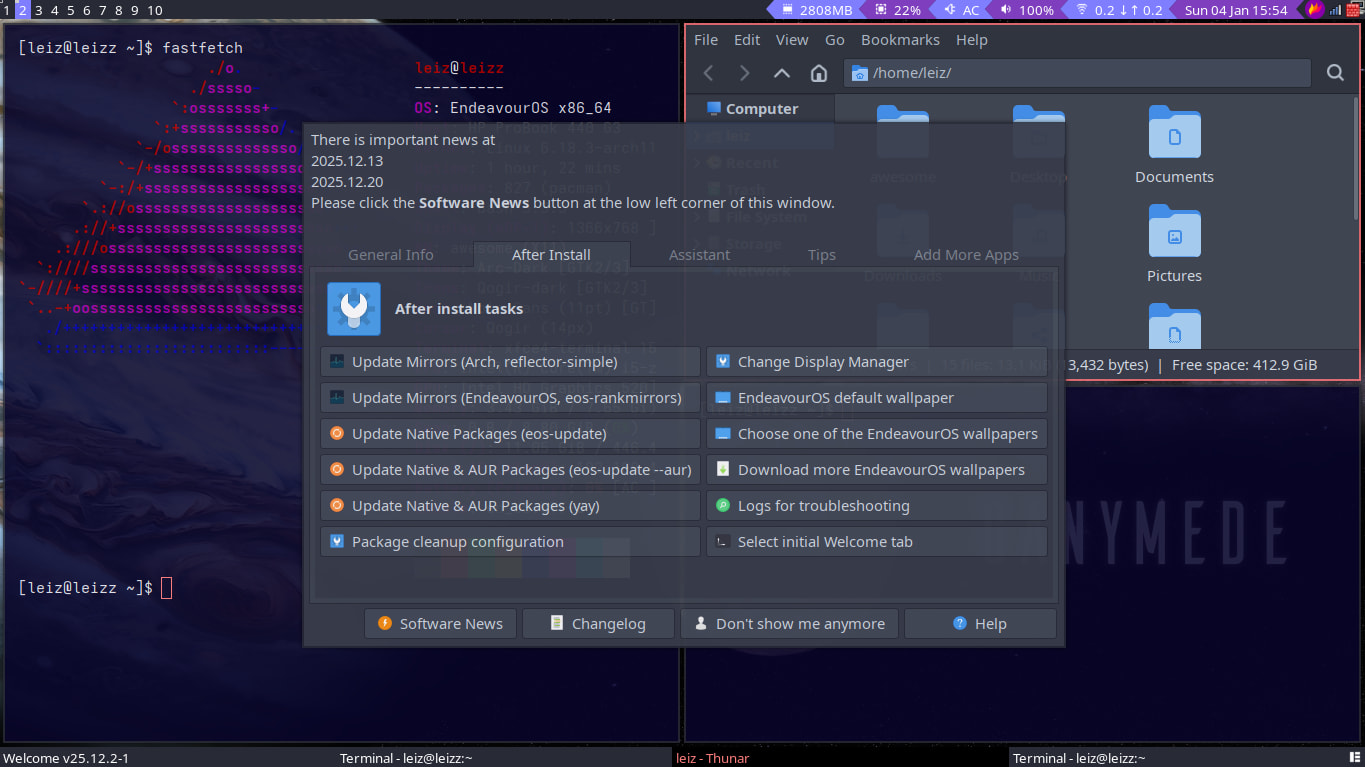
Here is a screenshot.

I am tinkering with this now, as my initial plan was to get more familiar with AwesomeWM with this CE.

However, you guys can fix the scripts and stitch everything together much faster than I can, as I am still a noob, but still i’ll update here if I can make any significant contributions.

Also, some issues that I found after tinkering with the installation,

  1. Bluetooth doesn’t work, idk why even after bluez has been properly installed.
  2. Reducing brightness is a problem. Xbacklight doesn’t seem to work(even from the terminal) and AWM wibar also doesn’t have any brightness control or any other hotkeys.
  3. Default keybindings hinders some problems and messes with the firefox browser.

The Community Editions are there but no longer maintained. @joekamprad is the one who mainly keeps them going when he has time (He doesn’t).

If you or anyone would like to volunteer to maintain then please reach out I’m sure the assistance would be appreciated.

You did enable it correct? what is the error you get?

as far as the last two errors I have no clue maybe there needs to be more done in the cleaning process of the WM’s install.

2 Likes

I would love to contribute, but sadly I don’t have the skills(yet). But surely I am going to continue to learn.

And thanks for the hint about bluetooth, I was suprised to see that I had to enable bluetooth by myself, as I come from DE(X-freaking-cool-env) and it is my first time with a WM. So I fixed it after running sudo systemctl enable bluetooth.

We don’t ship Bluetooth Enabled by Default this is a Feature :wink:

1 Like