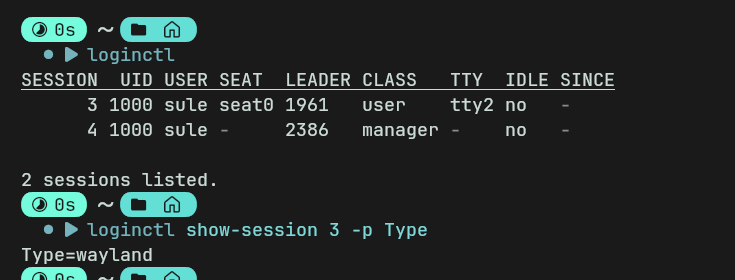
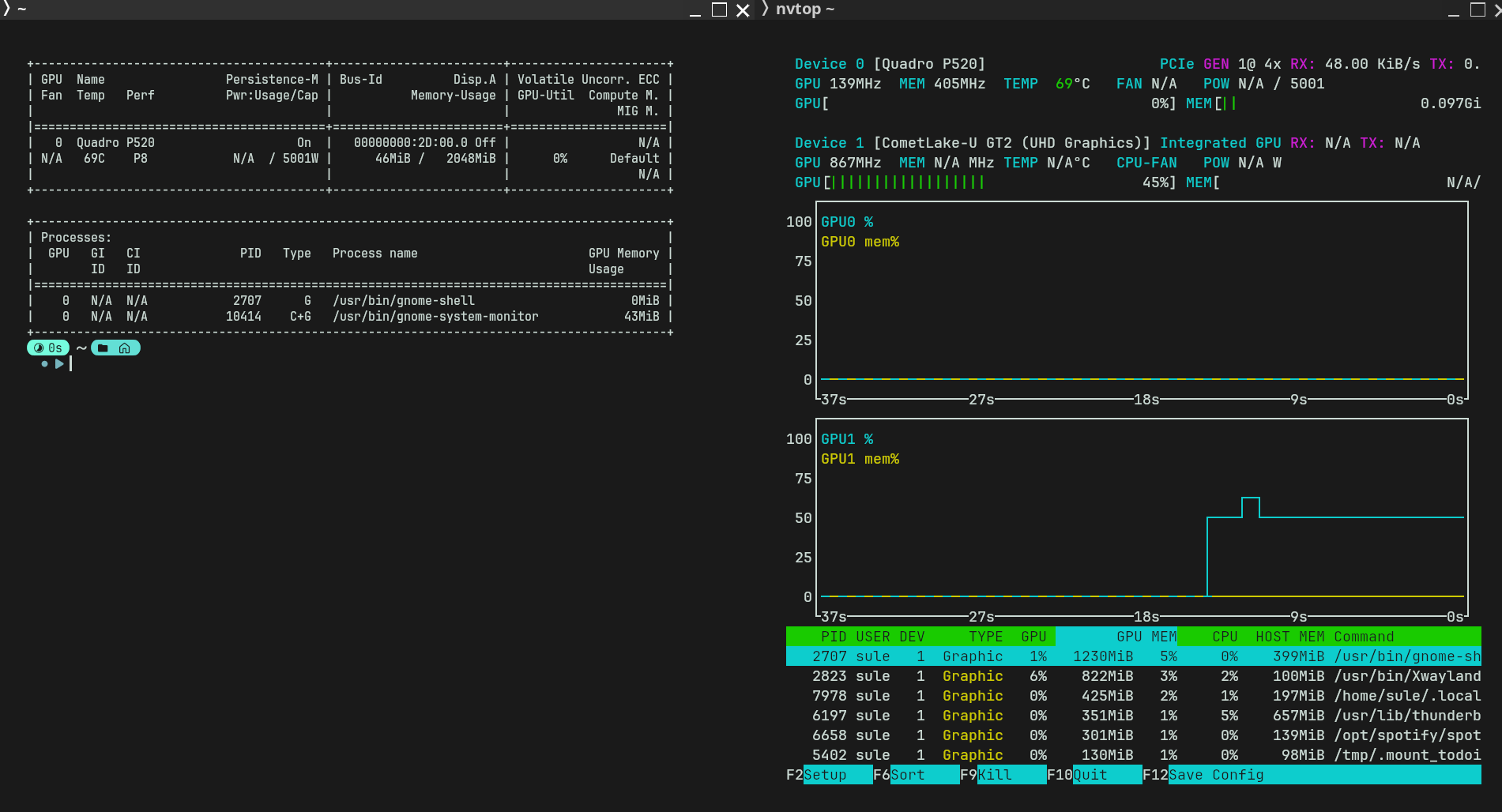
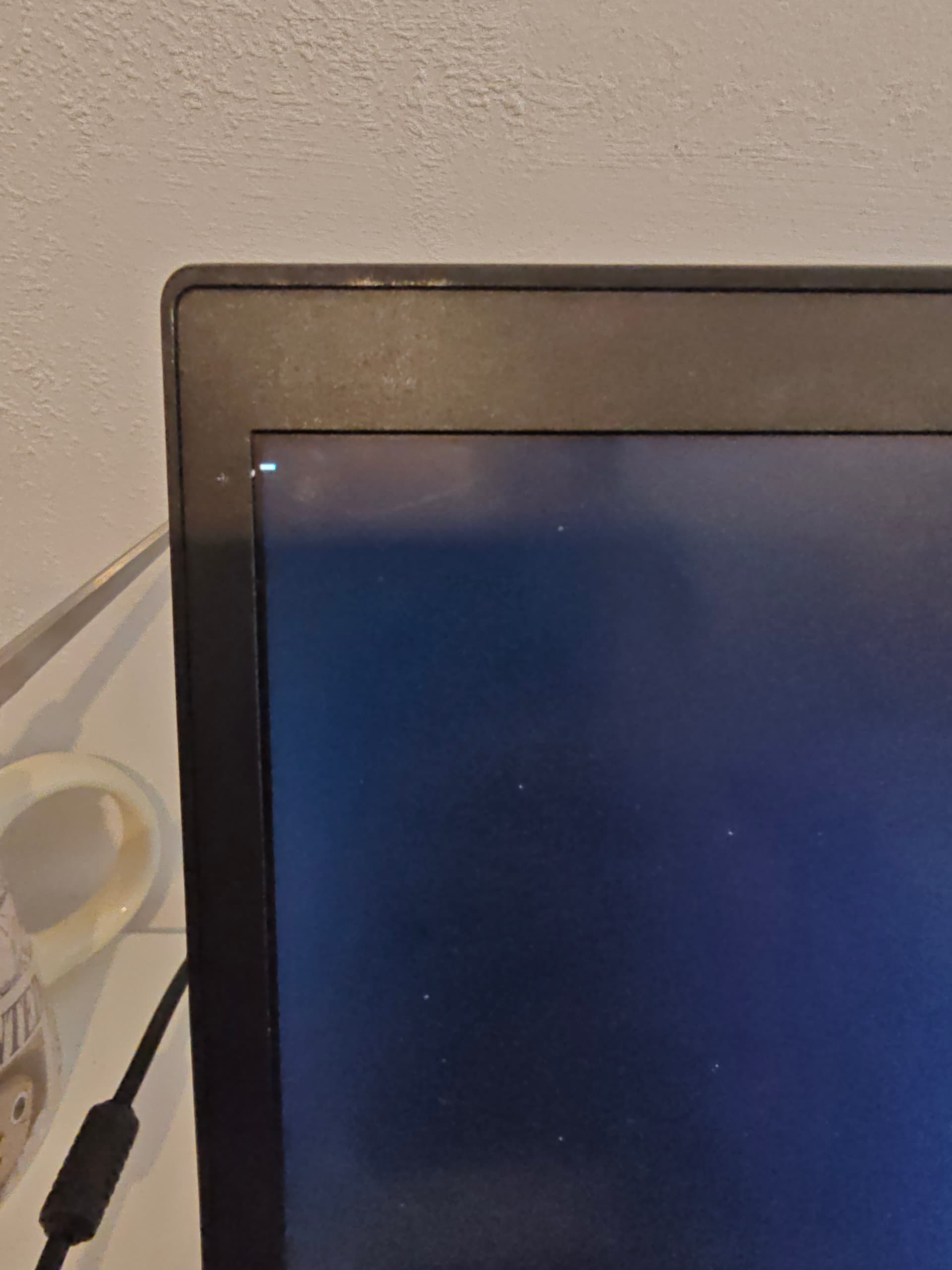
Hi guys, I’m currently on Endeavour OS with Gnome.. and my PC seems to lag quite a bit when running some apps. I usually have Spotify, Obsidian, Todoist and Brave open together, and I can see my laptop struggling even when its not maxing on CPU usage or RAM usage. I have 24GB ram and a Thinkpad P14s Gen1, below are my specs.
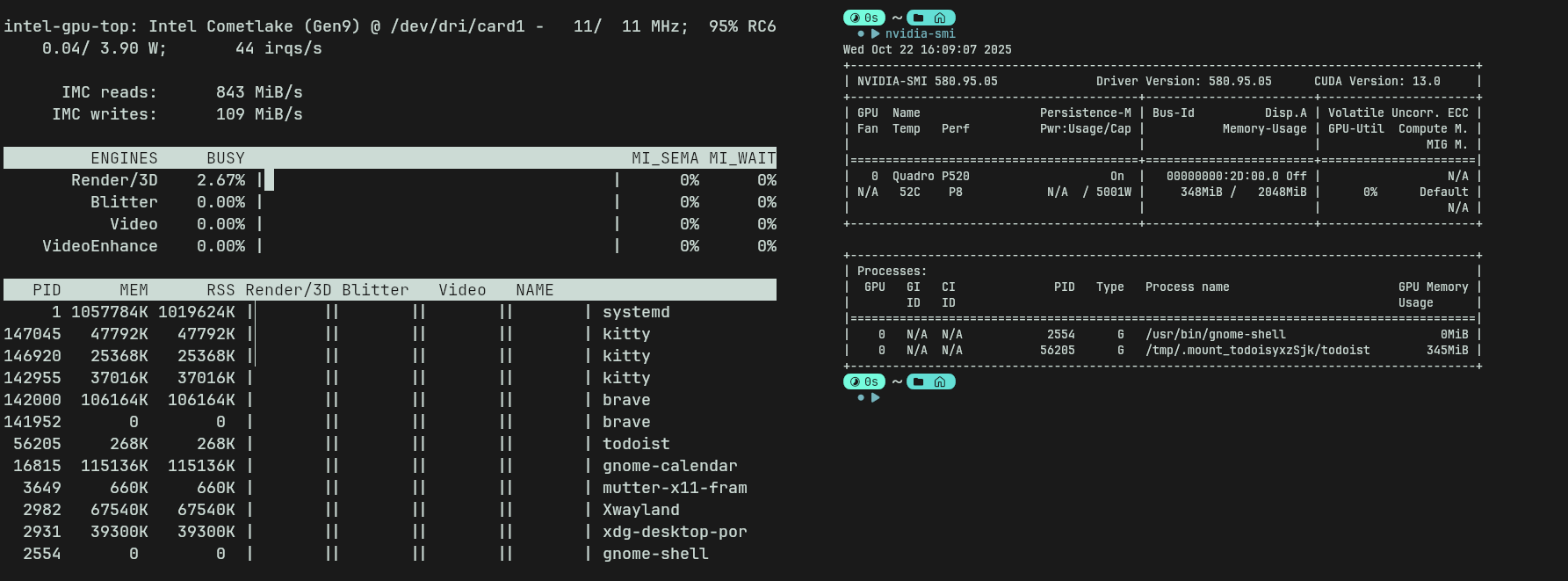
I initially thought its a Hybrid GPU switching issue, where all load is getting on either one of the GPUs, but after running nvidia-smi and intel_gpu_top, it seems like the load is getting balanced between both the gpu
I think my PC should be decent enough to handle productivity usage with 24GB of RAM.
inxi -Fxxc0z
System:
Kernel: 6.17.3-arch2-1 arch: x86_64 bits: 64 compiler: gcc v: 15.2.1
Desktop: GNOME v: 49.1 tk: GTK v: 3.24.51 wm: gnome-shell dm: GDM
Distro: EndeavourOS base: Arch Linux
Machine:
Type: Laptop System: LENOVO product: 20S5S16Y00 v: ThinkPad P14s Gen 1
serial: Chassis: type: 10 serial:
Mobo: LENOVO model: 20S5S16Y00 v: SDK0J40697 WIN
serial: part-nu: LENOVO_MT_20S5_BU_Think_FM_ThinkPad
P14s Gen 1 UEFI: LENOVO v: N2XET42W (1.32 ) date: 06/12/2024
Battery:
ID-1: BAT0 charge: 33.9 Wh (78.4%) condition: 43.2/51 Wh (84.6%)
volts: 12.18 min: 11.52 model: Celxpert 5B10W13954 serial:
charging: status: not charging control: start: 75% end: 80% cycles: 227
Device-1: hidpp_battery_5 model: Logitech Wireless Mouse MX Master 2S
serial: charge: 55% (should be ignored) status: discharging
CPU:
Info: quad core model: Intel Core i7-10510U bits: 64 type: MT MCP
arch: Comet/Whiskey Lake note: check rev: C cache: L1: 256 KiB L2: 1024 KiB
L3: 8 MiB
Speed (MHz): avg: 400 min/max: 400/4900 cores: 1: 400 2: 400 3: 400 4: 400
5: 400 6: 400 7: 400 8: 400 bogomips: 36799
Flags-basic: avx avx2 ht lm nx pae sse sse2 sse3 sse4_1 sse4_2 ssse3 vmx
Graphics:
Device-1: Intel CometLake-U GT2 [UHD Graphics] vendor: Lenovo driver: i915
v: kernel arch: Gen-9.5 ports: active: eDP-1 empty: DP-1, DP-2, HDMI-A-1,
HDMI-A-2 bus-ID: 00:02.0 chip-ID: 8086:9b41
Device-2: NVIDIA GP108GLM [Quadro P520] vendor: Lenovo driver: nvidia
v: 580.95.05 arch: Pascal pcie: speed: 2.5 GT/s lanes: 4 bus-ID: 2d:00.0
chip-ID: 10de:1d34
Device-3: IMC Networks Integrated Camera driver: uvcvideo type: USB
rev: 2.0 speed: 480 Mb/s lanes: 1 bus-ID: 1-8:4 chip-ID: 13d3:5406
Display: wayland server: X.org v: 1.21.1.18 with: Xwayland v: 24.1.8
compositor: gnome-shell driver: gpu: i915 display-ID: 0
Monitor-1: eDP-1 model: AU Optronics 0x323d res: 1920x1080 dpi: 158
diag: 355mm (14")
API: EGL v: 1.5 platforms: device: 0 drv: nvidia device: 2 drv: iris
device: 3 drv: swrast gbm: drv: nvidia surfaceless: drv: nvidia wayland:
drv: iris x11: drv: iris inactive: device-1
API: OpenGL v: 4.6.0 compat-v: 4.5 vendor: nvidia mesa v: 580.95.05
glx-v: 1.4 direct-render: yes renderer: Quadro P520/PCIe/SSE2
display-ID: :0.0
Info: Tools: api: eglinfo,glxinfo de: kscreen-doctor gpu: gputop,
intel_gpu_top, lsgpu, nvidia-smi x11: xdpyinfo, xprop, xrandr
Audio:
Device-1: Intel Comet Lake PCH-LP cAVS vendor: Lenovo
driver: sof-audio-pci-intel-cnl bus-ID: 00:1f.3 chip-ID: 8086:02c8
API: ALSA v: k6.17.3-arch2-1 status: kernel-api
Server-1: sndiod v: N/A status: off
Server-2: PipeWire v: 1.4.9 status: active with: 1: pipewire-pulse
status: active 2: wireplumber status: active 3: pipewire-alsa type: plugin
4: pw-jack type: plugin
Network:
Device-1: Intel Comet Lake PCH-LP CNVi WiFi driver: iwlwifi v: kernel
bus-ID: 00:14.3 chip-ID: 8086:02f0
IF: wlan0 state: up mac:
Device-2: Intel Ethernet I219-V vendor: Lenovo driver: e1000e v: kernel
port: N/A bus-ID: 00:1f.6 chip-ID: 8086:0d4f
IF: enp0s31f6 state: down mac:
IF-ID-1: docker0 state: down mac:
IF-ID-2: wwan0 state: down mac: N/A
Bluetooth:
Device-1: Intel AX201 Bluetooth driver: btusb v: 0.8 type: USB rev: 2.0
speed: 12 Mb/s lanes: 1 bus-ID: 1-10:6 chip-ID: 8087:0026
Report: btmgmt ID: hci0 rfk-id: 2 state: up address: bt-v: 5.2
lmp-v: 11
Drives:
Local Storage: total: 476.94 GiB used: 125.37 GiB (26.3%)
ID-1: /dev/nvme0n1 vendor: SK Hynix model: PC300 HFS512GD9MND-5510A
size: 476.94 GiB speed: 31.6 Gb/s lanes: 4 serial: temp: 45.9 C
Partition:
ID-1: / size: 450.84 GiB used: 124.95 GiB (27.7%) fs: ext4
dev: /dev/nvme0n1p2
Swap:
ID-1: swap-1 type: partition size: 16.82 GiB used: 0 KiB (0.0%) priority: -2
dev: /dev/nvme0n1p3
Sensors:
System Temperatures: cpu: 73.0 C mobo: N/A
Fan Speeds (rpm): N/A
Info:
Memory: total: 24 GiB note: est. available: 23.13 GiB used: 5.43 GiB (23.5%)
Processes: 332 Power: uptime: 1d 4h 32m wakeups: 3 Init: systemd v: 258
default: graphical
Packages: pm: pacman pkgs: 1575 Compilers: clang: 21.1.4 gcc: 15.2.1
Shell: fish v: 4.1.2 running-in: kitty inxi: 3.3.39